Use the Parts / BOM tab to define the standard parts, consumables, and kits that belong to this facility. A location-level BOM ensures planners and technicians see the right materials on every work order, speeds picking and reservations, and streamlines reordering. Build it once here and reuse it across maintenance tasks for this site.
Here is a reference video:
Follow the steps below to add items:
1. Click on Parts/BOM tab on the Facility Details page.
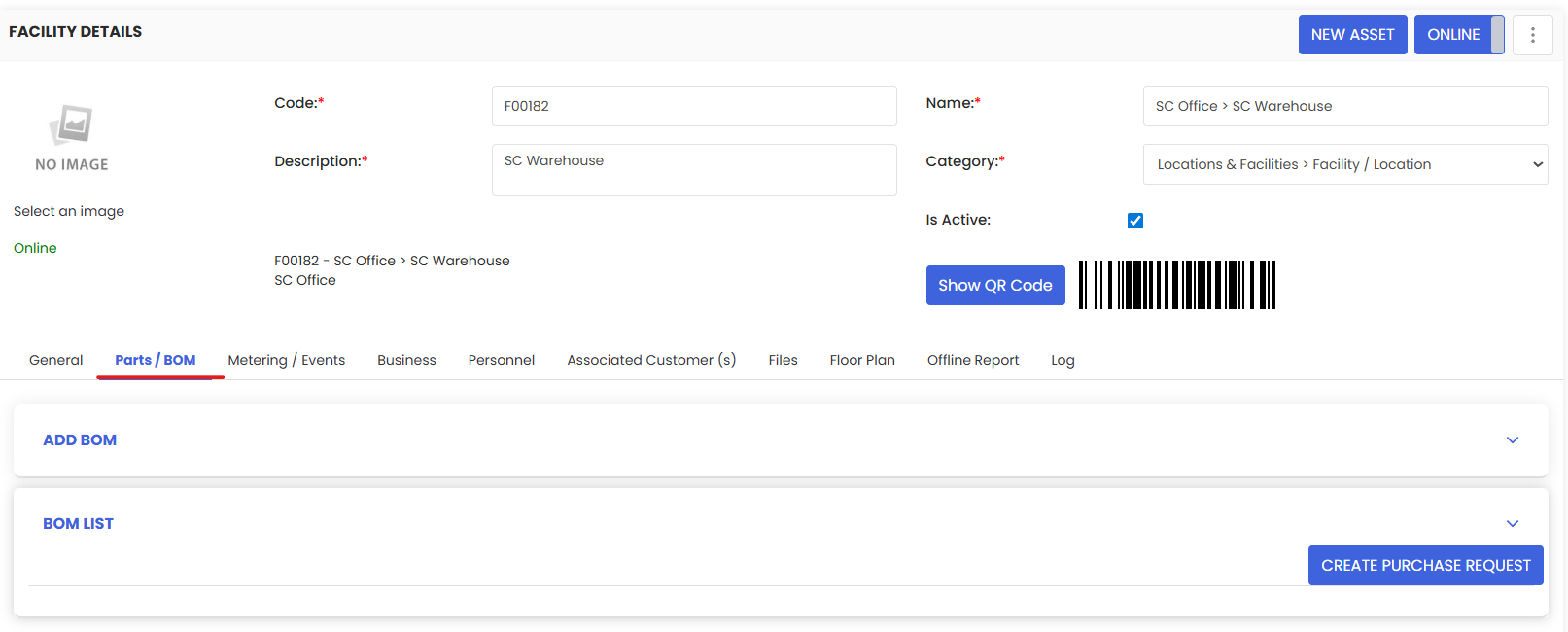
2. Expand “Add BOM.” and choose a mode:
Individual: add items one by one.
From BOM Group: pull a predefined group of items.

3. If using Individual:
a) Select Type (e.g., Equipment/Part/Consumable).
b) Search and pick the Item.
c) Enter the Qty (typical quantity to keep/use for this location).
d) Click Save.
e) Repeat for additional items.
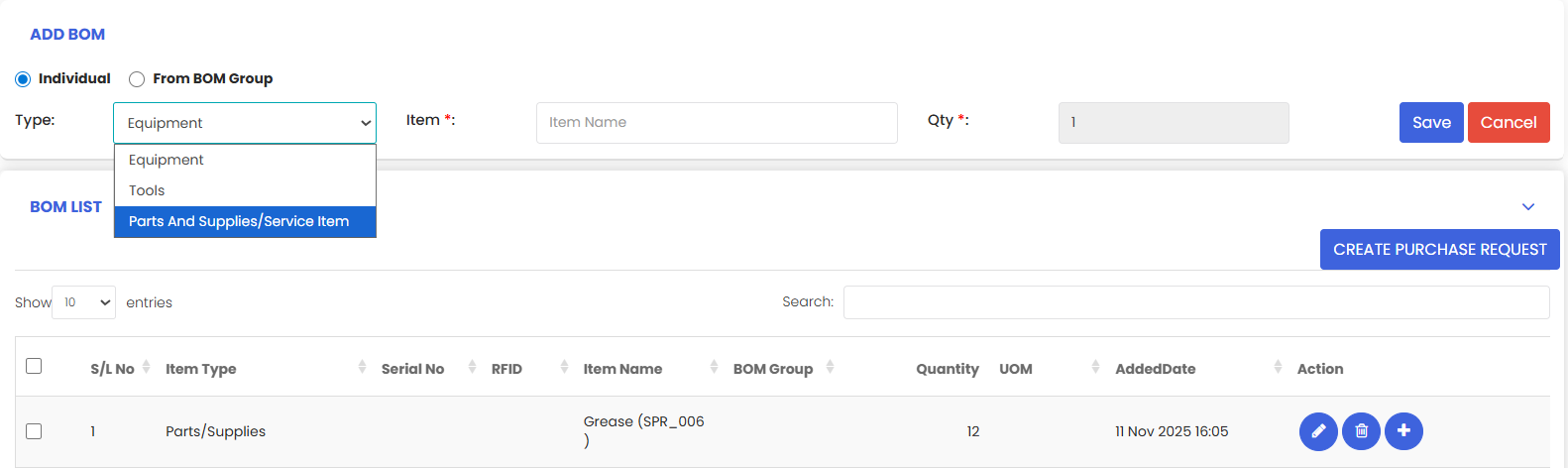
4. If using From BOM Group: select the BOM Group and confirm to add the items.
5. Review the BOM List below—verify Item Name, Quantity, UOM. Use the Action column to edit or remove any row.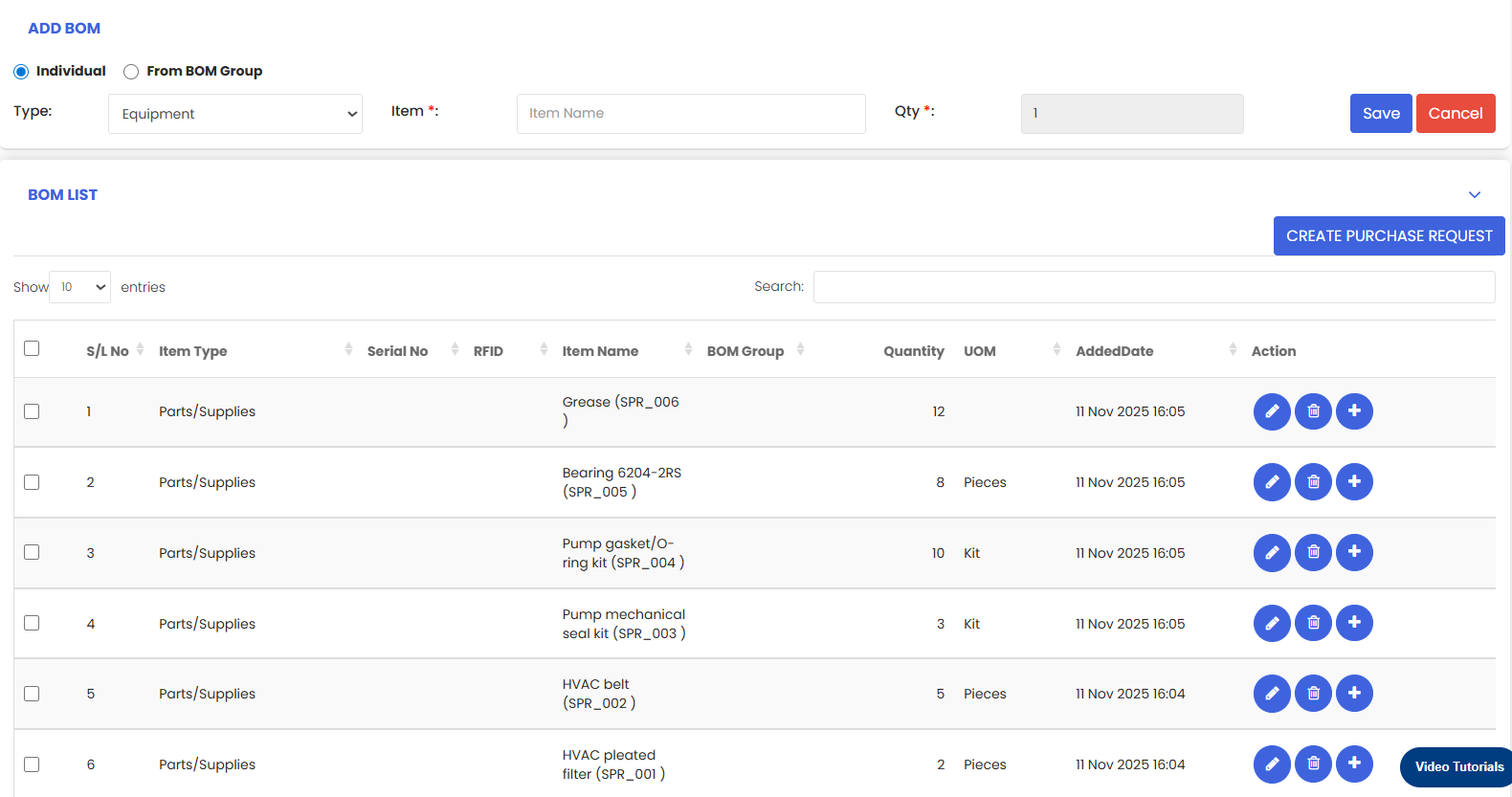
6. (Optional) Create a Purchase Request: Check the items to restock and click Create Purchase Request. You can also create a purchase request from the + icon present in the action column.
The location BOM is now tied to this facility and will surface on related work orders.