Configure Integration Settings with DreamzCMMS
This tutorial guides you through integrating external services within DreamzCMMS. You will learn how to browse, filter, and enable various integration options to enhance your system’s capabilities.
Overview
The Integrations section in DreamzCMMS allows users to connect external services and tools to extend the platform’s functionality. From the Integrations menu, users can browse integration categories such as Accounting, IoT Devices, and Payment Gateways, apply filters, and enable specific integrations. This guide walks through how to search and select integration categories, apply filters, enable payment gateway integrations such as Stripe and Authorize.Net, and configure diagnostic summary integrations to transform technician notes into professional summaries.
Here is a reference video:
Steps to Configure Integration Settings
Step 01 – Configure Integration Settings with DreamzCMMS
This tutorial guides you through integrating external services within DreamzCMMS. You will learn how to browse, filter, and enable various integration options to enhance your system’s capabilities.
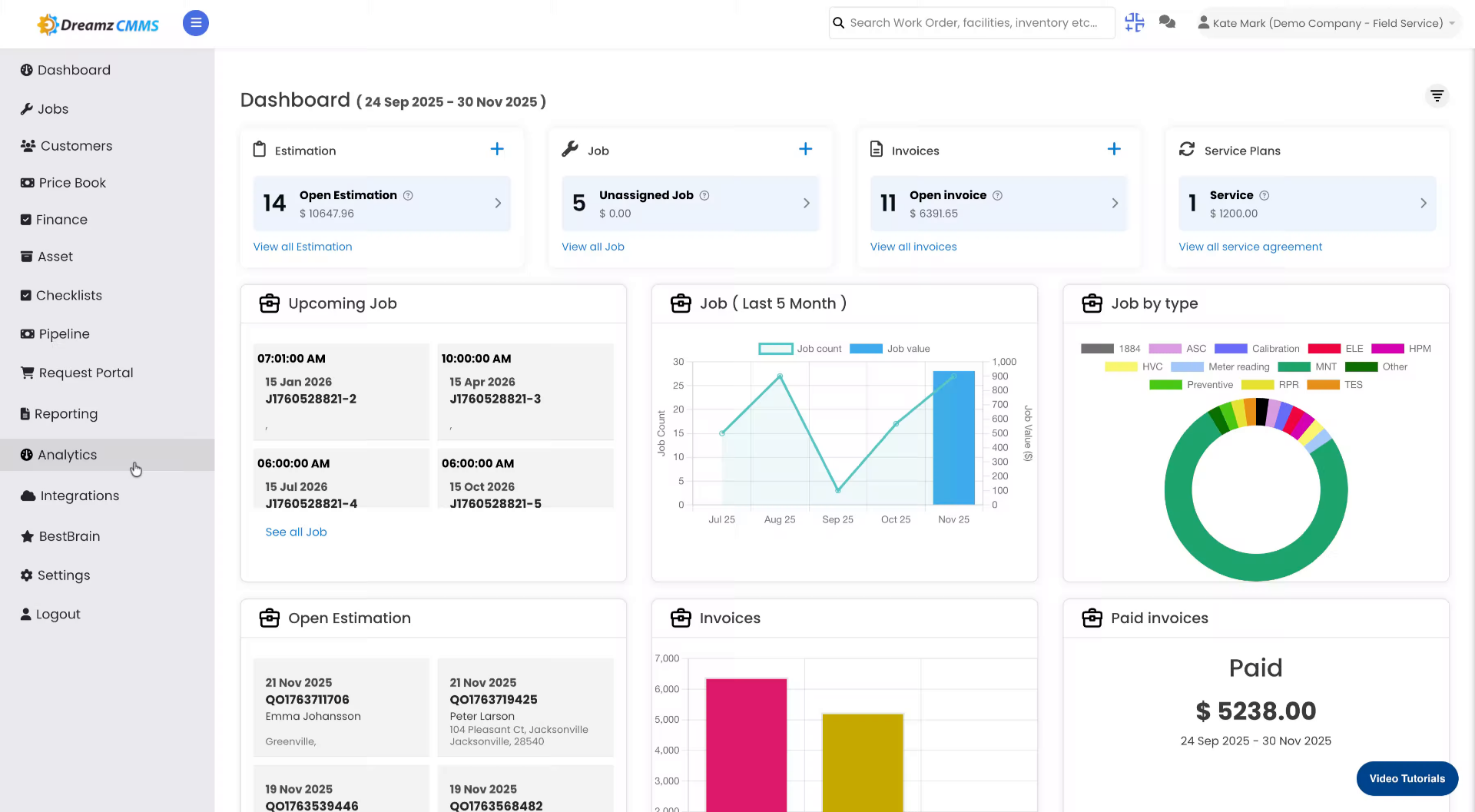
Step 02 – Access Integrations Menu
Click the Integrations menu to begin managing your system’s external connections.
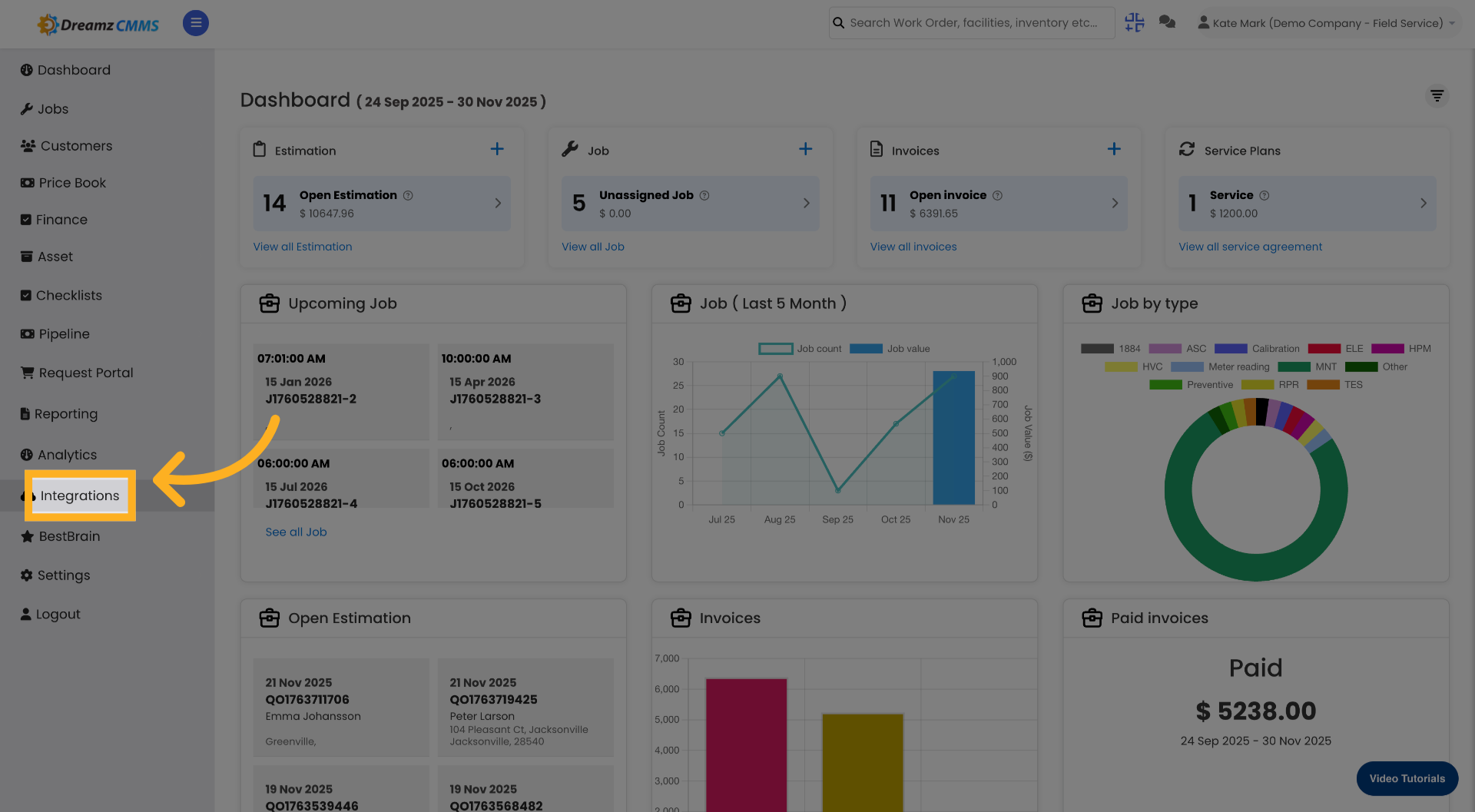
Step 03 – Open Integration Categories
Click Browse by category to view available integration types such as Accounting, IoT Devices, and Payment Gateways.
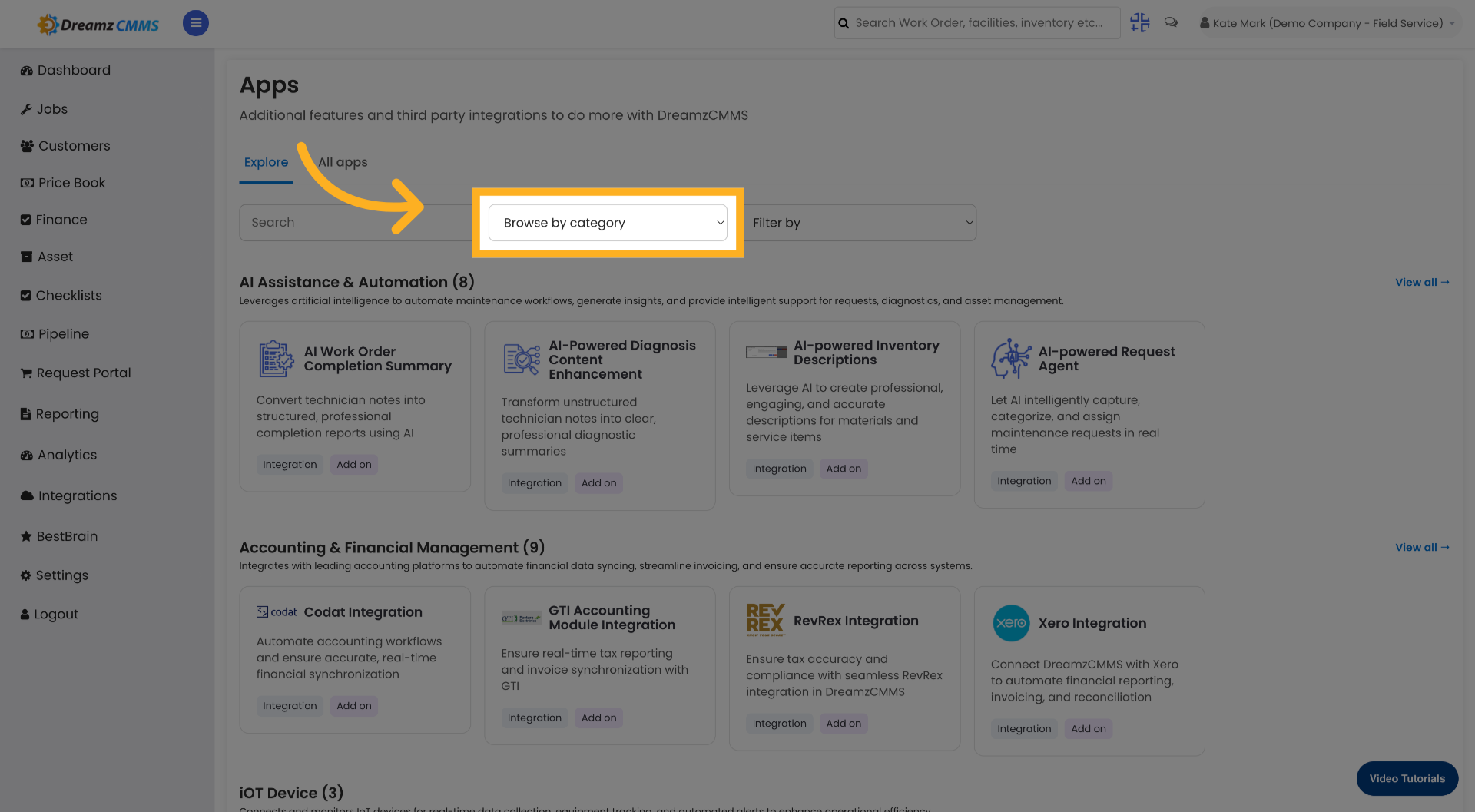
Step 04 – Enter Category Search
Fill the category search field to narrow down integration options based on your specific needs.
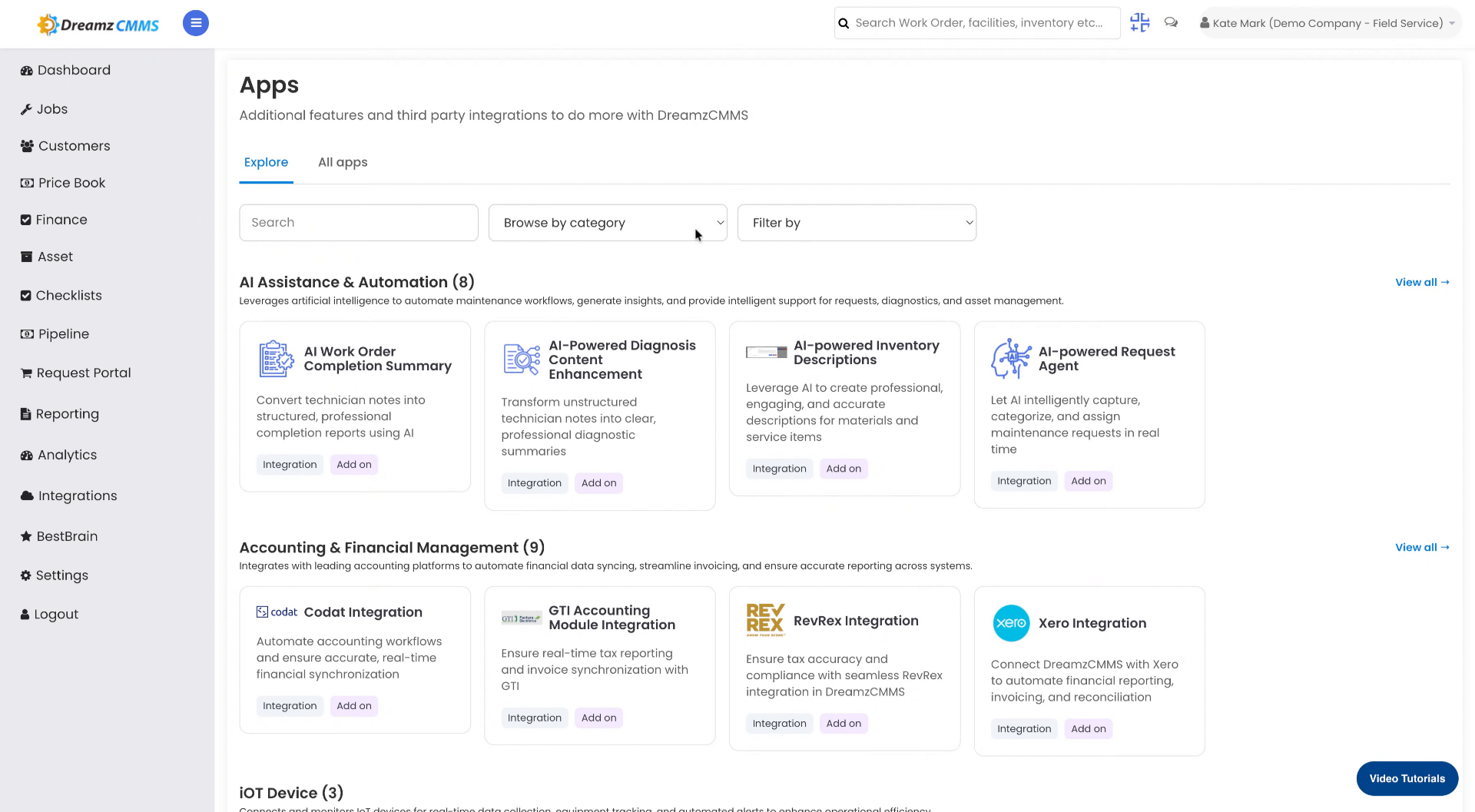
Step 05 – Select Integration Category
Click on the desired integration category to explore relevant services and tools available for that category.
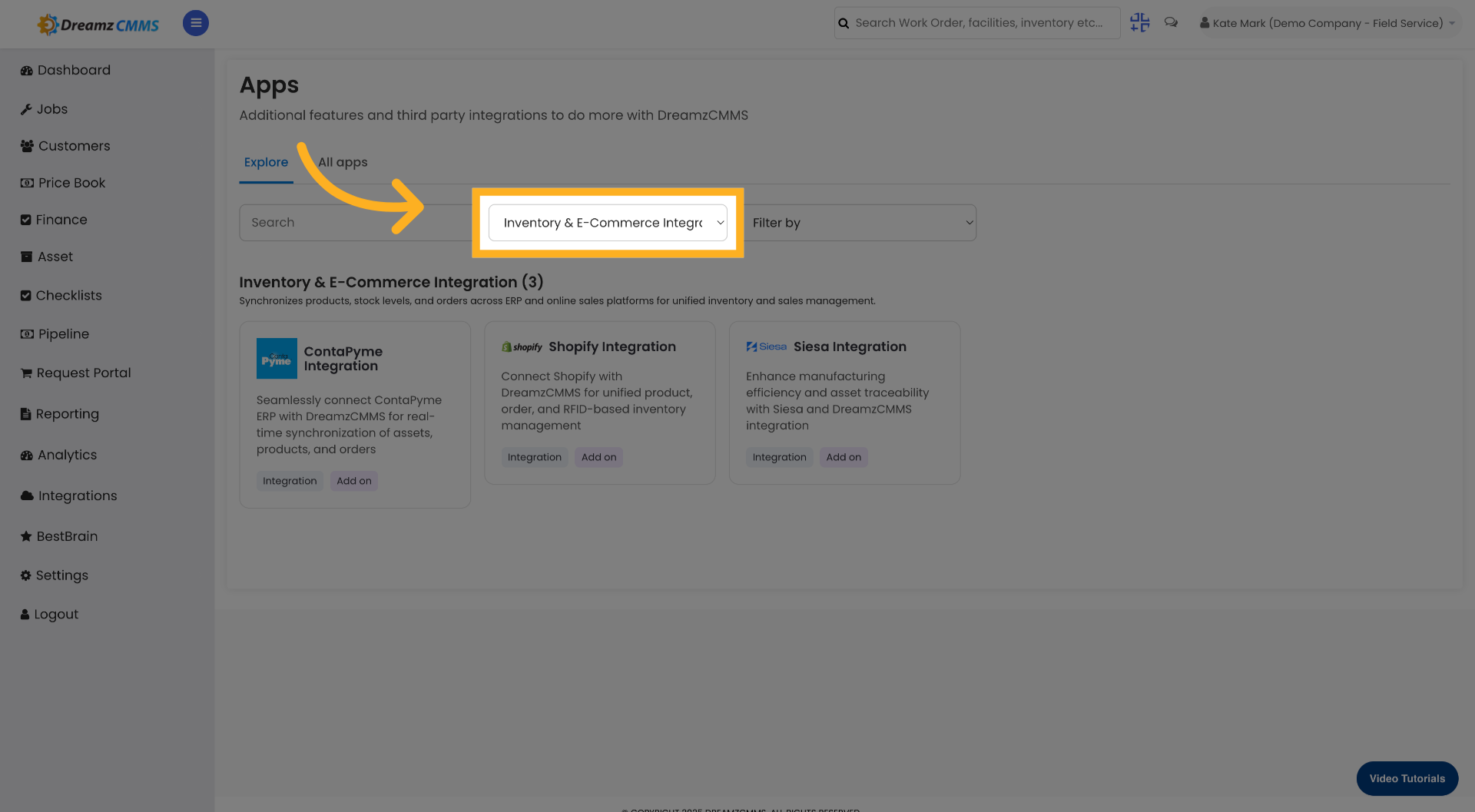
Step 06 – Refine Category Search
Fill the search field again to further filter integration options within the selected category.
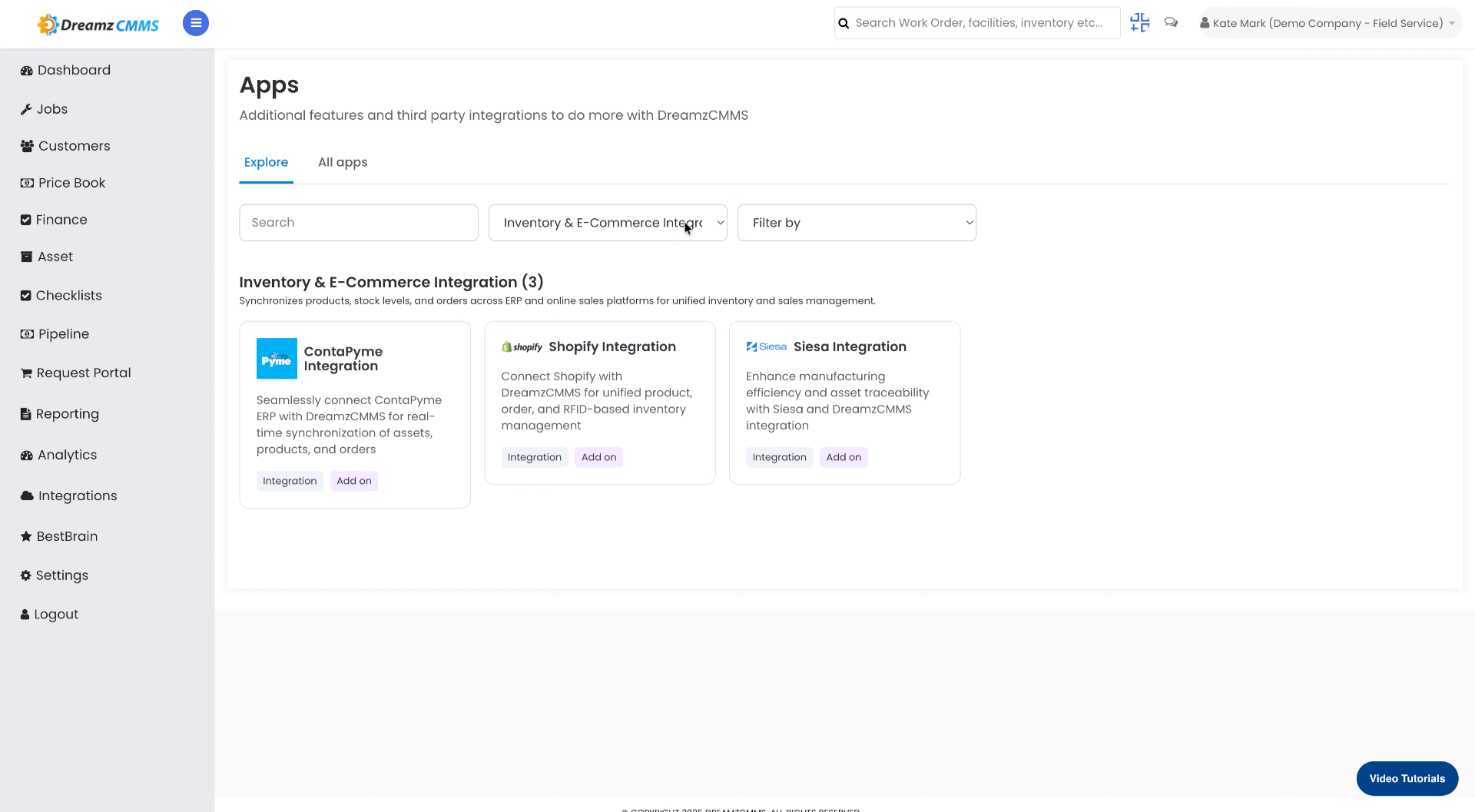
Step 07 – Apply Integration Filters
Click Filter by to choose options like Built By DreamzCMMS or Integration to refine your results and focus on the most relevant integrations.
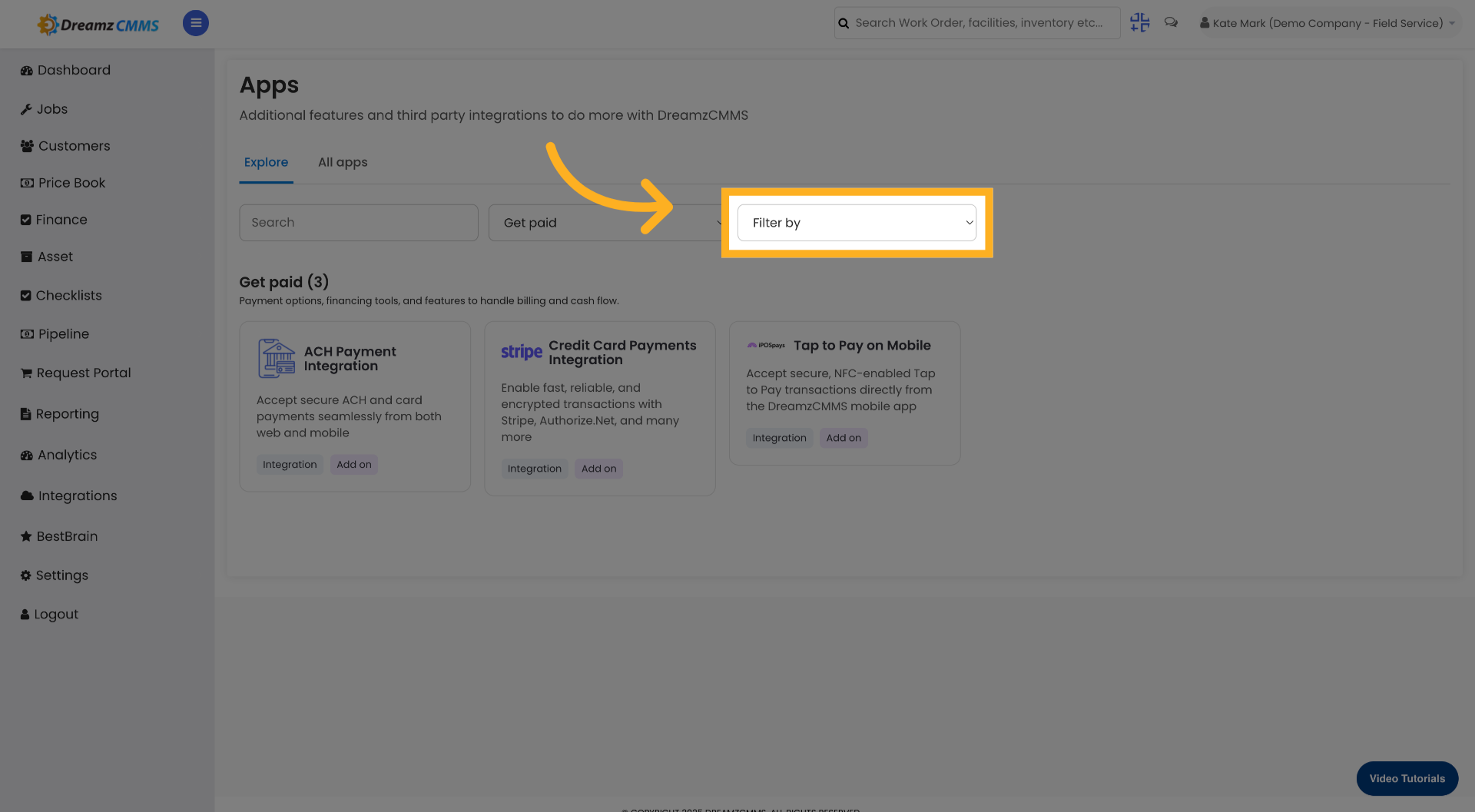
Step 08 – Choose Payment Gateway Integration
Click the option to enable fast, reliable, and encrypted transactions with supported payment gateways such as Stripe and Authorize.Net.
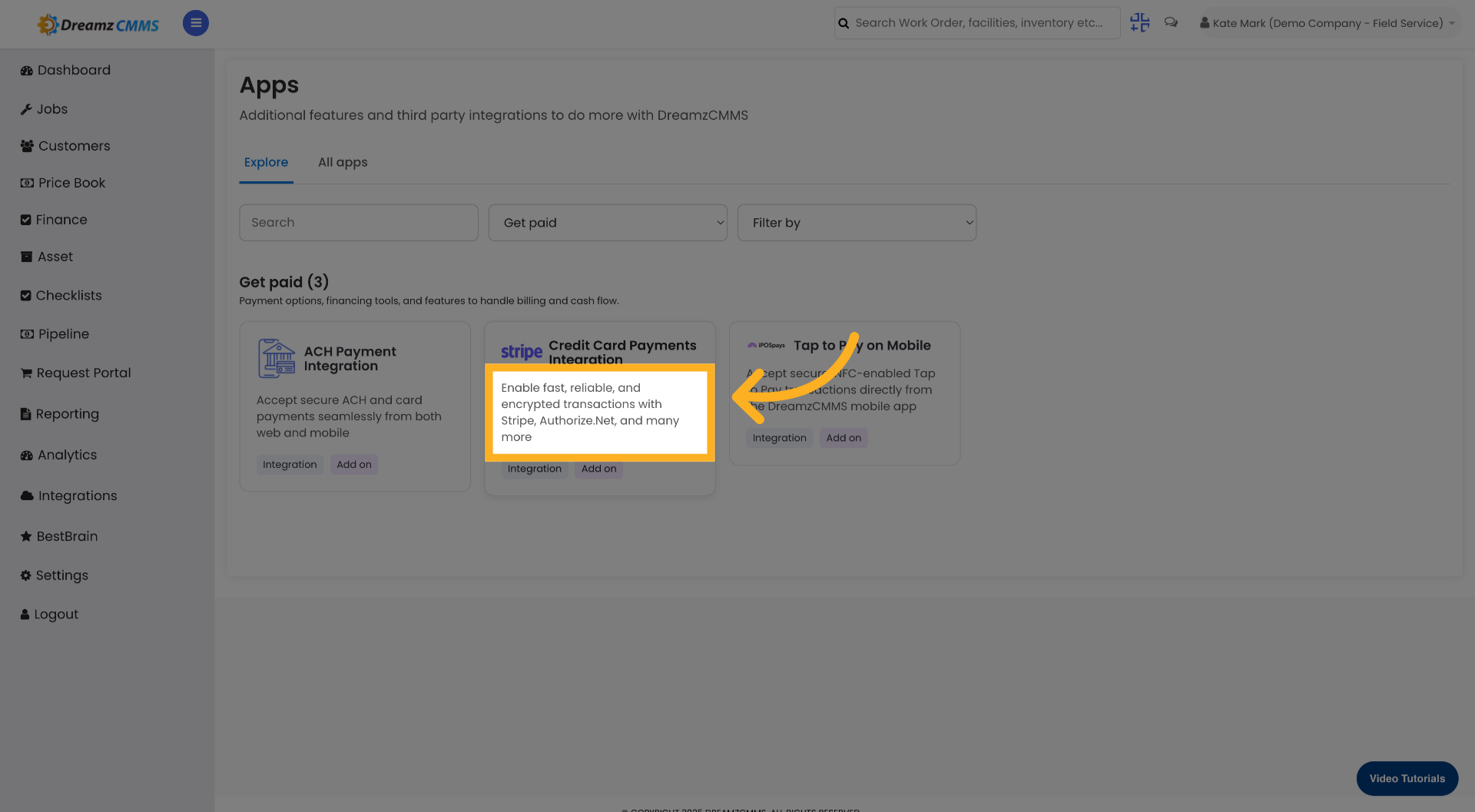
Step 09 – Explore Selected Integration
Click Explore to go back to the integration listing from the chosen integration and review further details.
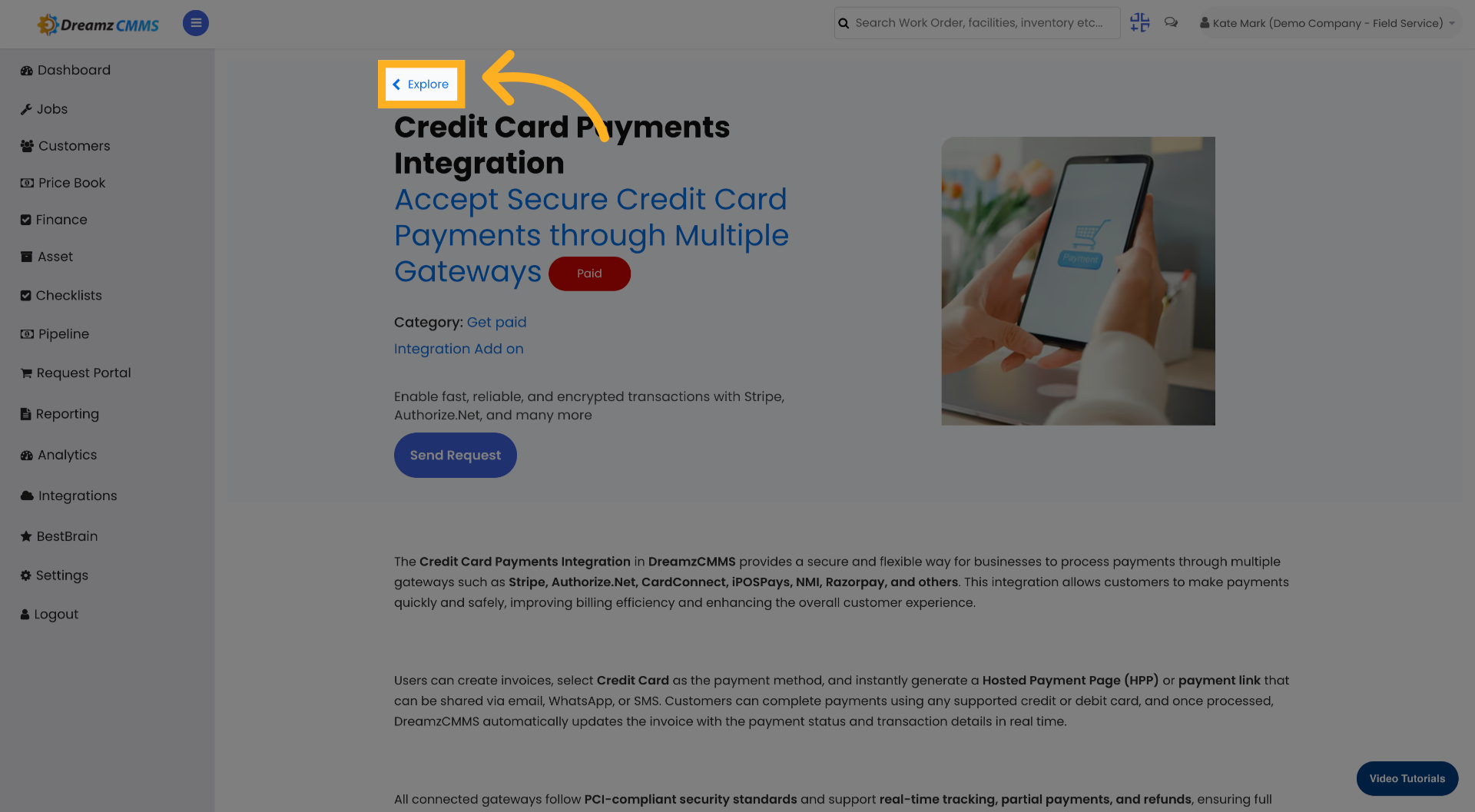
Step 10 – Browse Integration Categories Again
Click Browse by category to return to the list of integration types for additional options.
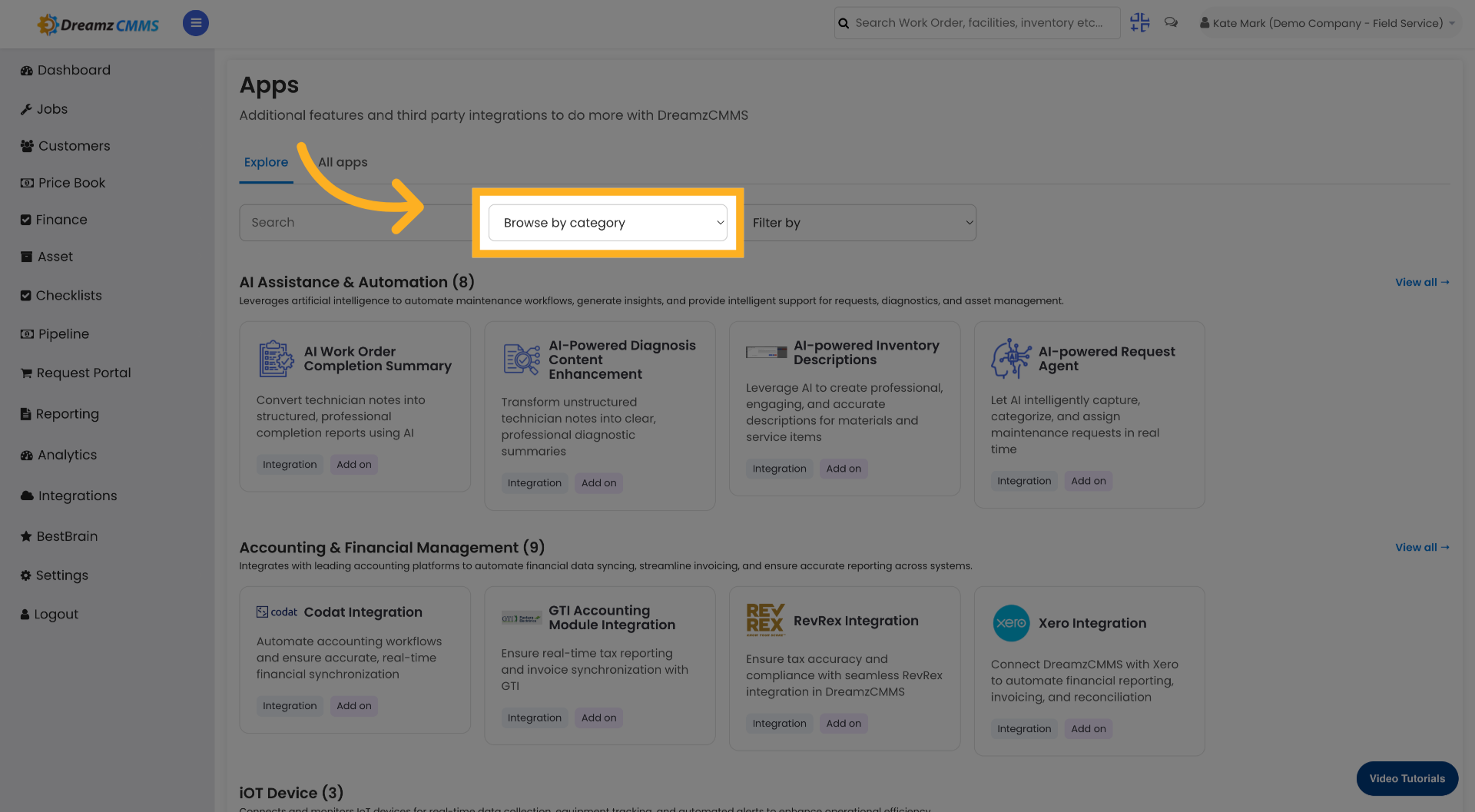
Step 11 – View All Integrations
Click View all to see the complete list of available integrations across all categories.
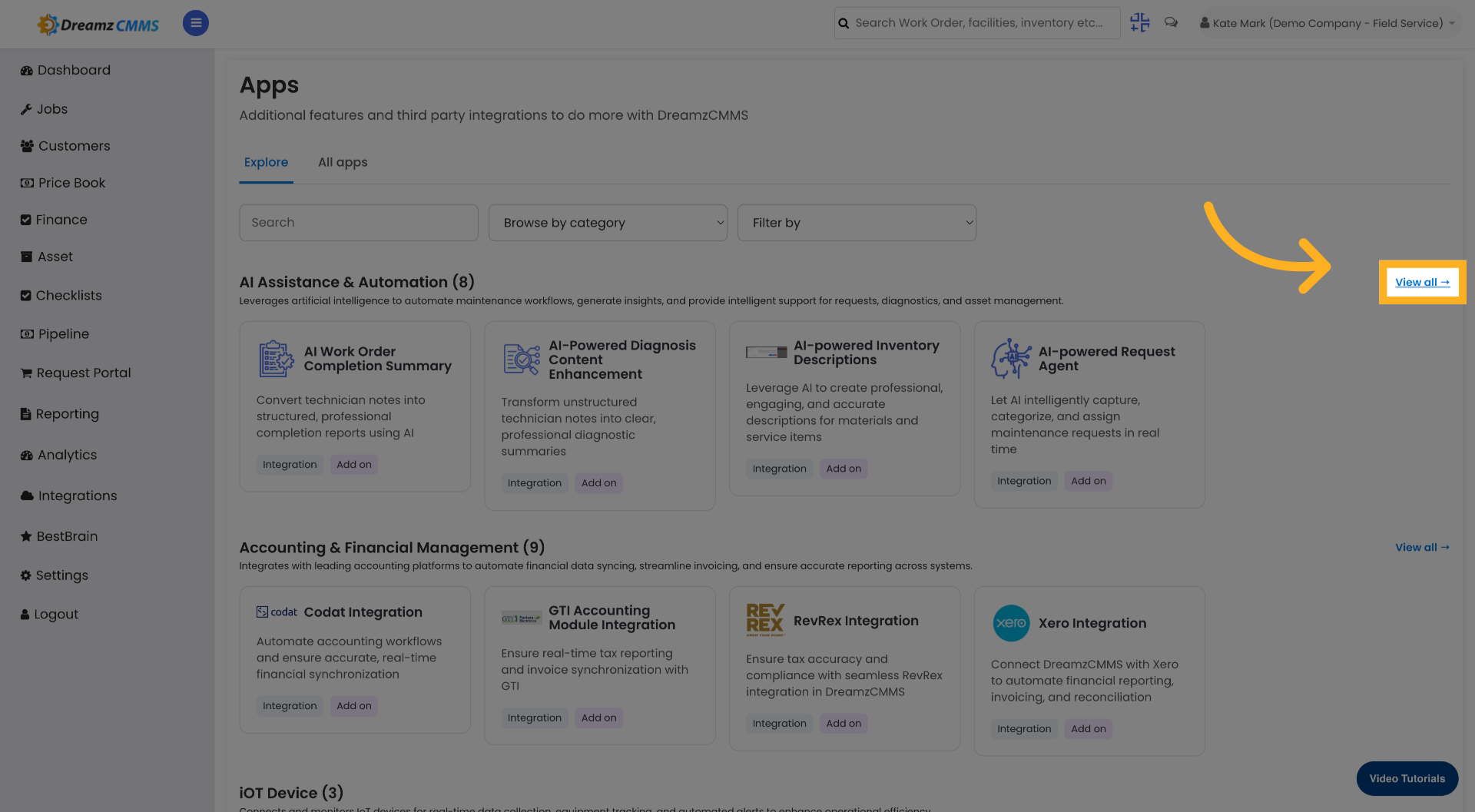
Step 12 – Select Diagnostic Summary Integration
Click the option that transforms unstructured technician notes into clear, professional diagnostic summaries.
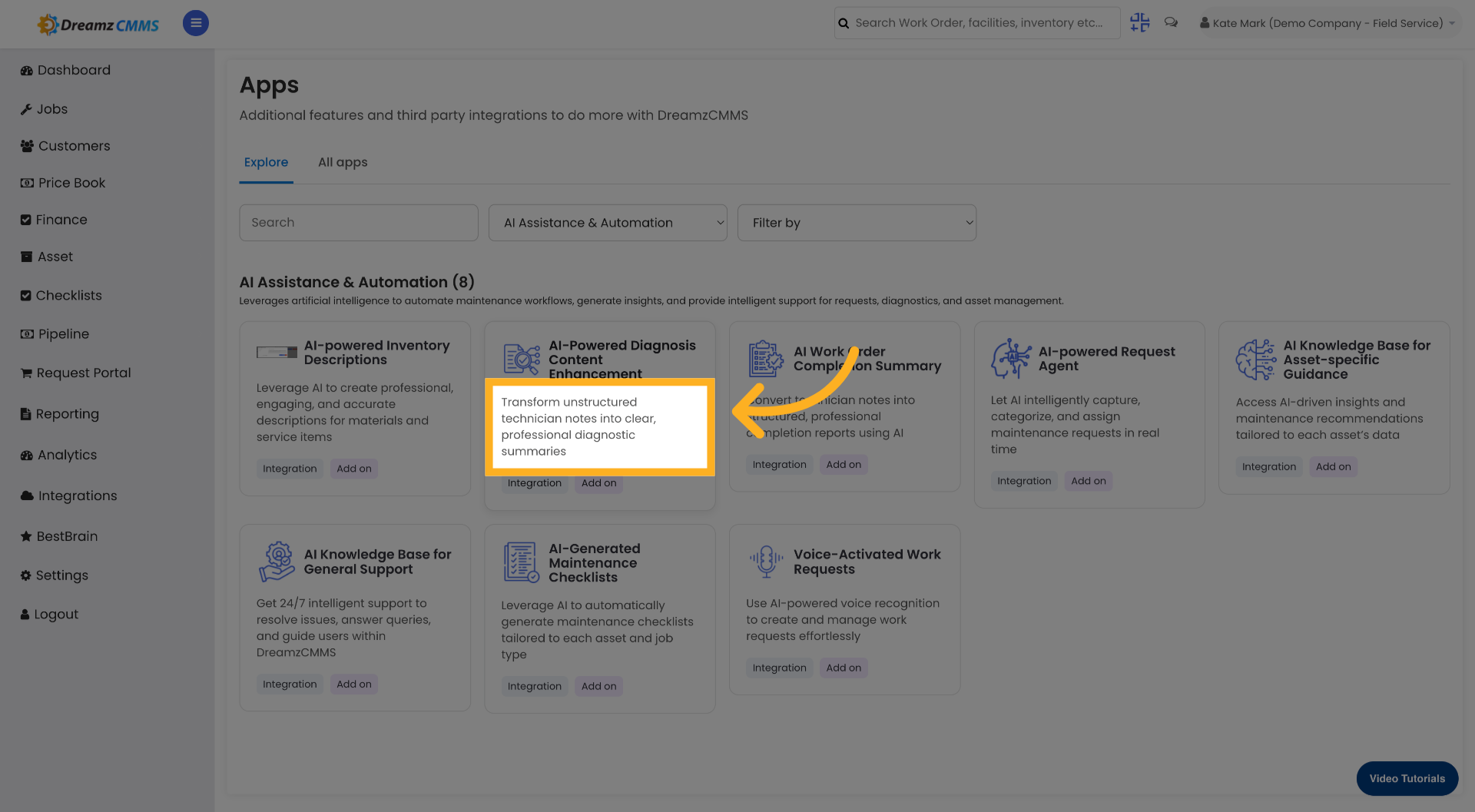
Step 13 – Explore Diagnostic Integration
Click Explore to go back to the integration listing from the chosen diagnostic integration and review its full details.

Tips for Configuring Integrations in DreamzCMMS
- Use the Browse by category option to quickly locate integration types such as Accounting, IoT Devices, or Payment Gateways instead of scrolling through the full list of available integrations.
- Use the category search field to narrow down integration options quickly, especially when you know the name or type of integration you are looking for.
- Apply the Filter by option to distinguish between integrations built natively by DreamzCMMS and third-party integrations, helping you make informed decisions about which services to enable.
- When setting up payment gateway integrations such as Stripe or Authorize.Net, ensure that your account credentials and API keys are ready before proceeding with the configuration.
- Use the Diagnostic Summary integration to automatically convert unstructured technician field notes into clear, professional summaries, improving documentation quality and saving time.
Frequently Asked Questions
How do I access the Integrations section in DreamzCMMS?
Click the Integrations menu from the main navigation to begin managing your system’s external connections and available integration options.
How do I find a specific integration category?
Click Browse by category to view all available integration types, then use the category search field to narrow down the options based on your specific needs. You can also refine results by filling the search field again within a selected category.
What filter options are available when browsing integrations?
You can use the Filter by option to choose between integrations Built By DreamzCMMS or third-party integrations. This helps you focus your search on the most relevant options for your system requirements.
Which payment gateways are supported in DreamzCMMS?
DreamzCMMS supports payment gateway integrations including Stripe and Authorize.Net, enabling fast, reliable, and encrypted transactions directly within the platform.
What does the Diagnostic Summary integration do?
The Diagnostic Summary integration transforms unstructured technician notes into clear, professional diagnostic summaries. This helps improve the quality and consistency of job documentation across your field service team.
Related Articles
- FSM Dashboard View
- Analytics Report for FSM
- Analytics Report for Work Orders
- How to Create Jobs
- Plan Routes & Assign Jobs