Analytics Report for Work Orders
The Analytics Report for Work Orders in DreamzCMMS gives you insight into all created work orders. You will be able to click on different sections and graphs to explore and analyse your work order analytics in detail.
Overview
The Work Orders Analytics section in DreamzCMMS provides a comprehensive view of all work orders through interactive charts and configurable filters. Users can navigate to the Work Orders section within the analytics dashboard, apply date range and status filters, check priority levels, review work orders by assigned users, track completion status, monitor maintenance compliance, and analyse work orders by age. This feature helps managers and teams stay informed on work order volumes, statuses, and performance across their operations.
Here is a reference video:
Steps to Access and Use the Work Orders Analytics Report
Step 01 – Analytics Report for Work Orders
Analytics gives you insight about created work orders. You will be able to click on different sections and graphs and see your analytics data at a glance.
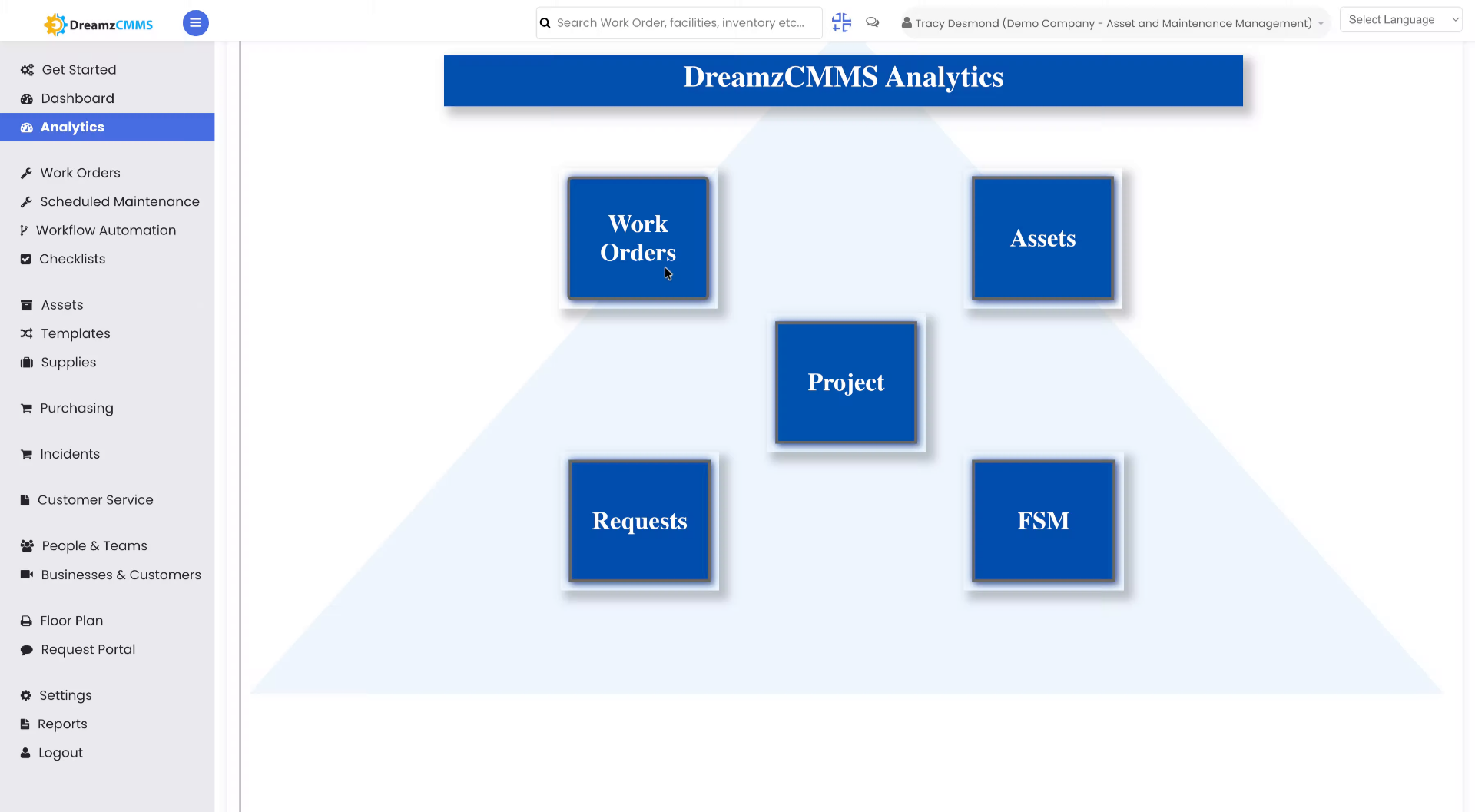
Step 02 – Access Work Orders Section
Navigate to the Work Orders section within the analytics dashboard to focus on relevant work order data.
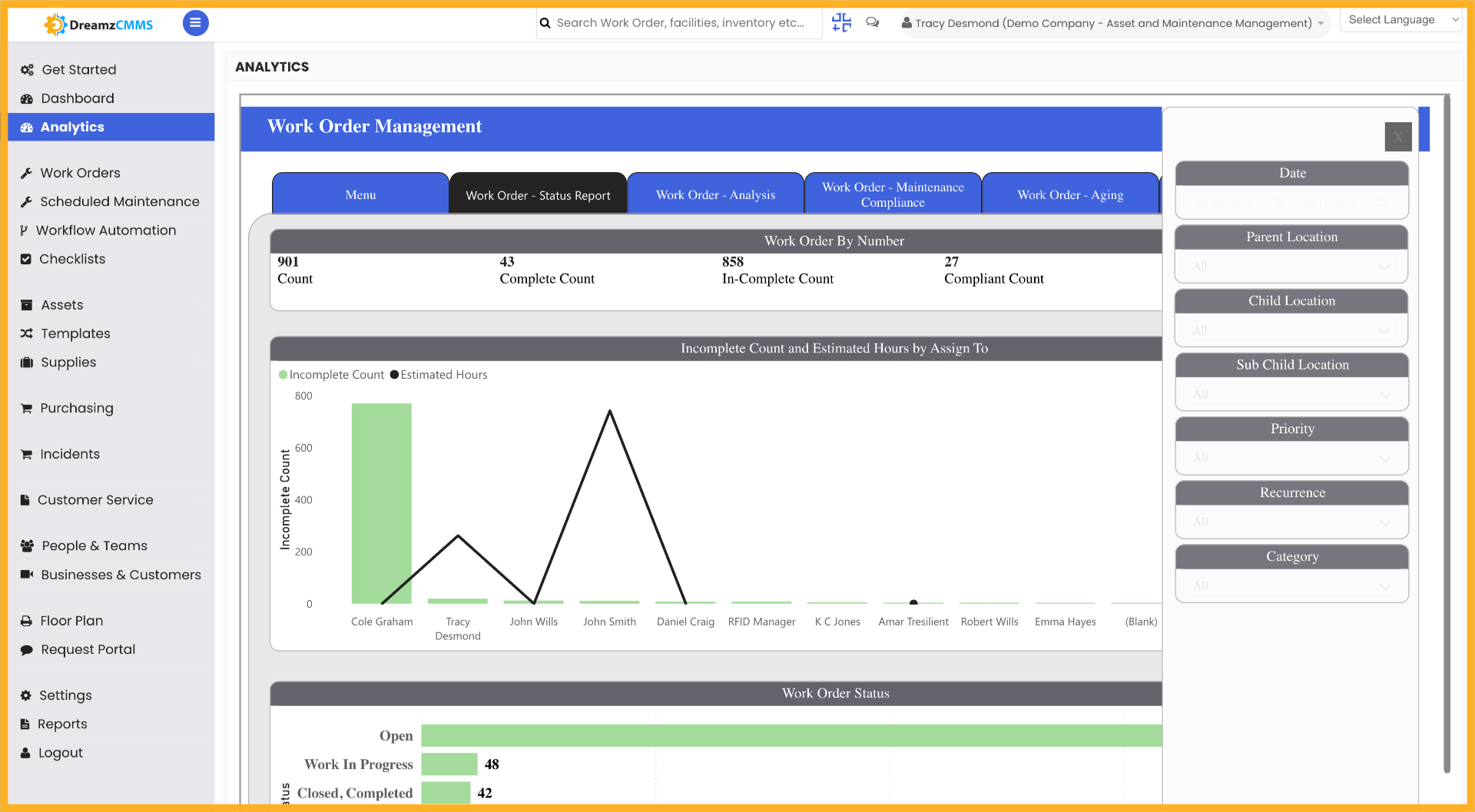
Step 03 – Select Data Filters
Select the appropriate date filters to refine the work orders displayed for analysis.
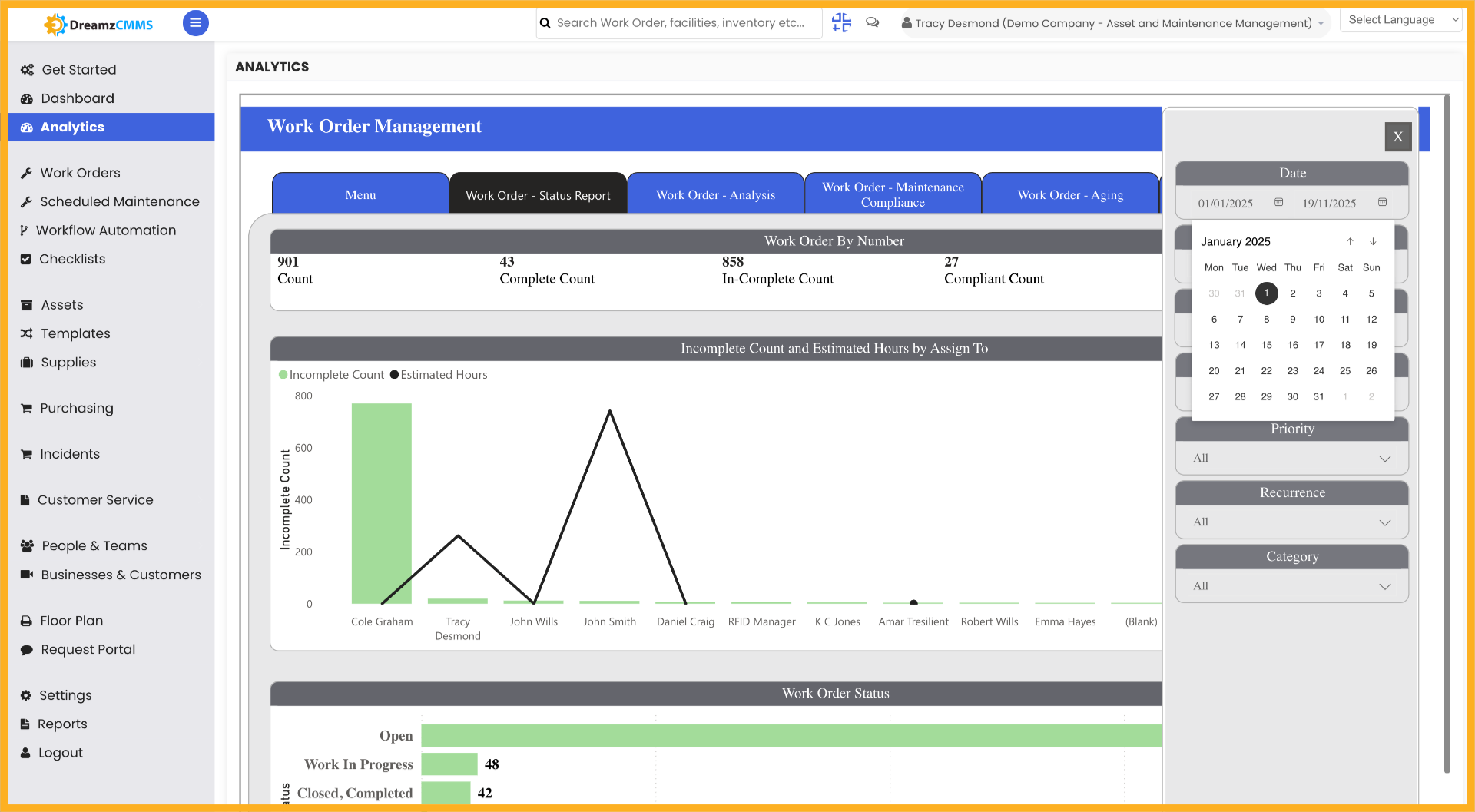
Step 04 – Apply Date Range Filter
Apply a date range filter to limit the work orders to a specific time period for more targeted analysis.
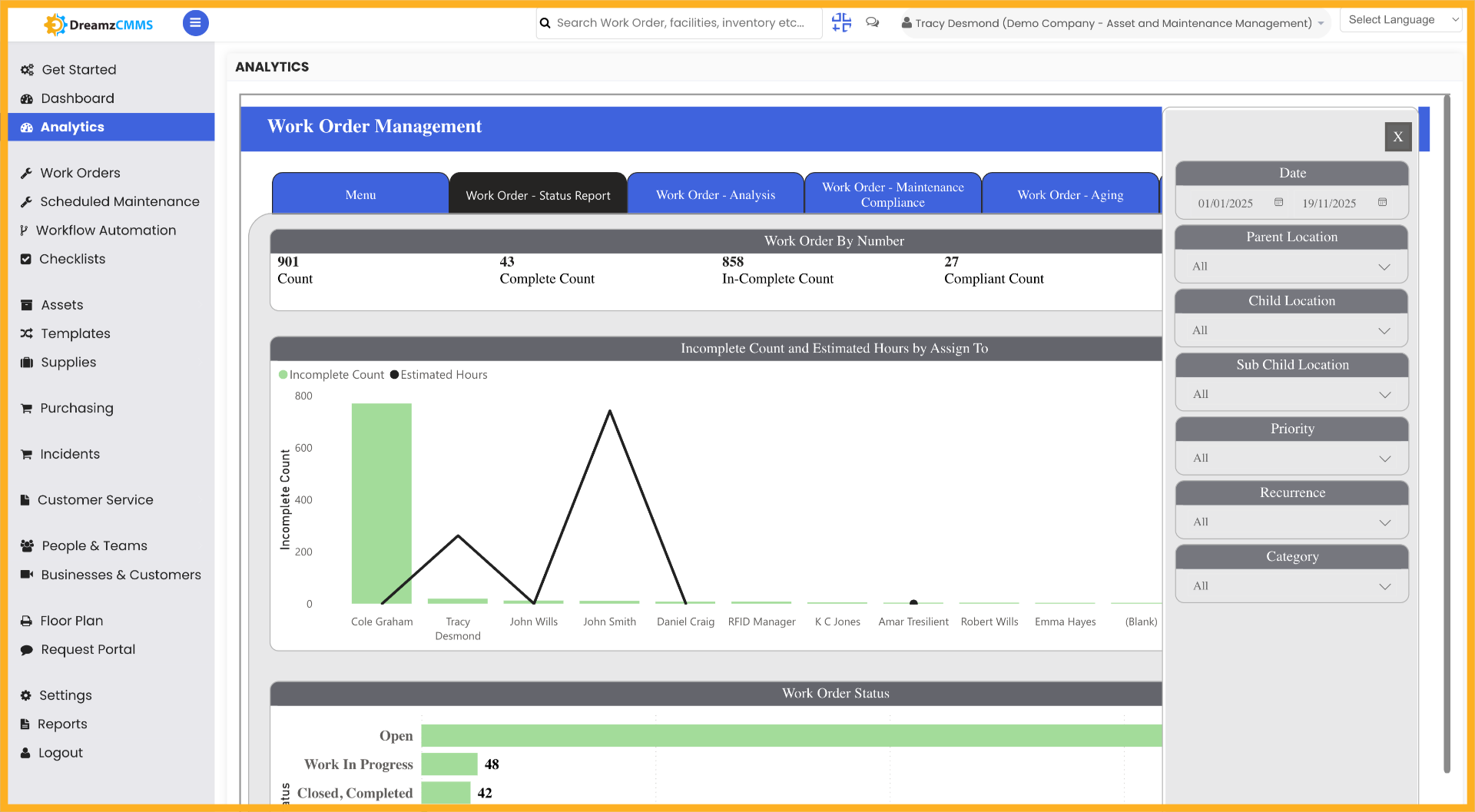
Step 05 – Choose Work Order Status Report
Choose the work order status filter to view work orders based on their current progress and status.
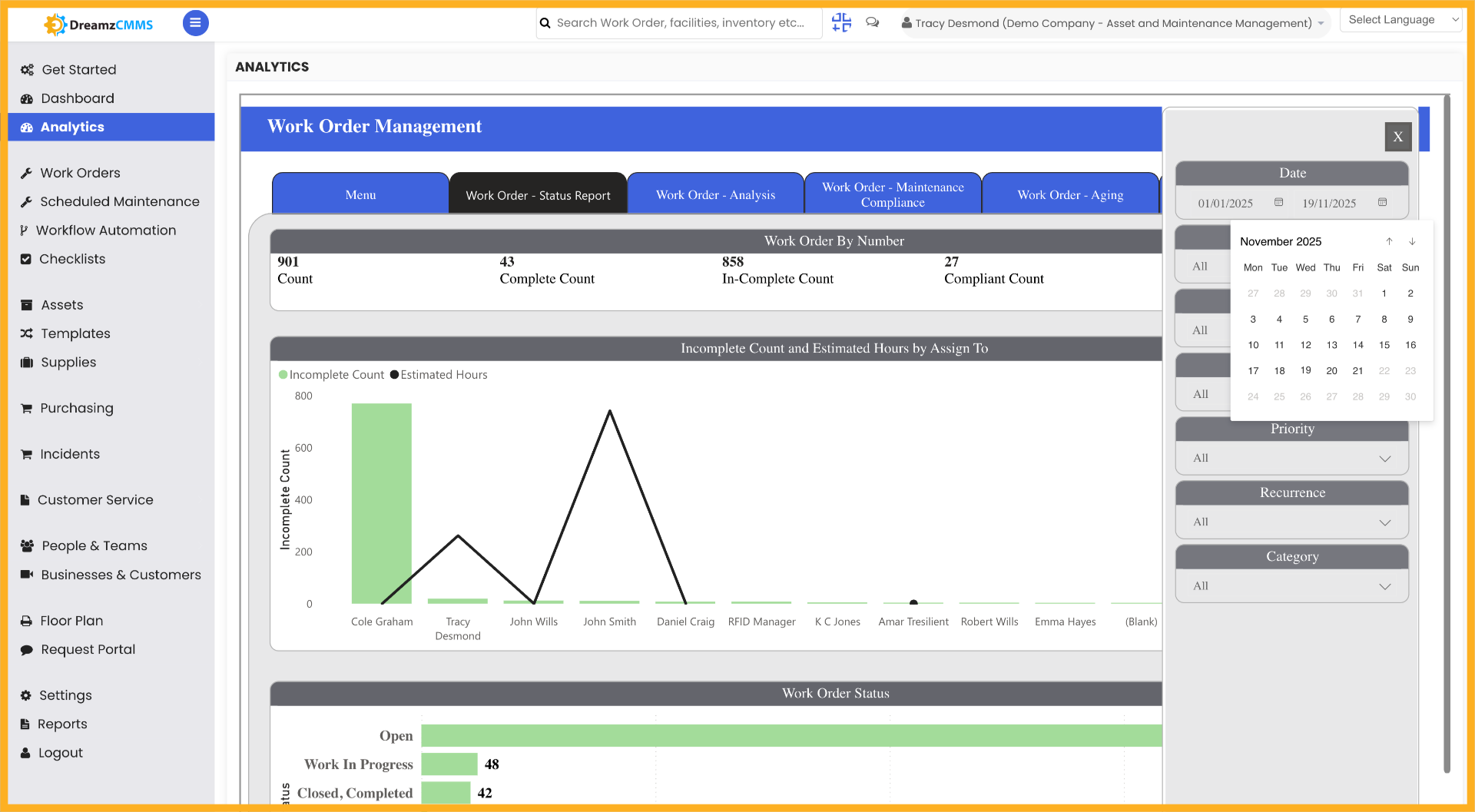
Step 06 – Check Priority Levels
Set priority levels to categorise work orders by urgency or importance, helping teams focus on the most critical tasks first.
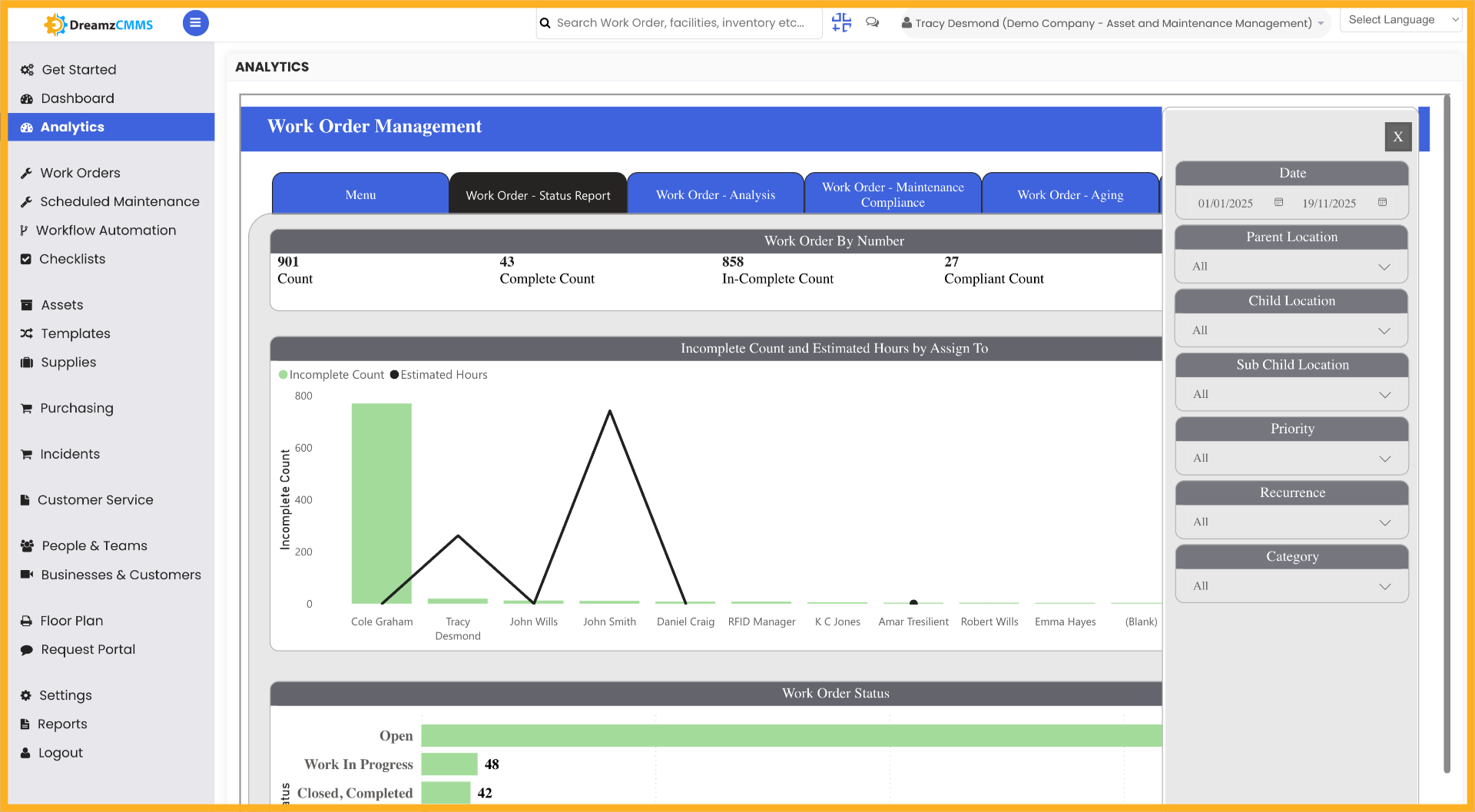
Step 07 – Check Work Orders by Assigned Users
Check Work Orders by Assigned Users to see the distribution of work orders across your team members and identify workload balance.
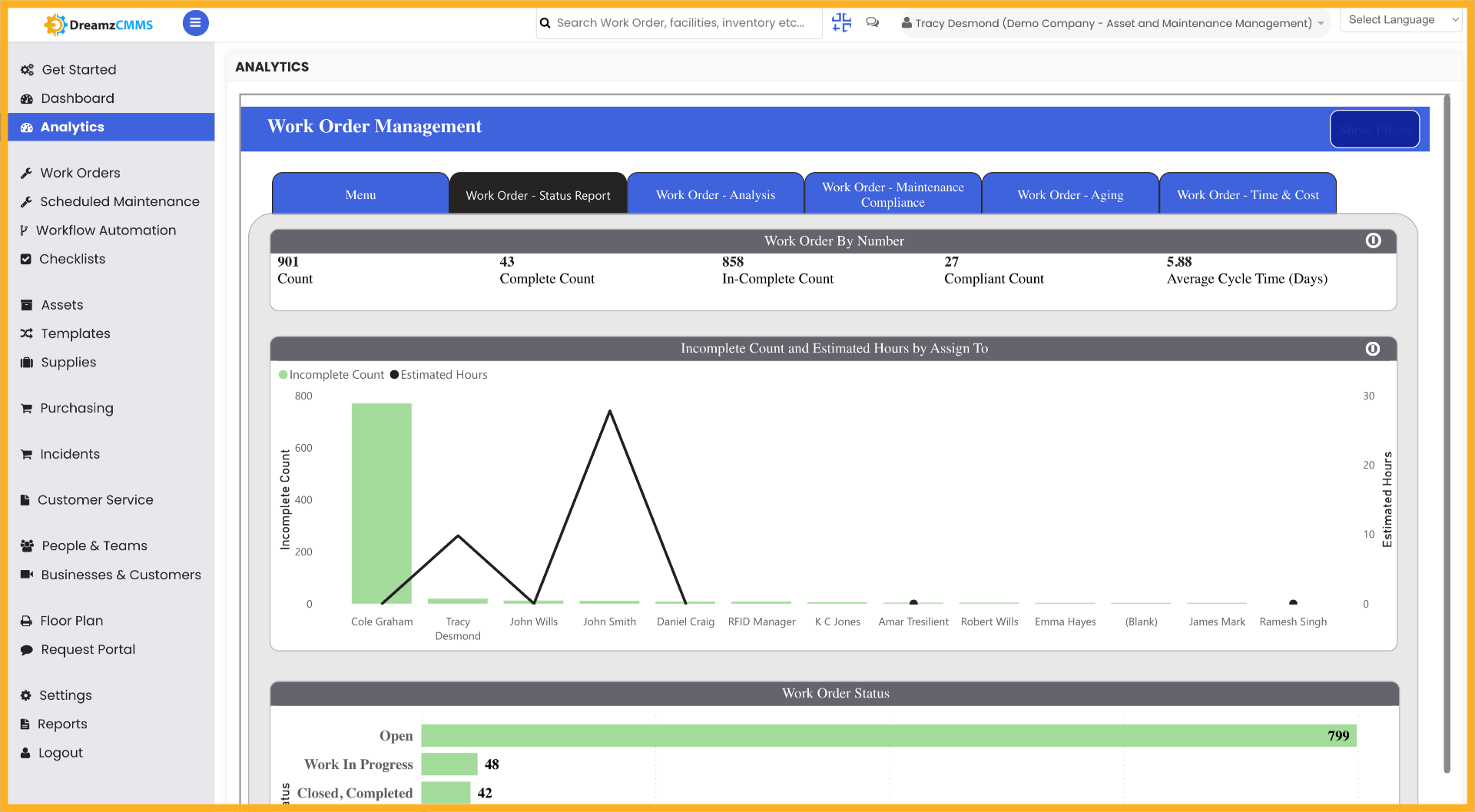
Step 08 – Check Work Orders Incomplete or Complete
Check Work Orders Incomplete or Complete to get a clear breakdown of how many work orders have been finished versus those still in progress or pending.
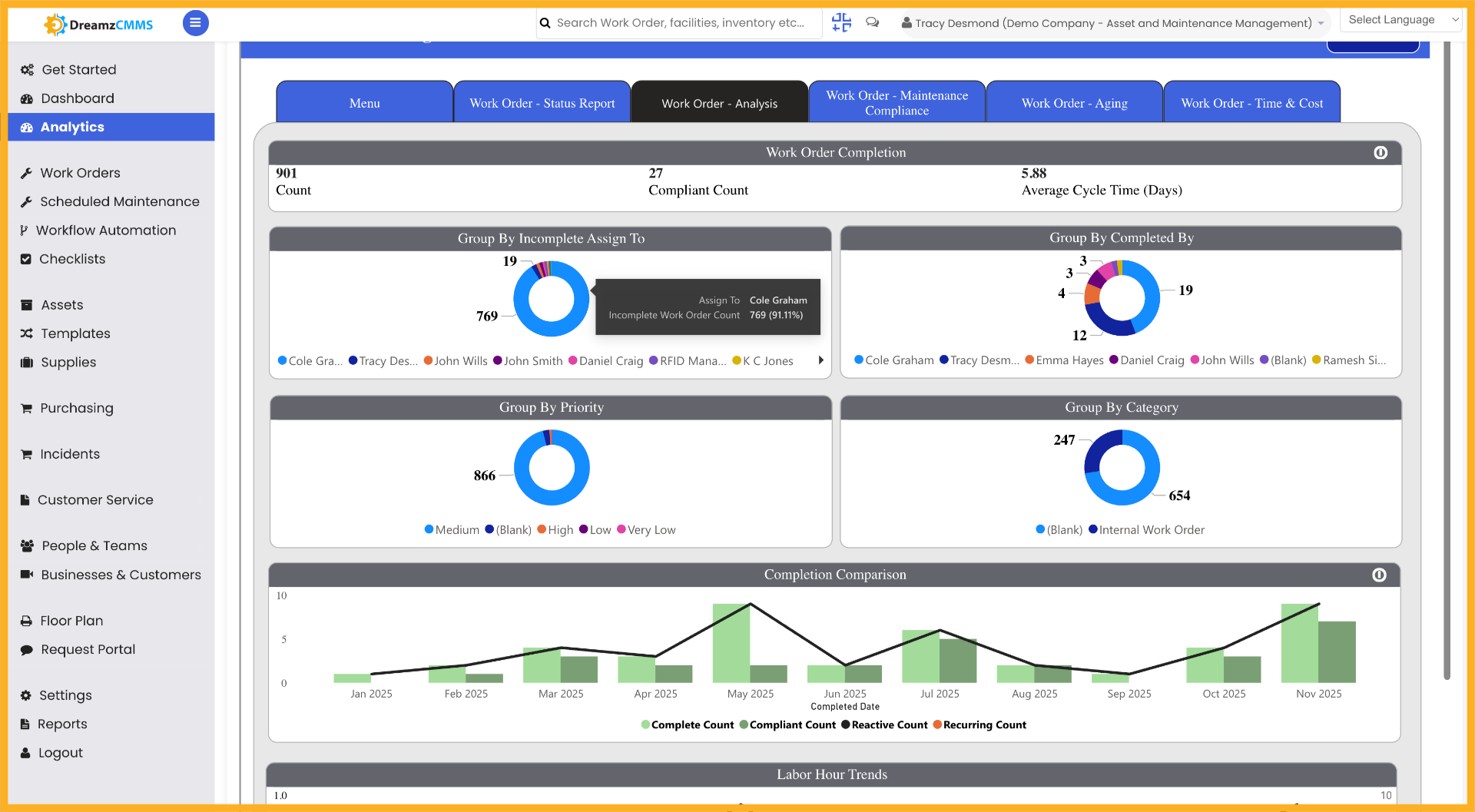
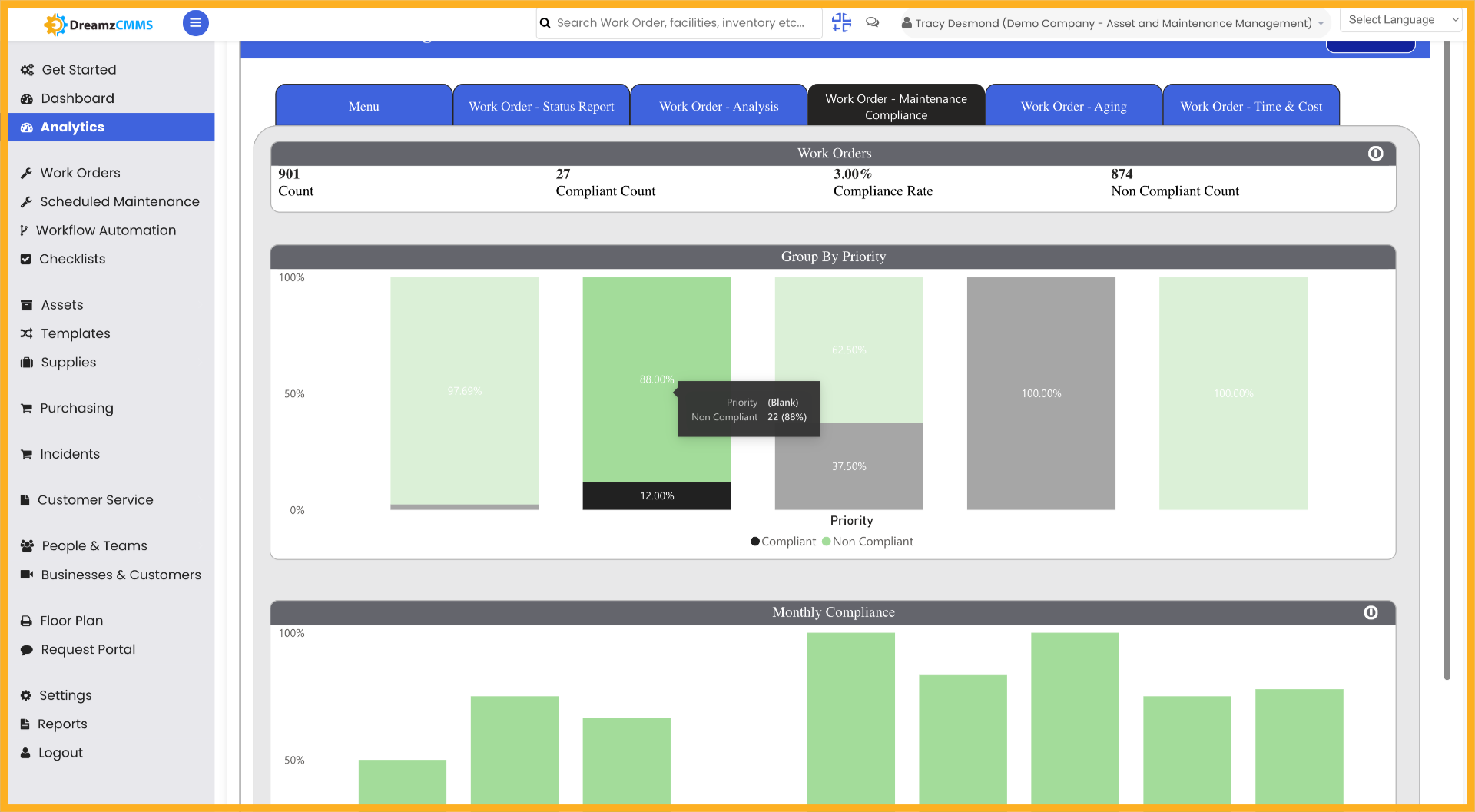
Step 09 – Check Work Orders Based on Maintenance Compliance
Check Work Orders based on Maintenance Compliance to monitor whether scheduled maintenance tasks are being completed in accordance with required standards and timelines.
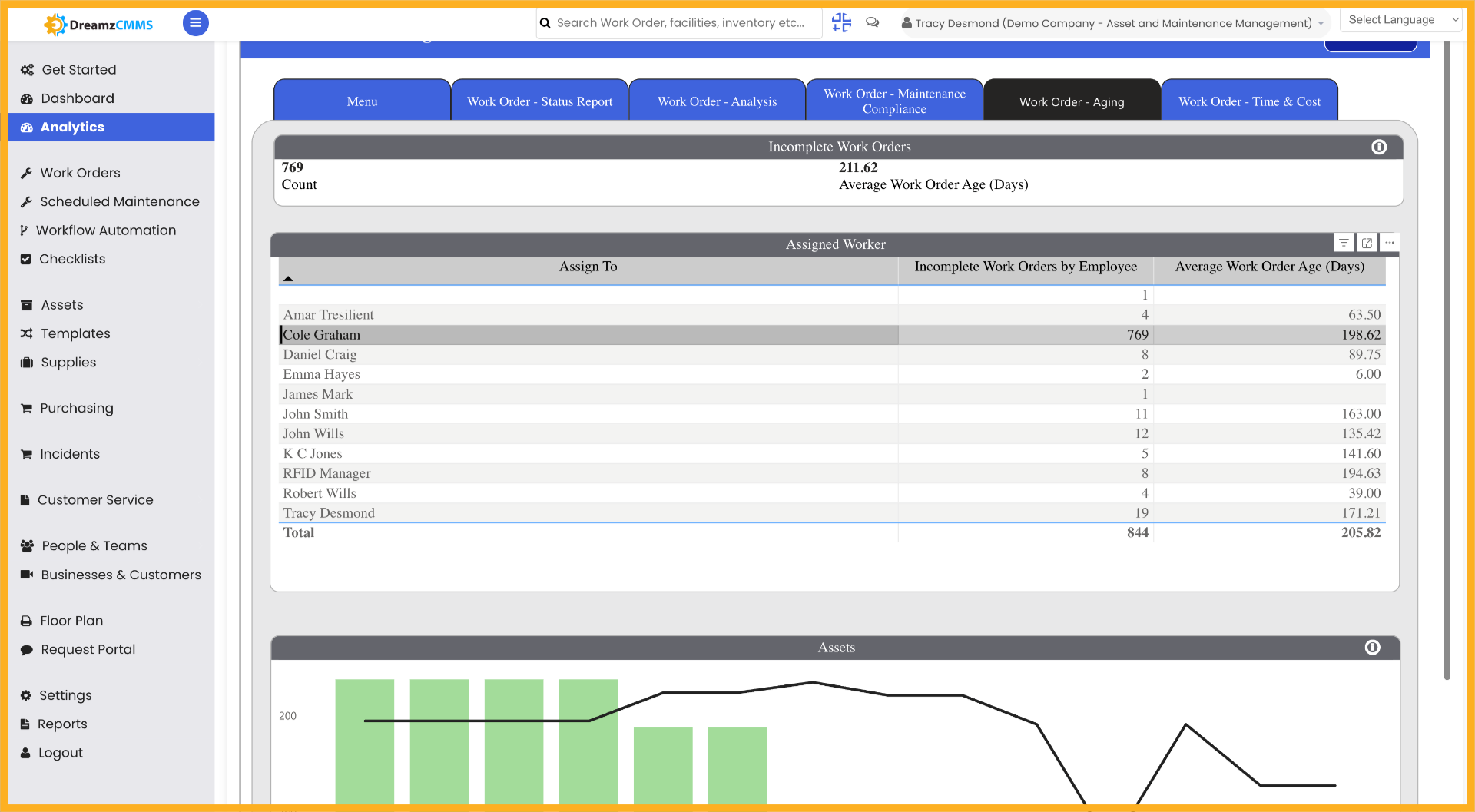
Step 10 – Check Work Orders by Their Age
Check Work Orders by their Age to identify how long work orders have been open, helping teams prioritise and resolve long-standing or overdue tasks.
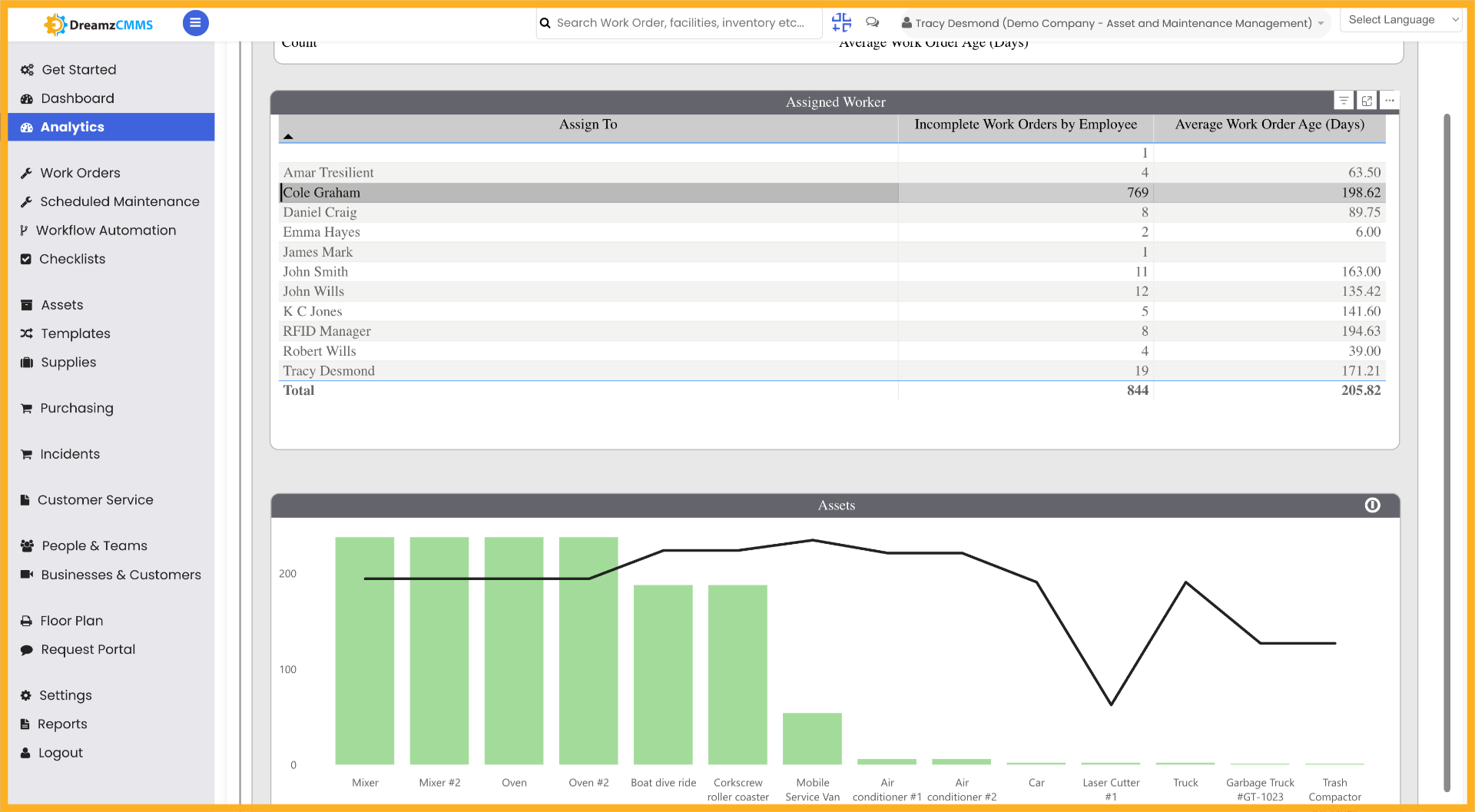
Step 11 – Apply User Filter
Apply the user filter to refresh the data and display work orders relevant to a specific user or team member.
Tips for Using the Work Orders Analytics Report
- Use the date range filter to scope your analysis to a specific period, making it easier to identify trends in work order volumes and completion rates over time.
- Check the Work Order Status Report regularly to stay on top of which work orders are open, in progress, or completed, and take action on any that are falling behind schedule.
- Use the Priority Levels view to ensure that high-urgency work orders are being addressed first and that your team's efforts are focused on the most critical tasks.
- Review the Work Orders by Age section frequently to identify and resolve long-standing work orders that may have been overlooked or delayed.
- Apply the user filter to evaluate individual technician performance and ensure work orders are being distributed and completed evenly across your team.
Frequently Asked Questions
How do I access the Analytics Report for Work Orders in DreamzCMMS?
Navigate to the Analytics section in DreamzCMMS and click on the Work Orders section within the analytics dashboard to begin viewing and configuring your work order analytics data.
Can I filter work order analytics by date?
Yes. Use the date filters to select the appropriate time period, and then apply a date range filter to limit the data displayed to work orders within that specific range.
How do I view work orders by their current status?
Use the Work Order Status Report filter to view work orders based on their current progress, allowing you to quickly identify which tasks are open, in progress, or completed.
Can I check work orders assigned to a specific user?
Yes. Use the Check Work Orders by Assigned Users view to see how work orders are distributed across team members, and apply the user filter to display work orders associated with a specific user.
What does the Work Orders by Age section show?
The Work Orders by Age section displays how long each open work order has been active. This helps managers identify overdue or long-standing work orders that require immediate attention or follow-up.
Related Articles
- Analytics Report for FSM
- Analytics Reports for Assets
- Analytics Report for Request
- FSM Dashboard View
- How to Create Jobs