Manage Businesses
The Businesses module in DreamzCMMS lets you maintain master records for all the companies you work with — including vendors, suppliers, and service providers. Each business profile stores key information such as the company name, a unique code, contact person, phone, email, and active status. This central registry keeps your partner information clean, consistent, and immediately available for use across jobs, quotes, purchase orders, and invoices.
Overview
The Businesses module acts as your organisation’s master directory for external companies. Once a business is created, it can be linked to Purchase Orders, invoices, and other procurement documents throughout DreamzCMMS. The All Business List gives you a quick overview of all registered businesses, with the ability to filter, search, and manage records from a single page using the Select Action menu.
Here is a reference video:
Before You Begin
- You must have the appropriate permissions to access the Businesses & Customers module and create or edit business records.
- Have the company’s details ready before starting — including the business name, a unique code, contact person name, phone number, and email address.
- Confirm whether the business needs login credentials set up (e.g., for vendor portal access) before saving the profile.
How to Add a New Business
Step 1 – Navigate to Businesses
From the main menu, click Businesses & Customers, then click Businesses. This opens the All Business List showing all existing business records.

Step 2 – Click "Add New Business"
From the listing page, click the Add New Business button to open the business creation form.

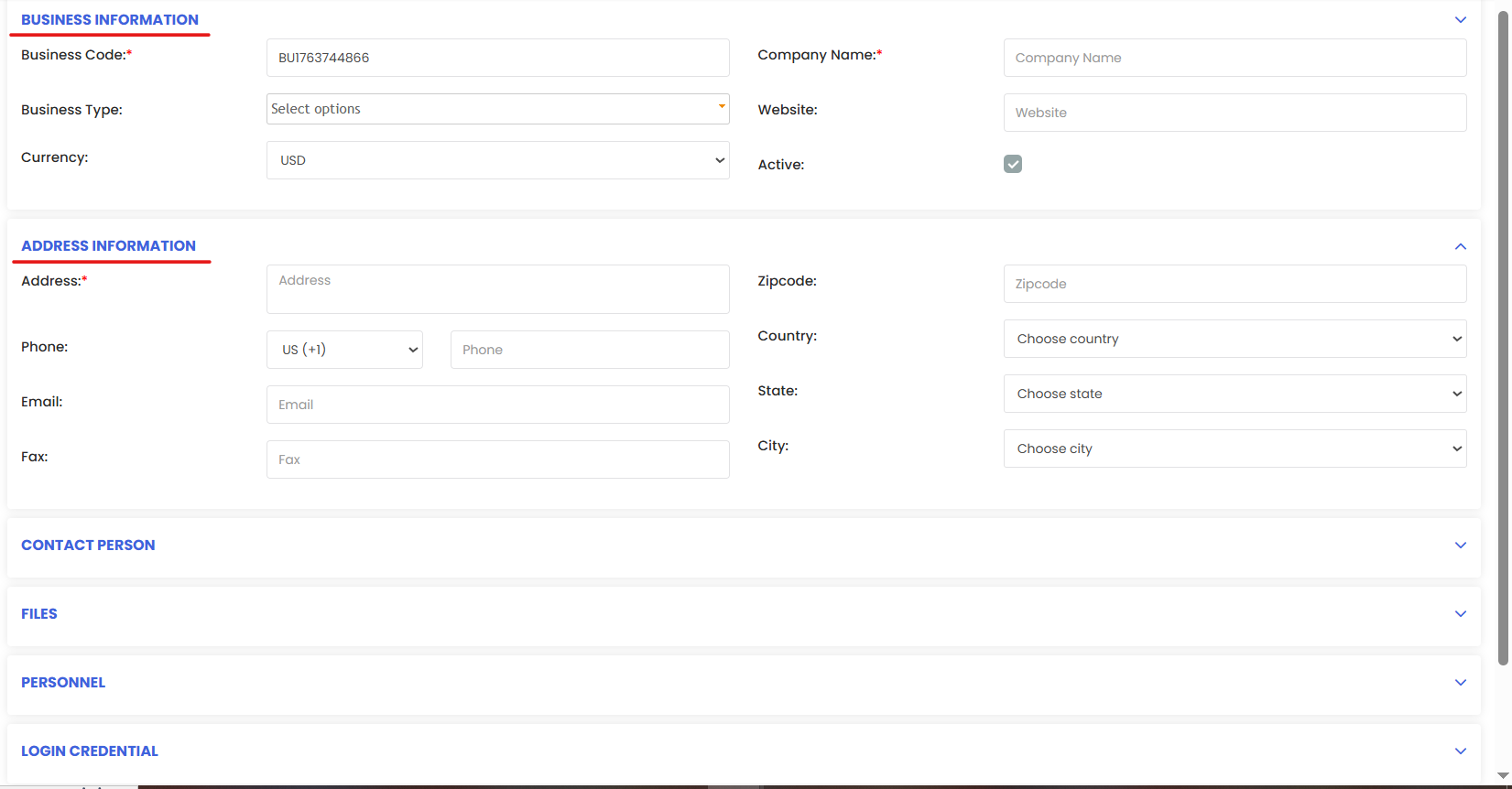
Step 3 – Fill In the Business Details and Save
Complete the following fields in the business creation form:
- Company Name — Enter the full legal or trading name of the business.
- Unique Code — Assign a short, unique identifier for this business. This code is used when referencing the business in POs, invoices, and other documents.
- Contact Person — Enter the name of the primary contact at the business.
- Phone — Enter the business’s contact phone number.
- Email — Enter the contact email address for the business.
- Status — Set the business to Active to make it available for selection across the system.
- Login Credentials (optional) — If the business requires portal access, set the login credentials in this section.
Note: The unique code cannot be duplicated across business records. Choose a code that is meaningful and easy to recognise at a glance in lists and reports.
Once all details are entered, click Save. The new business will appear in the All Business List and will be available for use across the system.
Managing Existing Businesses
From the All Business List, you can manage any existing record using the Select Action menu on each row. Available actions include:
- View — Open the full business profile in read-only mode.
- Edit — Update any details on the business profile, including contact information or login credentials.
- Enable / Disable — Toggle the active status of a business. Inactive businesses will not appear in selection lists across the system.
You can also use the search and filter tools at the top of the listing to quickly locate a business by name, code, contact, or status.
After Adding a Business — What's Next?
- Link the business to a Purchase Order by selecting it as the vendor when creating or editing a PO.
- Use the business in RFQs and invoices — once active, the business will appear in all relevant selection fields across the procurement workflow.
- Keep records up to date by editing the business profile whenever contact details or status changes.
Tips for Managing Businesses
- Use a consistent naming convention for unique codes (e.g., first three letters of the company name + a number) to make records easy to identify.
- Always disable rather than delete a business that is no longer active. This preserves the record for historical reference in past POs and invoices.
- Keep contact information current — outdated phone numbers or emails can cause delays in procurement communication.
- Use the search and filter tools on the listing page to quickly locate businesses when your directory grows large.
Frequently Asked Questions
Can I add multiple contact persons to a single business record?
The business profile captures a primary contact person. For multiple contacts, you can include additional details in the relevant fields or manage them separately at the document level (e.g., on a PO or invoice).
What happens if I disable a business?
Disabling a business removes it from active selection lists across the system. It will no longer appear as an option when creating POs, RFQs, or invoices. The record and its historical data are preserved and can be re-enabled at any time.
Can two businesses share the same unique code?
No. Each business must have a unique code. The system will not allow duplicate codes to be saved.
What are login credentials used for in a business profile?
Login credentials allow the business (e.g., a vendor) to access a portal within DreamzCMMS. This is optional and only needs to be configured if the business requires direct system access.
Can I link a business to multiple Purchase Orders?
Yes. Once a business is created and set to Active, it can be selected as the vendor on any number of Purchase Orders, RFQs, and invoices across the system.
Related Articles
- Create and Approve a Purchase Request
- Creating Purchase Orders after Finalizing RFQ
- Create Purchase Invoices
- Purchase Returns
- Manage Stock Levels