Use Generative AI for Creating a Checklist
An AI checklist is a list of tasks or items that are managed or enhanced by artificial intelligence to help in instant checklist generation. Using the AI-powered feature in DreamzFSM, you can generate a fully structured checklist in seconds by simply providing a title, description, or selecting relevant parameters.
Overview
The Generative AI Checklist feature in DreamzFSM allows users to create comprehensive checklists instantly without building them manually from scratch. You can generate a checklist by entering a title and description, or by selecting the industry, type, frequency, and asset type. Once generated, the checklist can be edited, regenerated, or saved directly into your system.
Here is a reference video:
How to Create an AI-Powered Checklist
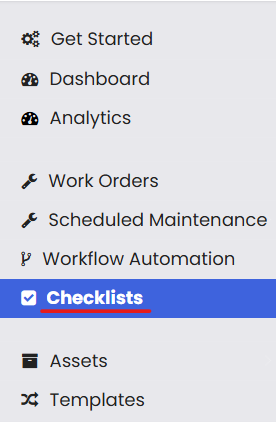
Step 1 – Navigate to the Checklists Section
From the left-hand menu, click on the Checklists option to open the Checklists module.
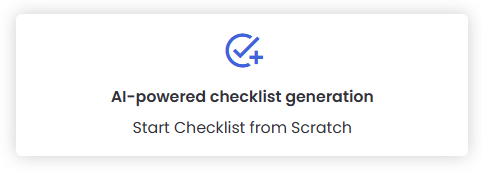
Step 2 – Select the AI-Powered Checklist Generation Option
Click on the AI-powered Checklist generation icon to open the AI checklist creation tool.
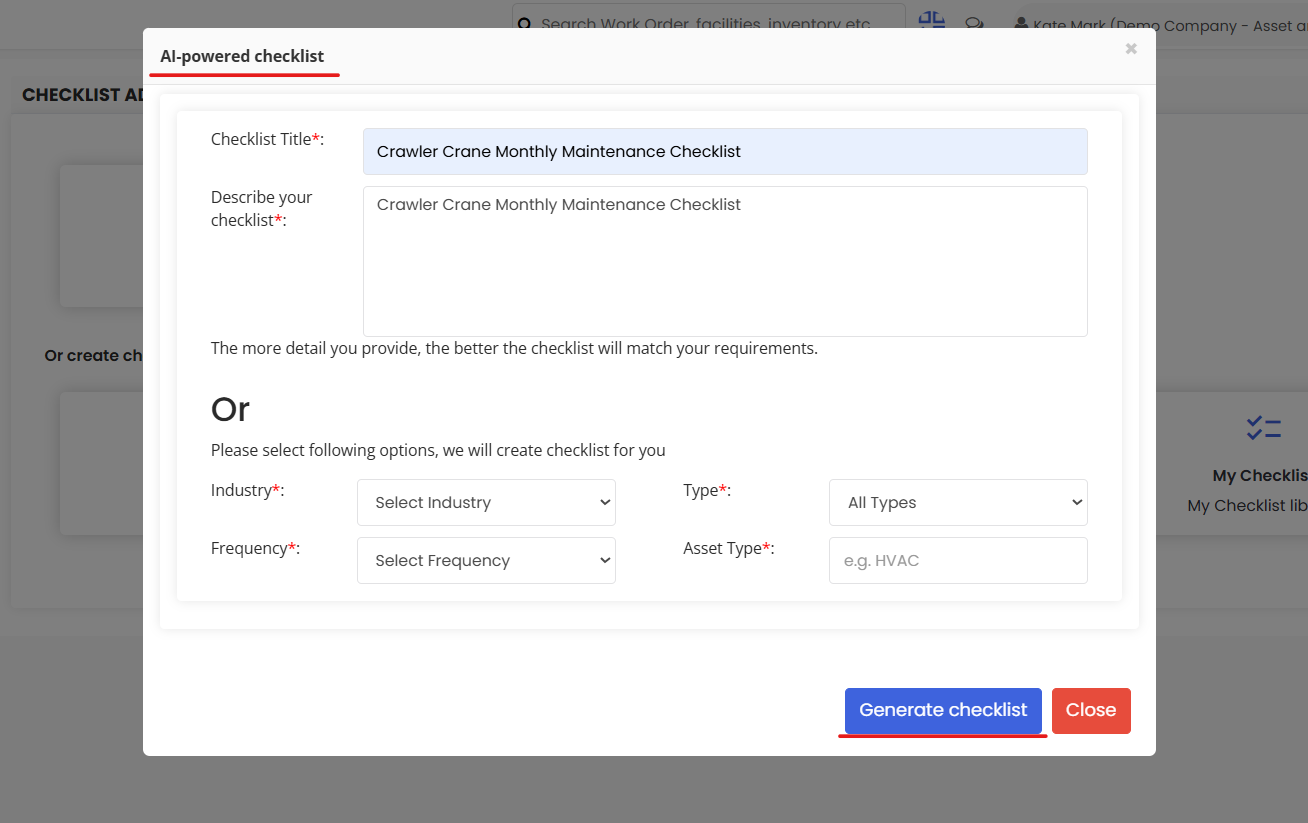
Step 3 – Enter Details and Generate the Checklist
You can generate a checklist using either of the following methods:
- Type the Checklist Title and Description, then click Generate checklist.
OR
- Select the Industry, Type, Frequency, and Asset Type, then click Generate checklist.
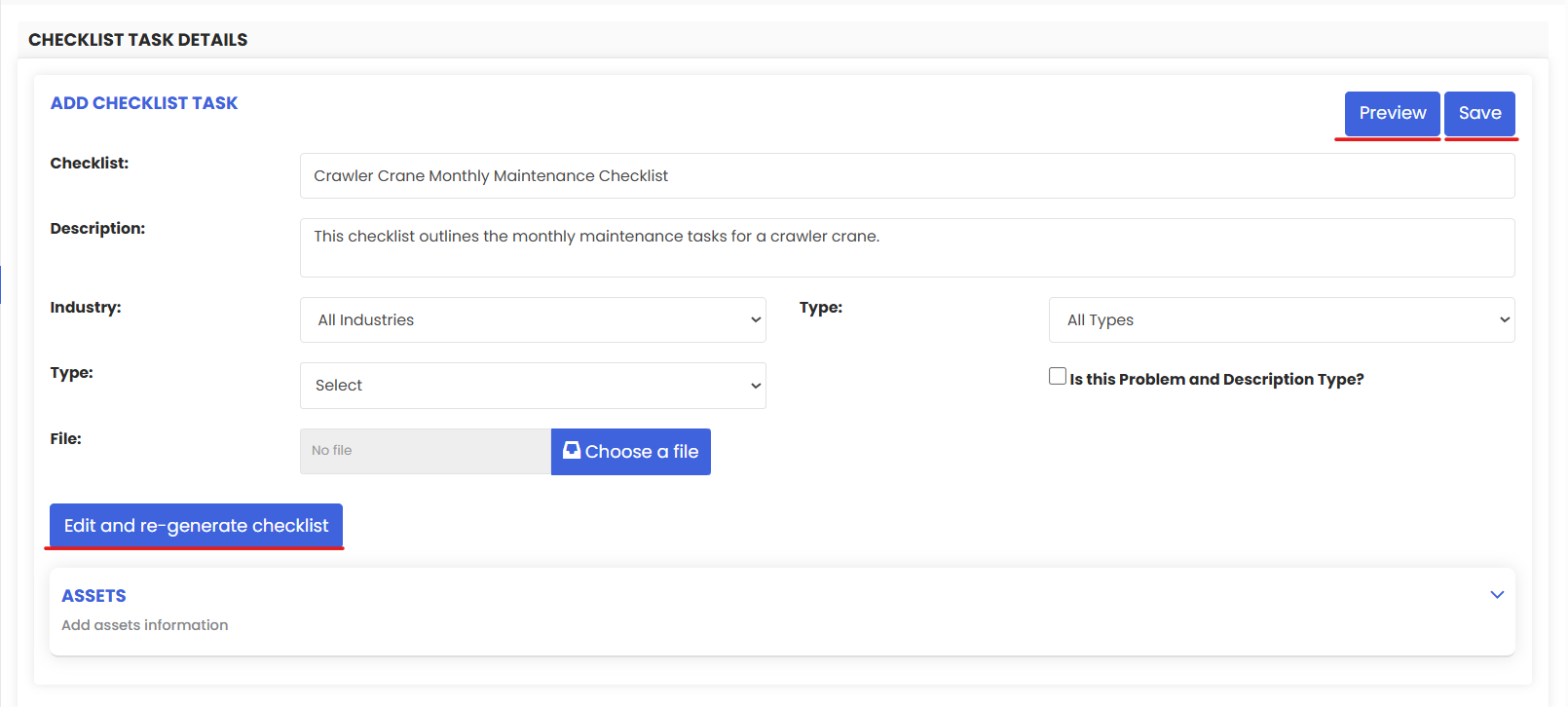
Step 4 – Review, Edit, and Save the Checklist
The system will create the required checklist within a couple of seconds. Once generated:
- You can edit any of the generated tasks to refine the checklist.
- You can click Edit and Re-generate checklist to regenerate with updated inputs.
- Once satisfied, click Save to store the checklist in your system.
Tips for Using Generative AI to Create Checklists
- Provide a clear and specific checklist title and description when generating by text — the more detail you give, the more accurate and relevant the AI-generated tasks will be.
- Use the Industry, Type, Frequency, and Asset Type filters when you want a structured checklist tailored to a specific maintenance or service context.
- Always review the generated checklist before saving to ensure all tasks are relevant and correctly described for your technicians.
- Use the Edit and Re-generate option if the initial output does not fully meet your requirements — you can refine your inputs and regenerate instantly.
- Once saved, AI-generated checklists can be further edited manually, allowing you to add, remove, or reorder tasks to suit your specific operational needs.
Frequently Asked Questions
What is the AI-powered checklist generation feature?
The AI-powered checklist generation feature uses generative artificial intelligence to instantly create a structured checklist based on a title and description you provide, or based on parameters such as industry, type, frequency, and asset type.
How long does it take to generate a checklist using AI?
The AI generates the required checklist within a couple of seconds once you click the Generate checklist button.
Can I edit the checklist after it has been generated?
Yes. Once the checklist is generated, you can edit any of the tasks directly or use the Edit and Re-generate option to update your inputs and produce a revised checklist before saving.
What is the difference between generating by title/description versus selecting parameters?
Generating by title and description gives the AI more free-form context to produce a customised checklist. Selecting Industry, Type, Frequency, and Asset Type guides the AI using predefined categories, which is useful for common maintenance or service scenarios.
Can I further edit the checklist after saving it?
Yes. After saving, the AI-generated checklist is fully editable within the Checklists module. You can add, remove, or modify tasks at any time to meet your specific requirements.
Related Articles
- Create a Checklist From Scratch
- Explore Global Checklist Library
- Assign a Checklist to a Job
- Schedule Jobs and Kanban View
- Plan Routes & Assign Jobs