Create a Checklist From Scratch
A checklist task is a task that consists of a list of items or steps that need to be completed. It serves as a structured approach to ensure that all necessary actions are taken or items are addressed.
Overview
The Checklists module in DreamzFSM allows you to build customised task lists from scratch that technicians can complete in the field via the mobile app. You can define task types, add headings and sections for organisation, attach reference links and documents, and mark fields as mandatory to ensure nothing is missed.
Here is a reference video:
How to Create a Checklist From Scratch
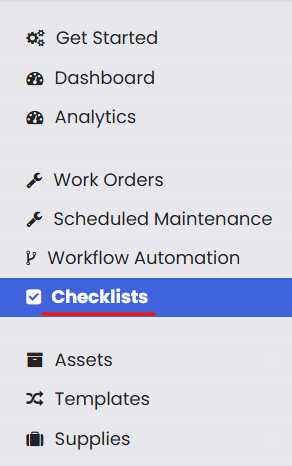
Step 1 – Navigate to the Checklists Section
Click on Checklists from the left side menu to open the Checklists module.
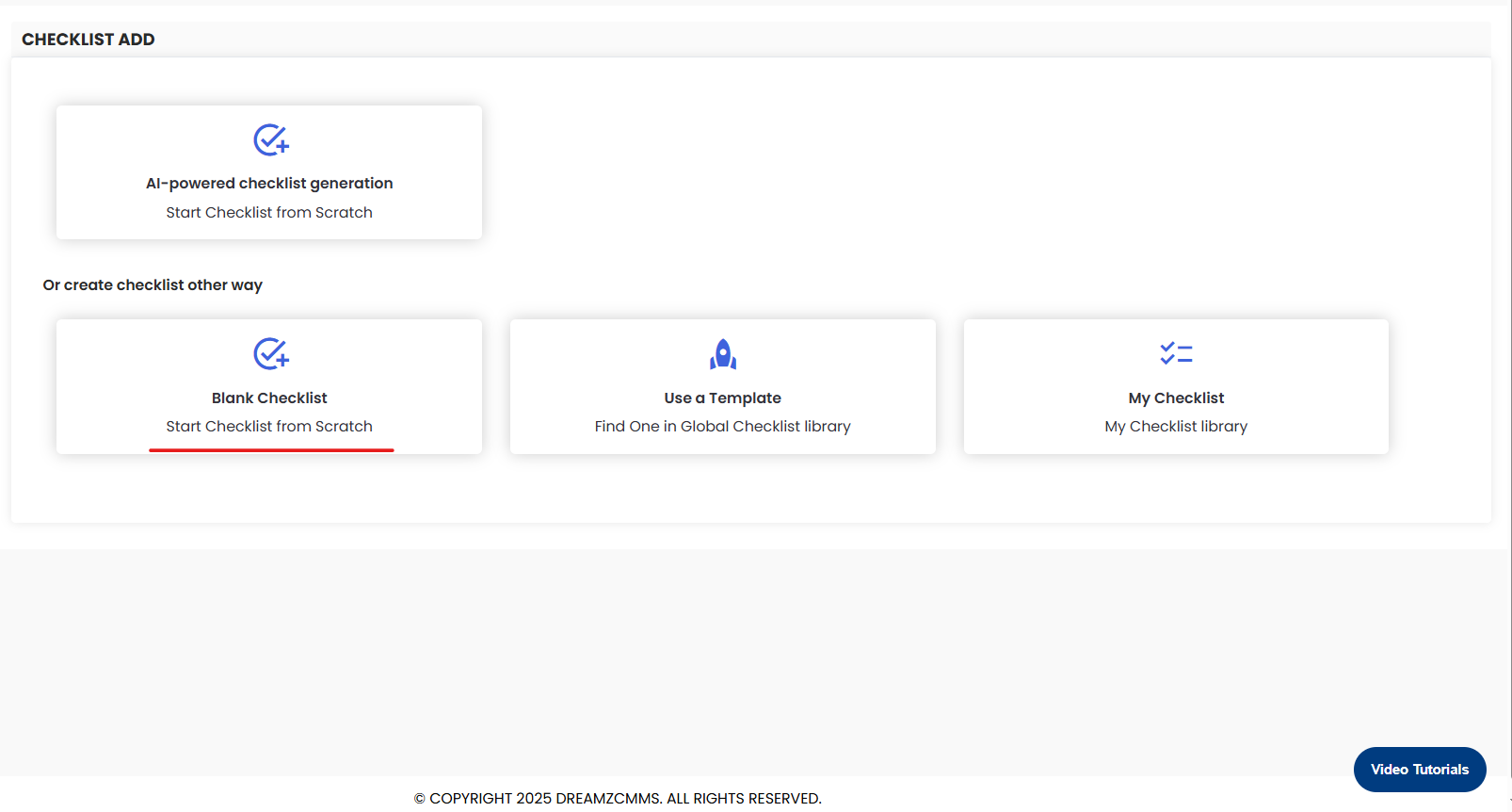
Step 2 – Select Blank Checklist
Click on Blank Checklist to start creating a checklist from scratch.
Step 3 – Enter Checklist Details and Save
Add the name of the checklist, select the Industry, and select the type of checklist. Then click the Save button. This will open the page where you can add sub-tasks to the checklist.

Step 4 – Add Tasks and Configure Task Types
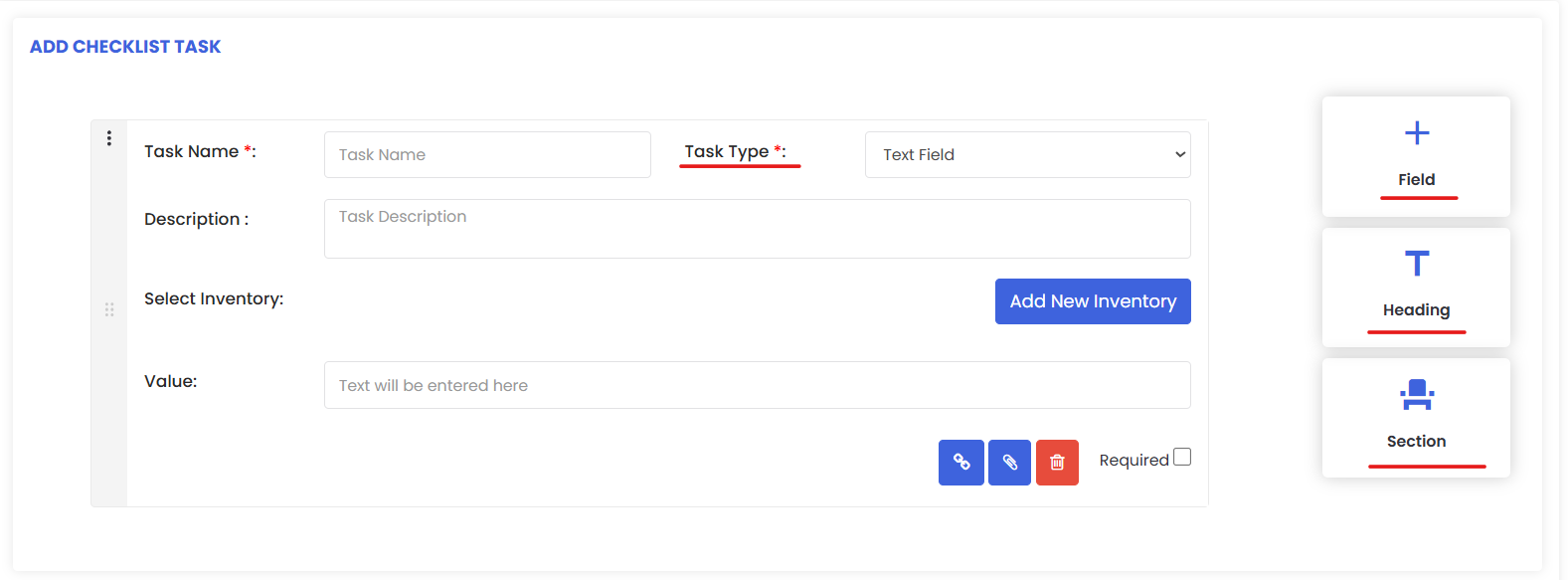
Select the task type from the drop-down menu. The technician’s response via the mobile app will depend on the chosen task type. Use the following options to build out your checklist:
- To add another task, click + field.
- To add a heading, click on Heading.
- To add a new section, click on Section.
Step 5 – Add Reference Links, Documents, and Mandatory Fields
Use the additional options available on each task to enhance your checklist:
- Click the
 button to add a reference URL link.
 - Click the
 button to add a file as a document.
 - Click the
 checkbox if the task is a mandatory field.
Step 6 – Preview and Save the Checklist
At the top right, two buttons are available:  Use Preview to review how the checklist will appear to technicians, and Save to store all checklist tasks.
Tips for Creating Checklists From Scratch
- Choose the correct task type for each item carefully — the technician’s response format in the mobile app is determined by the task type selected.
- Use Headings and Sections to group related tasks together, making the checklist easier for technicians to follow on site.
- Mark critical tasks as mandatory to ensure technicians cannot complete the checklist without addressing those specific items.
- Attach reference URL links or documents to tasks that require technicians to consult manuals, specifications, or safety guidelines.
- Always use the Preview button before saving to verify the checklist looks and flows correctly from the technician’s perspective.
Frequently Asked Questions
What is the difference between a Blank Checklist and a Template?
A Blank Checklist allows you to build a checklist entirely from scratch with your own tasks and structure. A Template uses a pre-existing checklist from the Global Checklist Library as a starting point, saving time for common or recurring job types.
How do task types affect technician responses in the mobile app?
The task type selected for each checklist item determines the input format the technician sees in the mobile app. For example, a text field task will prompt a typed response, while other types may require a selection, photo, or numerical value.
Can I add more tasks after saving the checklist?
Yes. You can return to the checklist at any time to add, edit, or remove tasks by reopening the checklist from the Checklists module and making the necessary changes.
What does marking a task as mandatory do?
Marking a task as mandatory means the technician must complete that task before they can submit the checklist from the mobile app. This ensures critical steps are never skipped.
Can I attach documents or links to individual checklist tasks?
Yes. Each task has options to attach a reference URL link or a file document, giving technicians direct access to relevant resources while completing the checklist in the field.
Related Articles
- Use a Template to Create a Checklist
- Assign a Checklist to a Job
- How to Create Jobs
- Schedule Jobs and Kanban View
- Plan Routes & Assign Jobs