Quick Work Order Creation
Quick Work Order Creation allows you to generate a work order in seconds, perfect for urgent fixes or simple tasks where you don’t need the full detailed work order form. This feature helps maintenance teams respond swiftly to issues without navigating through multiple screens.
Overview
Quick Work Order Creation pops up a simplified form where you can enter basic job details and save immediately. This is especially useful for high-velocity environments where time matters and work needs to be dispatched rapidly.
Here is a reference video:
Before You Begin
Ensure you have access to the Work Orders module in DreamzCMMS.
Have the essential work order details ready such as dates, status, maintenance type, location, and description.
How to Use Quick Work Order Creation
Step 1 — Go to Work Orders
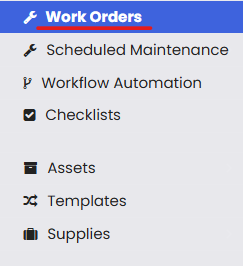
From the left navigation menu, click Work Orders to open the work order dashboard.
Step 2 — Select Quick Work Order Creation
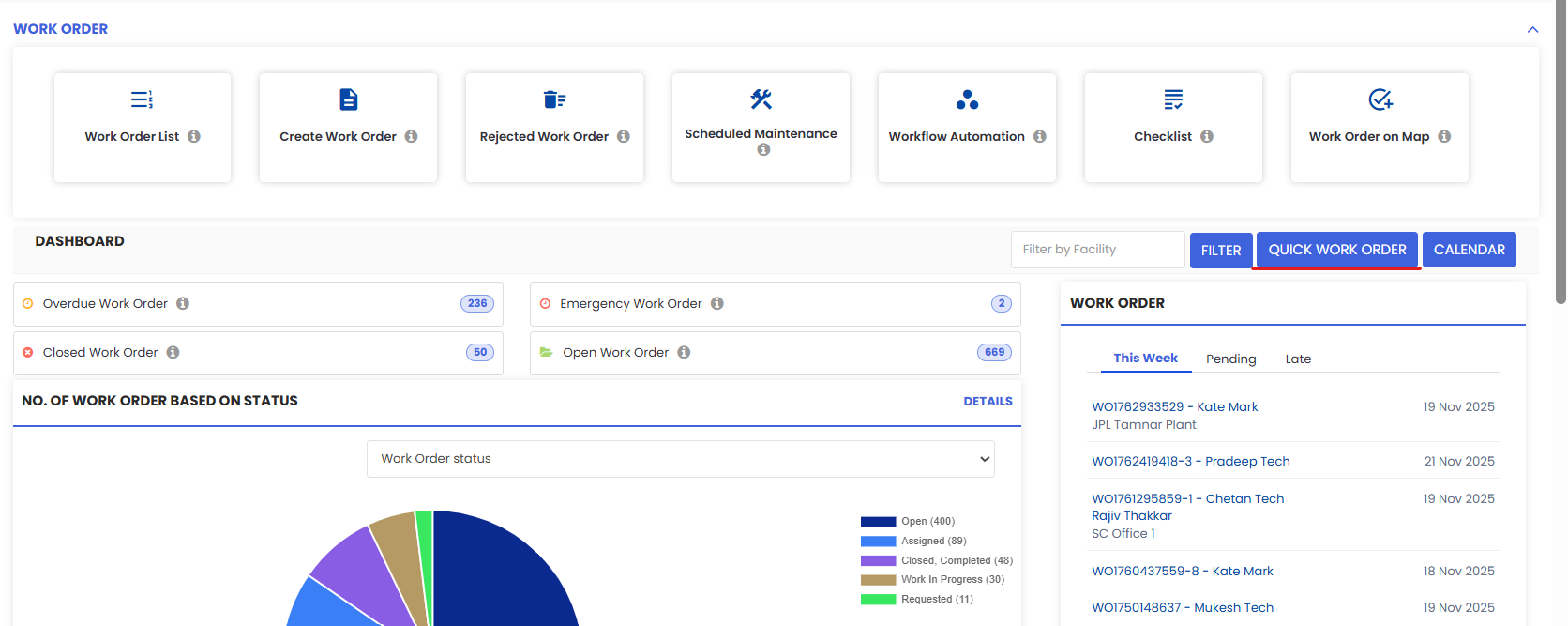
On the dashboard, click Quick Work Order Creation. This opens the quick pop-up form designed for rapid entry.
Step 3 — Complete the Quick Form
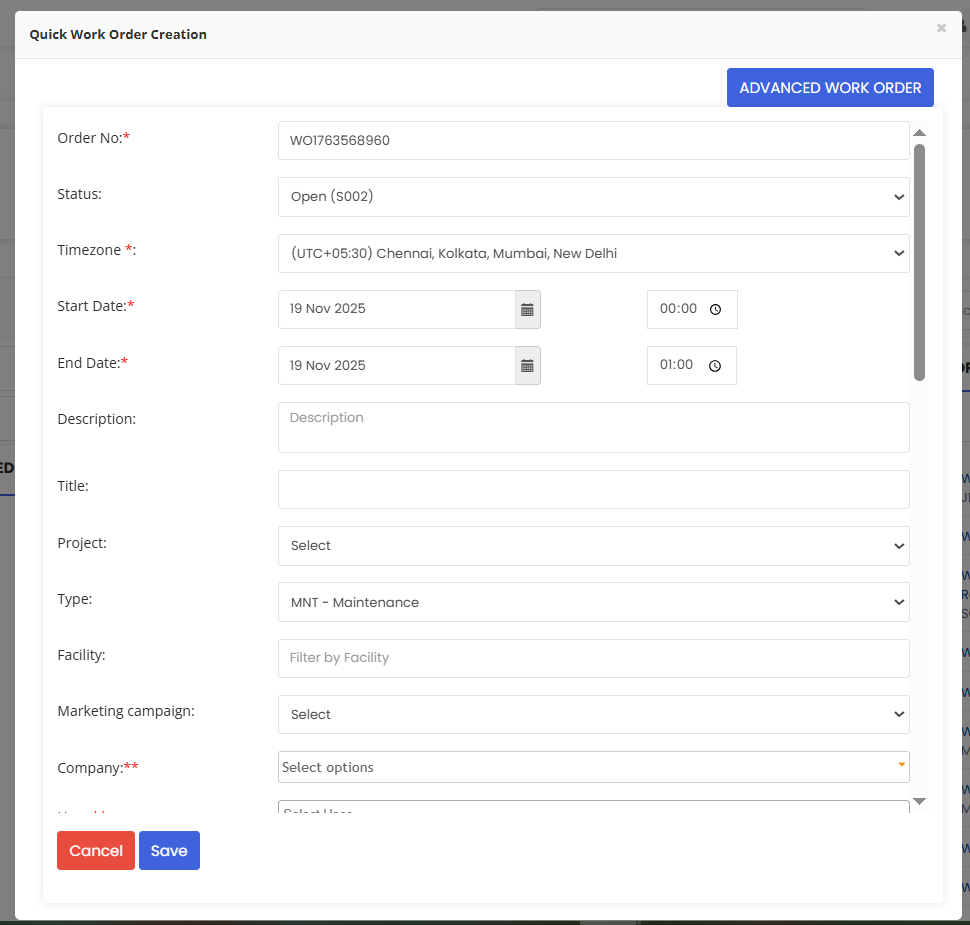
In the pop-up window:
Enter the necessary details such as work order number, dates, status, maintenance type, location, user, and brief description.
Make sure essential fields are filled so the system can save the work order successfully.
Step 4 — Save the Work Order
Once all required fields are entered, click Save. The work order is instantly created and can be accessed from the full work order list for further actions if needed.
After Creating a Quick Work Order
The new work order will appear in the Work Order List with all other tasks.
You can open the work order from the list to add additional details such as asset links, technicians, checklists, files, labor tasks, and more.
Quick creation speeds up response time while still enabling deeper tracking later.
Tips for Effective Quick Work Order Creation
Use this feature for urgent or simple tasks that don’t need full asset and labor details at creation time.
For complex jobs requiring multiple resources or dependencies, consider using the full Create Work Order form.
Ensure essential fields like location, maintenance type, and description are filled to avoid confusion in follow-ups.
Frequently Asked Questions (FAQs)
1. What is the difference between Quick Work Order Creation and the regular work order form?
Quick Work Order Creation uses a simplified pop-up form for rapid entry of essential information, whereas the regular form includes full details like assets, labor tasks, files, and finance.
2. Can I edit a work order created via Quick Work Order Creation?
Yes — after saving, the work order appears in the main work order list. From there you can open and edit it with additional details as needed.
3. Do I need special permissions to use Quick Work Order Creation?
You will need access to the Work Orders module. If you can create a work order normally, you can also use the quick creation feature.
4. Can Quick Work Order Creation be used for preventive maintenance tasks?
Yes — although quick creation is ideal for urgent fixes or basic tasks, you can still select preventive maintenance types if needed. The details can be expanded later in the full work order.
Related Articles
- Import Asset Locations
- How to Add BOM to a Facility/Location
- How to Assign Personnel to a Location/Facility
- Create and Manage Work Orders