Purchase Order Workflow Automation
Purchase Order Workflow Automation in DreamzCMMS lets you handle PO steps automatically using simple IF / (optional) AND / THEN rules. Choose a trigger (e.g., PO is created or updated), add conditions such as vendor, status, or order date ranges, and select actions like assigning a vendor, approving or declining a PO, marking it fulfilled, or sending notifications. Once enabled, automation rules standardise your approval process, prevent delays, and maintain a full audit trail — with no manual chasing required.
Overview
Workflow Automation in DreamzCMMS allows you to define rule-based logic that acts on Purchase Orders based on conditions you set. Rules follow an IF – THEN (or IF – AND – THEN) structure: when a trigger condition is met, the system automatically performs the configured action. This removes the need for manual intervention in routine procurement steps and ensures consistent processing across your organisation.
Before You Begin
- You must have the appropriate permissions to access and configure Workflow Automation.
- Ensure the relevant vendors, users, and PO statuses are already set up in the system before building automation rules.
- Review your procurement workflow and identify which steps are suitable for automation before creating rules.
How to Create a PO Workflow Automation Rule
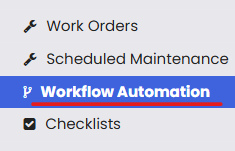
Step 1 – Navigate to Workflow Automation
From the main menu, click Workflow Automation. This opens the automation listing page showing all existing rules.
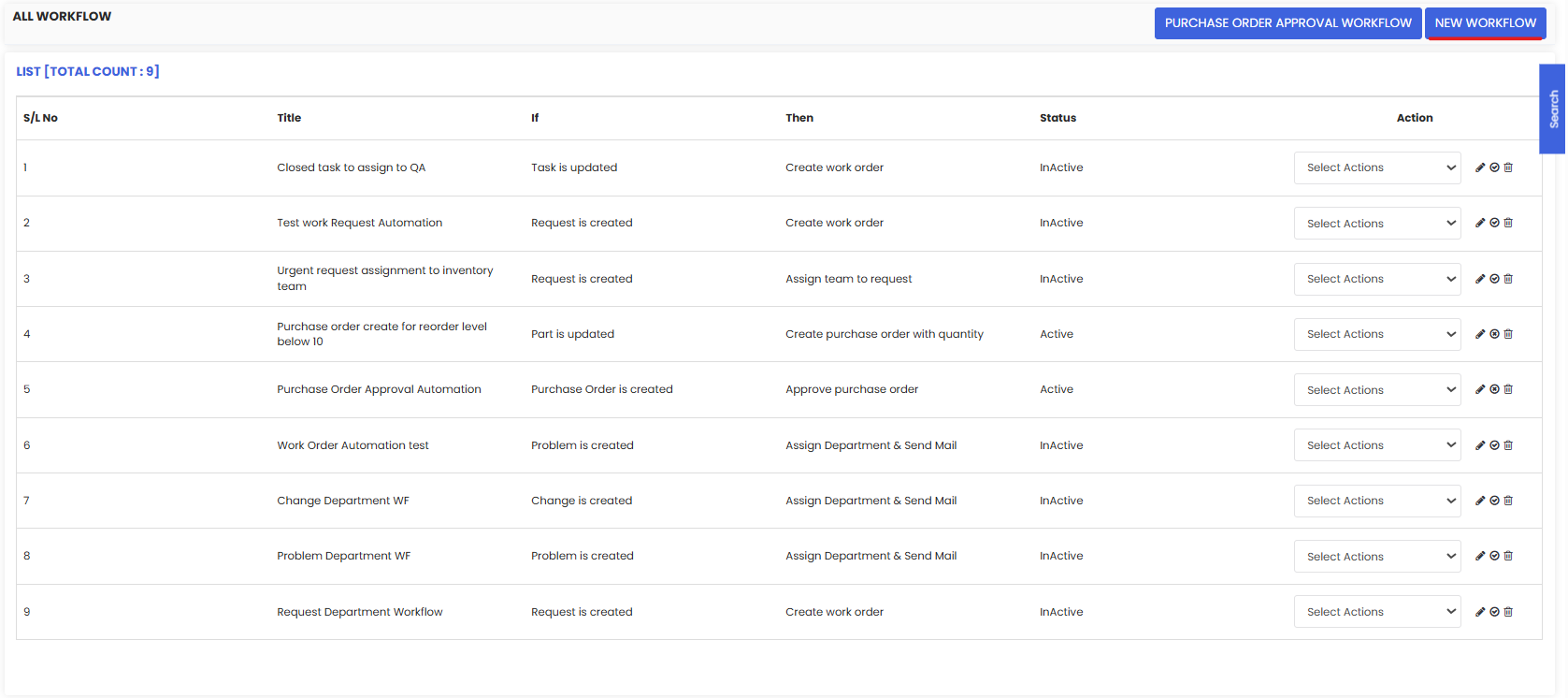
Step 2 – Click "New Workflow "
Click the New Workflow button to open the automation rule creation form.
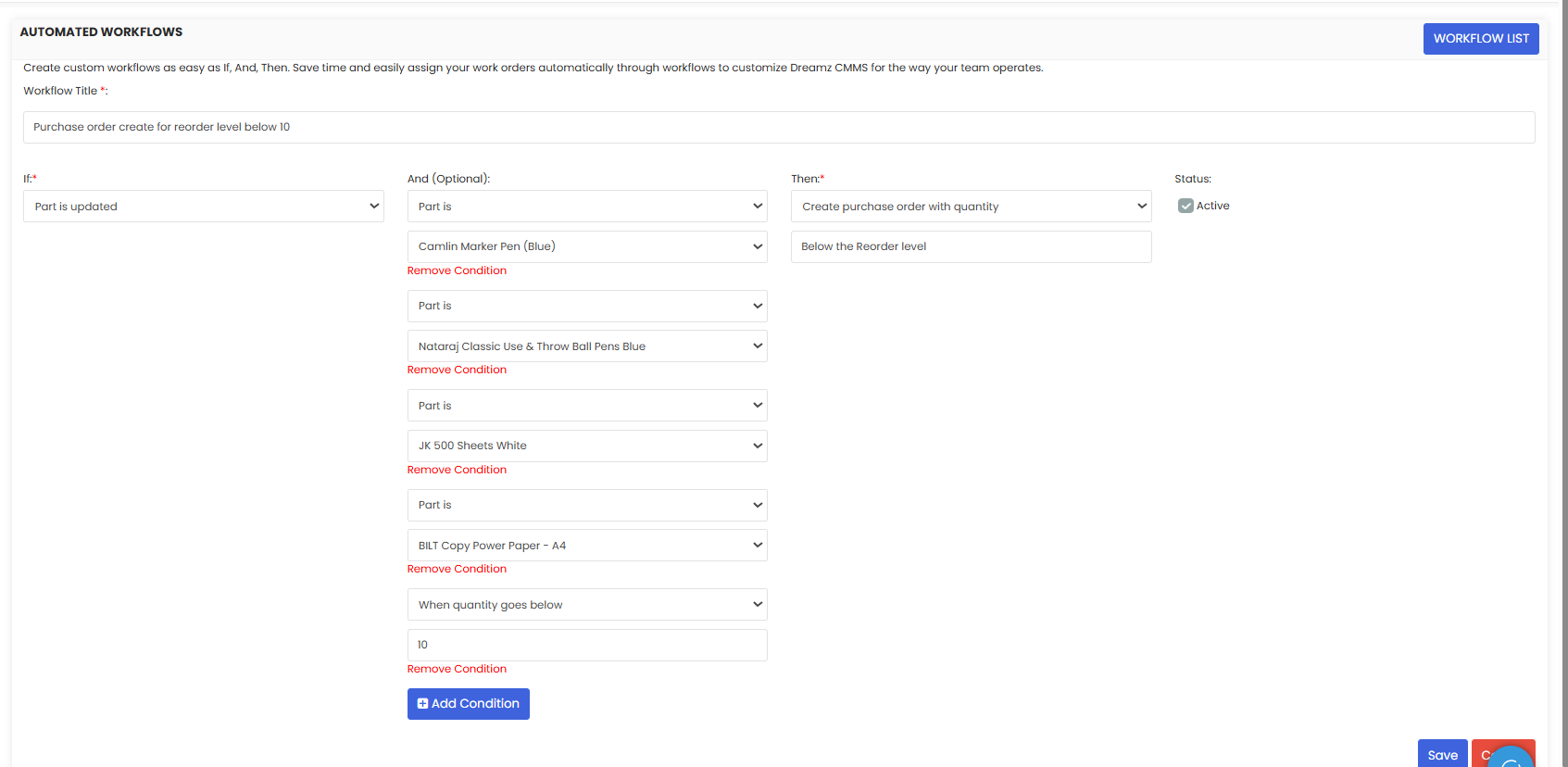
Step 3 – Configure the Rule and Save
In the automation form, complete the following:
- Title — Enter a descriptive name for the rule so it is easy to identify in the listing.
- IF condition — Select the trigger that should initiate the automation (e.g., PO is created, PO is updated).
- AND condition (optional) — Add one or more additional conditions to narrow the scope of the rule (e.g., vendor matches, status equals, order date is within a range).
- THEN action — Select the action to perform when the conditions are met. Available actions include: assign vendor, approve PO, decline PO, mark as fulfilled, or send a notification.
- Status — Set the rule to Active to enable it immediately.
Note: Rules are evaluated in the order they appear in the listing. If multiple rules could apply to the same PO, only the first matching rule will be executed. Review rule ordering carefully to avoid unintended behaviour.
Once all fields are configured, click Save to create the automation rule.
The new automation rule will now appear in the Workflow Automation listing and will begin executing automatically when its conditions are met.
After Creating the Rule — What's Next?
- Test the rule by triggering a PO action that matches the condition and confirming the expected outcome occurs.
- Monitor the automation listing to review active rules and adjust conditions or actions as your procurement process evolves.
- Deactivate or edit rules at any time by returning to the Workflow Automation listing and updating the rule status or configuration.
Tips for Managing PO Workflow Automation
- Use descriptive titles for each rule so your team can quickly identify its purpose from the listing page.
- Start with simple single-condition rules and add AND conditions only when needed. Overly complex rules are harder to troubleshoot.
- Always set a new rule to Inactive first when modifying an existing workflow, to avoid unintended actions during testing.
- Review the rule order in the listing regularly — rules are evaluated top-to-bottom, and incorrect ordering can cause the wrong rule to fire.
- Use notification actions to keep relevant team members informed of status changes without requiring them to manually check the system.
Frequently Asked Questions
What triggers are available for PO Workflow Automation?
You can trigger automation when a Purchase Order is created or updated. Additional conditions such as vendor, status, order date, or due date ranges can be applied to refine when the rule fires.
What actions can be performed automatically?
Available actions include: assigning a vendor, approving a PO, declining a PO, marking a PO as fulfilled, and sending notifications to designated users.
Can I have multiple automation rules active at the same time?
Yes. Multiple rules can be active simultaneously. However, rules are evaluated in order, and only the first matching rule will execute for a given PO action. Ensure your rules are ordered correctly to achieve the intended outcome.
Can I deactivate a rule without deleting it?
Yes. You can set any rule to Inactive from the Workflow Automation listing. This preserves the rule configuration for future use without it affecting live PO processing.
Will automation rules apply to existing POs?
Automation rules apply when a triggering event occurs (e.g., a PO is created or updated). Rules will not retroactively apply to POs that were created before the rule was activated.
Related Articles
- Create and Approve a Purchase Request
- Create Purchase Orders after Finalizing RFQ
- Create Purchase Invoices
- Purchase Returns
- Manage Stock Levels