Import Asset Locations
If you have a large number of locations to set up, manually creating them one by one can be time-consuming. DreamzCMMS allows you to bulk import your facility hierarchy using an Excel file, saving your team significant setup time and ensuring accuracy across your location structure.
Overview
The Import Asset Locations feature lets you upload multiple locations at once into DreamzCMMS using a pre-formatted Excel template. This is especially useful when migrating from another system or setting up a new account with an existing facility structure.
If you only need to add a single location, see Create Asset Locations
Before You Begin
- You must have Admin or Manager permissions to import locations.
- Download the sample Excel file from DreamzCMMS before preparing your data to ensure your file is in the correct format. You'll find it in Step 3 below.
- Make sure your location data is clean and consistent before uploading (e.g., consistent naming conventions, correct parent-child relationships).
- If you're unsure how locations and hierarchies work, read Create Asset Locations.
How to Import Asset Locations
Step 1 – Navigate to Facilities
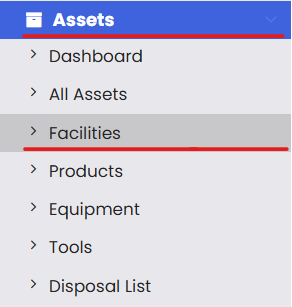
From the left-hand navigation menu, click on Assets, then select Facilities.
Step 2 – Open the Location Import Option
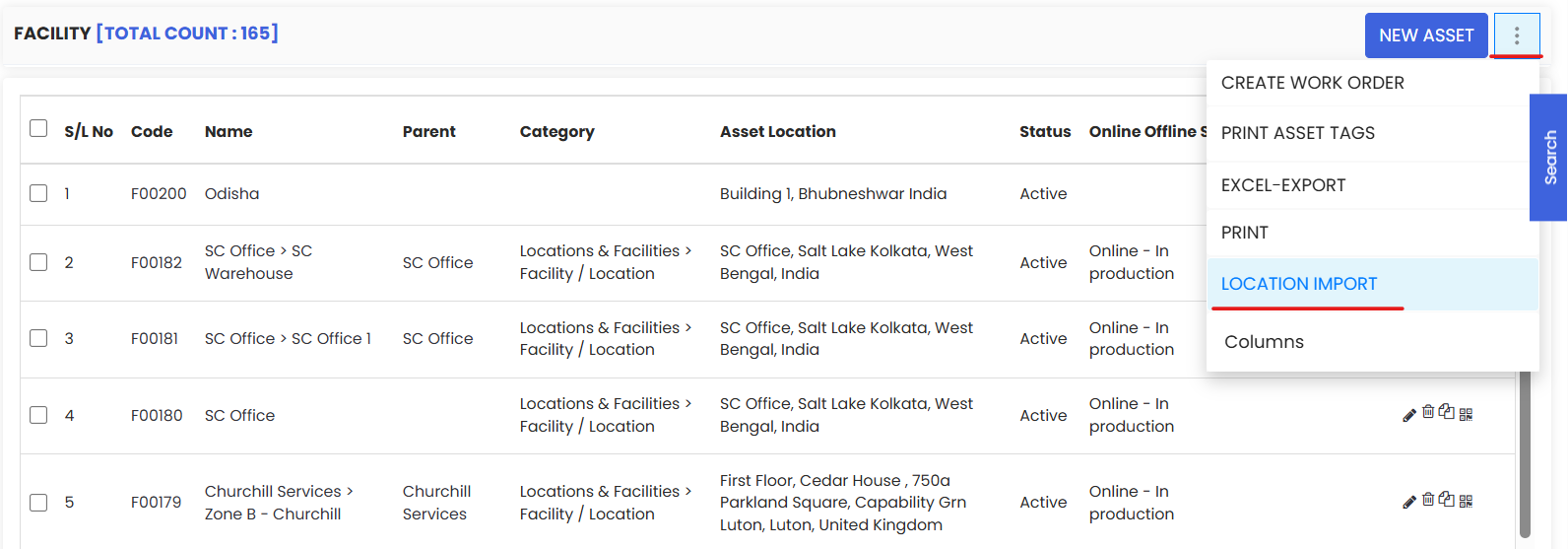
On the Facilities listing page, click the three-dot menu (⋮) in the top area of the screen. From the dropdown, select Location Import.
Step 3 – Download the Sample Excel File
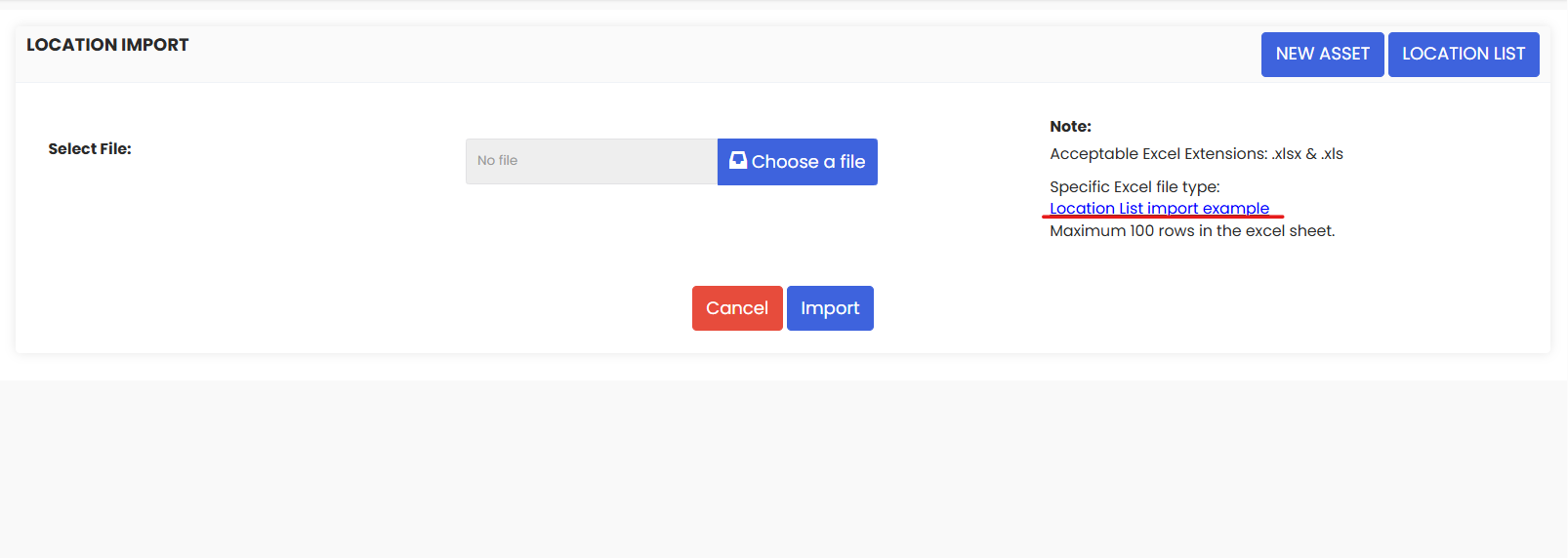
On the Location Import page, download the sample Excel file provided. This template contains the correct column headers and format that DreamzCMMS requires.
Open the file and use it as a guide to structure your own location data. Fill in your location details following the same format, then save your file.
Tips for filling out the Excel file:
- Follow the exact column headers provided in the sample — do not rename or remove any columns.
- If you have a location hierarchy (parent and sub-locations), ensure parent locations are listed before their child locations.
- Use consistent naming to avoid duplicate entries (e.g., always "Bldg" or always "Building" — not both).
- Please save the file in .xlsx format before you upload it.
Step 4 – Upload Your File
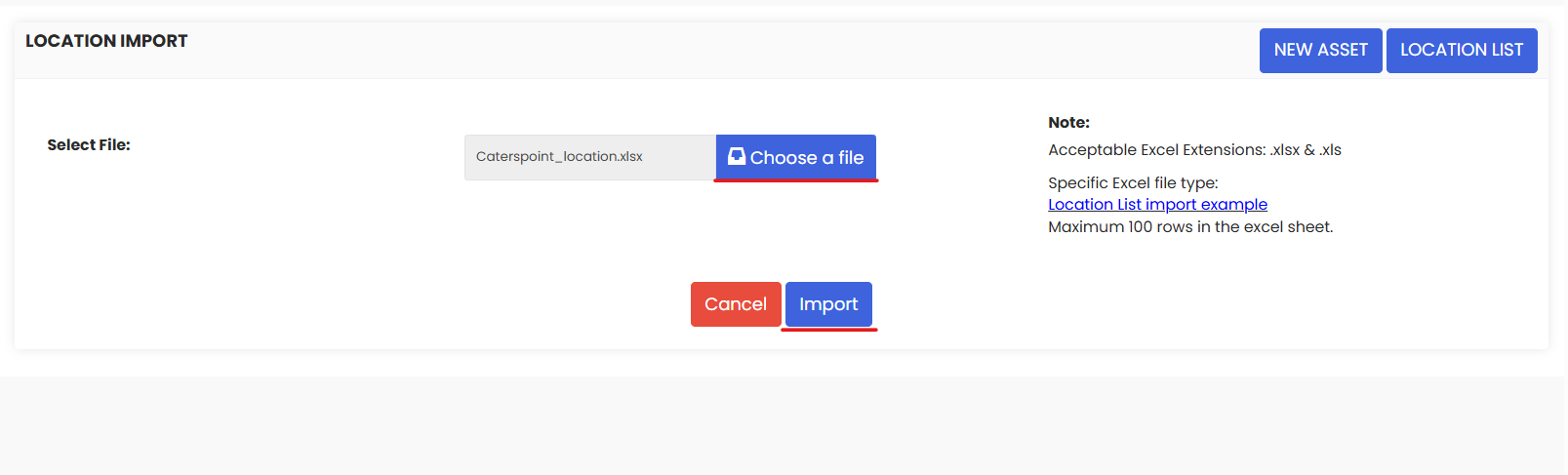
Once your file is ready, click the Upload button on the Location Import page and select your completed Excel file.
Step 5 – Click Import
After uploading, click the Import button to begin the process. DreamzCMMS will process your file and add the locations to your system.
Once complete, you will see all the imported locations reflected in your Facilities listing page.
After Importing — What's Next?
After your locations have been successfully imported, you can:
- Review your locations in the Facilities listing page to verify everything imported correctly.
- Assign assets to the newly created locations.
- Assign personnel to locations so your team knows who is responsible for each area — see How to Assign Personnel to a Location/Facility
- Add additional details to individual locations such as descriptions, addresses, and documents — see Create Asset Locations.
Troubleshooting
My import failed — what do I do?
Check that your Excel file matches the exact format of the sample file. Common issues include mismatched column headers, unsupported file formats (use .xlsx), or missing required fields.
Some locations didn't import correctly.
Review the imported data in the Facilities page and compare it with your Excel file. Correct any discrepancies and re-import if needed, or manually edit individual locations.
My parent-child hierarchy didn't come through correctly.
Ensure that parent locations are listed in the file before their child/sub-locations. The system needs to create the parent first before it can assign children to it.
Frequently Asked Questions
Can I update existing locations using the import feature?
The import feature is primarily designed for adding new locations in bulk. For updates to existing locations, edit them individually through the Facilities page.
How many locations can I import at once?
There is no specific limit mentioned, but it is best practice to import in manageable batches (e.g., 500 rows at a time) to make troubleshooting easier if issues arise.
Can I import a location hierarchy (parent and sub-locations) in one file?
Yes. Structure your Excel file so that parent locations appear before their sub-locations, and the system will recognize the hierarchy during import.