Generate RFIDs
RFID (Radio Frequency Identification) tags allow your team to track and identify assets automatically — without requiring line-of-sight scanning like barcodes or QR codes. By generating and linking RFID tag IDs directly to your asset records in DreamzCMMS, you create a seamless connection between your physical assets and your digital maintenance system, enabling faster asset identification, automated inventory checks, and improved accuracy across your facilities.
Overview
The Generate and Export RFIDs feature in DreamzCMMS allows you to bulk generate unique RFID tag IDs for selected assets, automatically link them to each asset record, and export the tag list for printing or encoding onto physical RFID tags. This is especially useful during initial setup or when deploying RFID infrastructure across a facility for the first time.
RFID vs. Barcode/QR Code — what's the difference?
- Barcodes and QR Codes require a scanner or camera to be pointed directly at the label (line-of-sight scanning).
- RFID tags can be read automatically from a distance without line-of-sight — making them ideal for automated stocktaking, access control, and high-throughput environments.
For printing barcodes and QR codes instead, see Print QR Code or Barcode of Equipment
How to Generate RFIDs for Assets
Step 1 – Navigate to Equipment
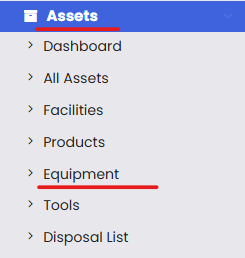
From the left-hand navigation menu, click on Assets, then select Equipment.
Step 2 – Open the Generate and Export RFIDs Option
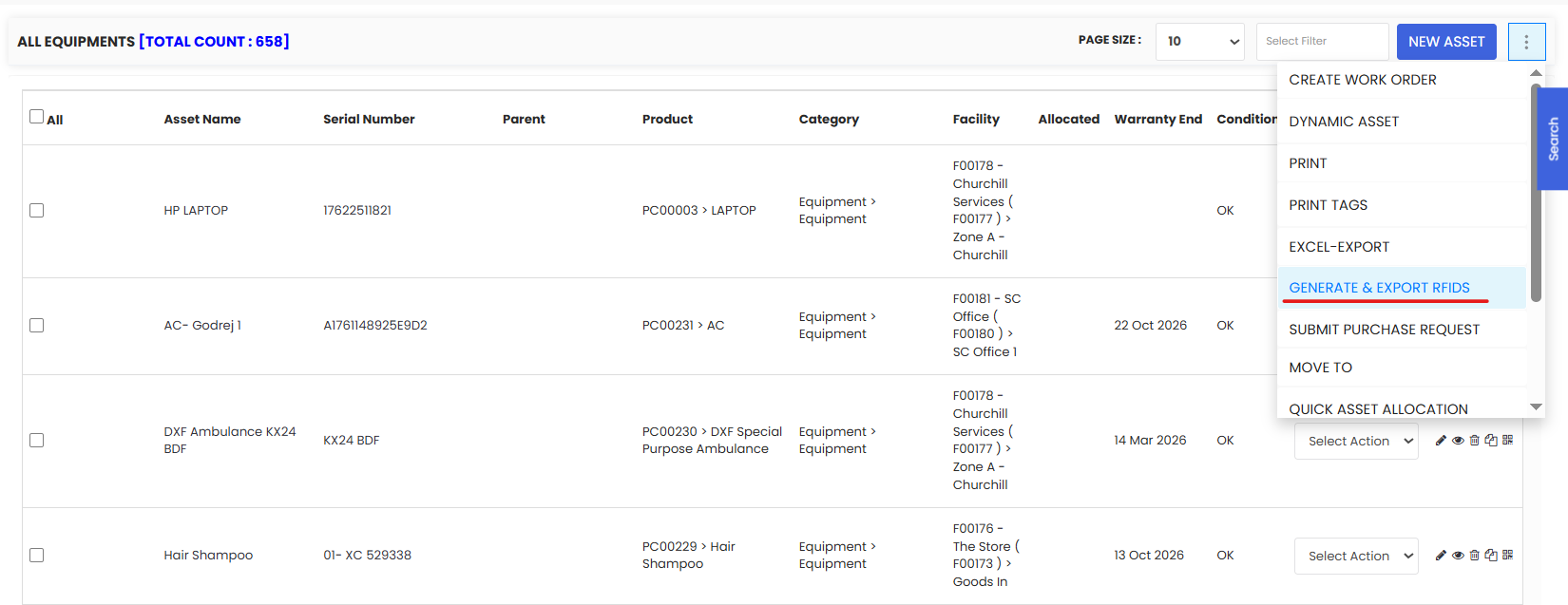
On the Equipment listing page, click the three-dot menu (⋮) in the top-right corner of the page. From the dropdown, select Generate and Export RFIDs.
Step 3 – Select the Assets
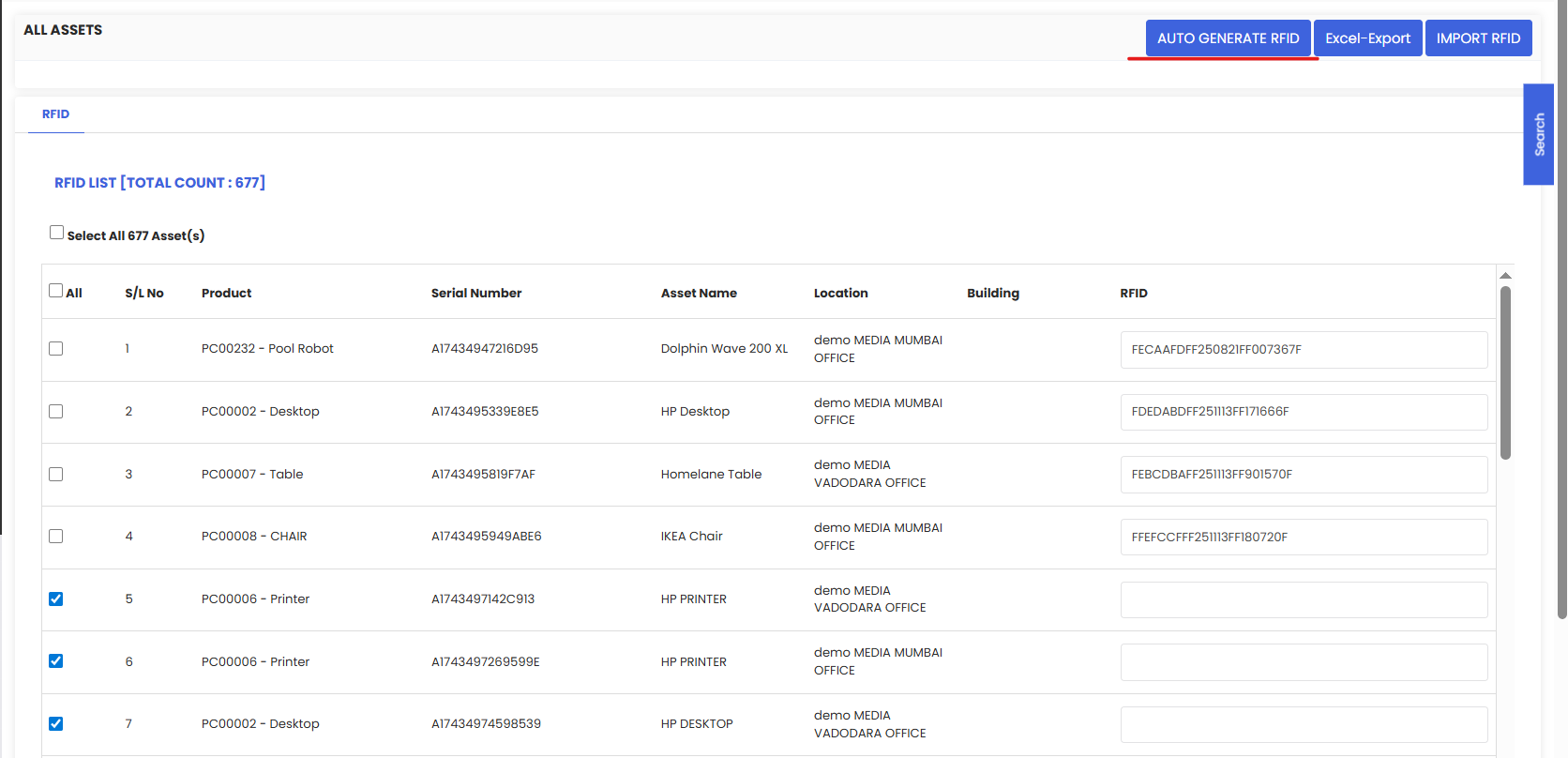
You will be taken to a listing page showing your equipment. You can just select the assets for which you want to generate RFID codes. You can:
- Select individual assets by checking the checkbox next to each one.
- Select all assets on the page using the select-all checkbox at the top of the list.
Tip: Use the search or filter options on this page to narrow down the list before selecting — for example, filter by location or asset category to generate RFIDs for a specific area of your facility in one batch.
Step 4 – Click "Auto-Generate RFID"
Once your assets are selected, click the Auto-Generate RFID button. DreamzCMMS will automatically generate a unique RFID tag ID for each selected asset and link it to the corresponding asset record.
You will see the generated RFID codes appear in the listing, confirming they have been successfully created and assigned.
Step 5 – Export the RFID List
After generation, export the RFID tag list using the available export option. This file contains the unique RFID IDs linked to each asset and is used to encode the generated IDs onto physical RFID tags using your RFID encoder hardware.
After Generating RFIDs — What's Next?
Once RFIDs have been generated and exported:
- Encode the tags — Use your RFID encoder to write the generated IDs onto blank physical RFID tags.
- Attach tags to assets — Affix the encoded RFID tags to the corresponding physical assets. Place them in a consistent, accessible location (e.g., top panel or equipment frame).
- Test your RFID reader — Scan a sample of tagged assets to confirm the RFID reader correctly pulls up the linked asset records in DreamzCMMS.
- Verify RFID fields on asset records — Navigate to individual asset records to confirm the generated RFID IDs are correctly displayed in the Identities/RFID field.
- Train your team — Ensure technicians and inventory staff know how to use RFID readers to access asset data in the field.
Tips for RFID Deployment
- Generate RFIDs in batches by location — Process one facility or floor at a time to make encoding and tagging more manageable and reduce the chance of applying a tag to the wrong asset.
- Use durable RFID tags for harsh environments — Standard paper-backed RFID tags are not suitable for high-heat, high-moisture, or chemically exposed environments. Use industrial-grade metal-mount or weatherproof RFID tags where needed.
- Attach tags in a consistent location on every asset — this speeds up scanning and reduces the time technicians spend looking for tags in the field.
- Keep a record of your encoded tags — Maintain a backup copy of the exported RFID list in case tags need to be replaced. The unique ID must match what is in DreamzCMMS.
- Do a test scan before full deployment — Before encoding and attaching all tags, test a small batch end-to-end (generate → encode → scan → verify in system) to confirm everything works correctly.
Frequently Asked Questions
What is an RFID tag ID?
An RFID tag ID is a unique identifier assigned to an asset in DreamzCMMS that is encoded onto a physical RFID tag. When the tag is scanned by an RFID reader, the system uses this ID to identify the asset and pull up its record instantly.
Are RFID IDs automatically generated or do I need to define them?
DreamzCMMS auto-generates unique RFID IDs for each selected asset when you click the Auto-Generate RFID button — you do not need to define them manually.
Can I generate RFIDs for Tools as well as Equipment?
This process is available from the Equipment listing page. Check whether a similar option is available under Assets → Tools for tagging tool records with RFIDs.
What if an RFID tag is lost or damaged?
If a physical tag is lost or damaged, you can retrieve the original RFID ID from the asset's record in DreamzCMMS (in the Identities/RFID field) and encode it onto a new blank tag. The asset record and all linked data remain intact.
Can I assign a custom RFID ID instead of using the auto-generated one?
If you have existing RFID tags with pre-defined IDs (e.g., from a previous system), you may be able to manually enter the RFID ID on the asset record. Contact your DreamzCMMS administrator for guidance on importing or manually assigning existing RFID IDs.
What hardware do I need to use RFID with DreamzCMMS?
You will need an RFID reader (handheld or fixed) for scanning tags in the field, and an RFID encoder/writer for programming blank tags with the generated IDs. Consult your RFID hardware vendor for compatible device recommendations.
Related Articles
How to Manage Various Asset Information