Configure Work Order Fields & Use Calendar and Map Views
DreamzCMMS allows administrators to tailor the work order form by choosing which fields appear and how they behave — ensuring relevant information is captured while keeping screens tidy. You can also view work orders through interactive Calendar and Map views, helping supervisors plan, monitor, and manage maintenance schedules and field activity with ease.
Overview
This article explains how to:
Configure Work Order Fields — Decide which fields should be required, optional, or hidden when creating or editing work orders to enforce data standards and simplify workflows.
Use the Work Order Calendar View & Map View — Visualize scheduled work orders on a calendar, quickly create or reassign work orders, and see work order locations geographically.
Before You Begin
Ensure you have admin access to DreamzCMMS to update system configurations.
Confirm that work orders and assets have valid location details to be properly displayed in Map View.
Part 1 — Configure Work Order Fields
Step 1 — Open System Configuration
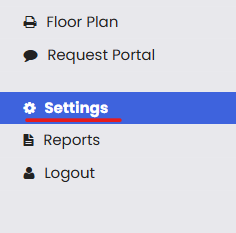
From the left menu, go to Settings.
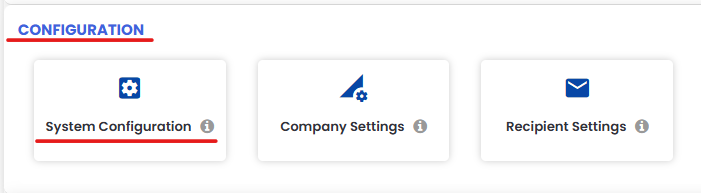
Under Configuration, click System Configuration.
Step 2 — Access Work Order Fields Settings
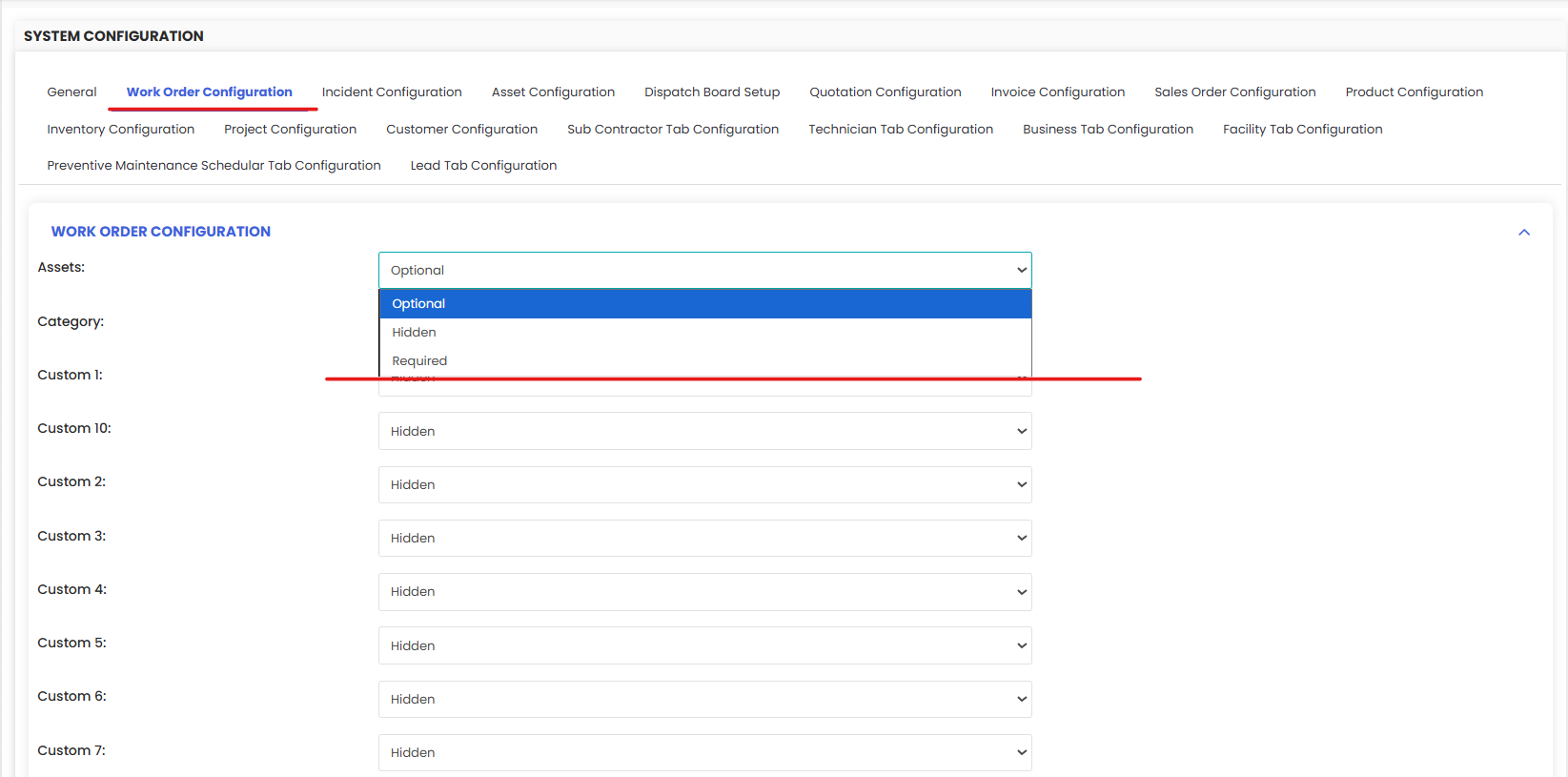
Click on the Work Order Configuration tab.
You will see a list of work order fields such as Asset, Category, and Custom 1–10.
Step 3 — Set Field Behaviors
For each field:
Required — Must be filled out when creating/editing a work order.
Optional — Can be filled but is not mandatory.
Hidden — Not displayed on the form, keeping the interface clean.
Once complete, click Save to apply the settings across all new and existing work order forms.
After Using These Tools
Work Order Fields Configuration — Ensures that technicians and users always enter accurate and necessary data.
Calendar View — Improves planning and workload balancing.
Map View — Enhances field coordination and visibility of where jobs are physically located.
Tips for Effective Use
Only display fields that matter for your organization to avoid clutter.
Use color codes to quickly differentiate priorities or statuses in Calendar View.
Regularly review field configurations to adapt to evolving workflows.
Frequently Asked Questions (FAQs)
1. Can I make certain fields mandatory on work orders?
Yes — using the Work Order Fields Configuration, you can set fields as Required, Optional, or Hidden according to your data needs.
2. Will the field configuration affect existing work orders?
Yes — once saved, the configuration applies system-wide and influences both new and edited work orders.
3. Can I view work orders on a map?
Yes — switch to Map View from the calendar or view selector to see where work orders are located if location data is assigned.
4. How do I quickly reassign a work order on the calendar?
In Calendar View, simply drag and drop a work order to another date or assignee to reassign it.