How to Dispose of an Asset
Asset disposal is the controlled process of retiring an asset from service — whether through sale, transfer, scrapping, or write-off. Properly recording a disposal in DreamzCMMS ensures your asset register stays accurate and compliant by capturing the reason, method, financial impact, and supporting documentation. It also closes any open work orders or preventive maintenance schedules associated with the asset, keeping your maintenance queue clean.
Overview
In DreamzCMMS, asset disposal is initiated from the Financials tab of an equipment record. Once disposed of the asset is removed from your active equipment list and moved to the Disposal List, preserving a full audit trail of the retirement for reporting and compliance purposes.
Important: Disposing of an asset is a significant action. Ensure all open work orders and PMs for the asset are reviewed and closed before proceeding. This action should only be performed by authorized personnel.
Before You Begin
You must have Admin or Manager permissions to dispose of an asset.
Confirm that the asset is genuinely ready for retirement — check for any open work orders, active warranties, or pending purchase requests linked to it.
Have the following details ready before starting:
- Disposal type (e.g., Sale, Transfer, Scrap, Write-Off)
- Disposal price or value (if applicable)
- Any supporting documentation, such as sale receipts, transfer certificates, or scrapping records
If the asset has an active warranty, check the Warranty tab before disposing — see How to Manage Asset Warranty
How to Dispose of an Asset
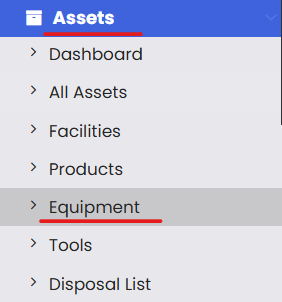
Step 1 – Navigate to Equipment
From the left-hand navigation menu, click on Assets, then select Equipment.
Step 2 – Open the Equipment Record
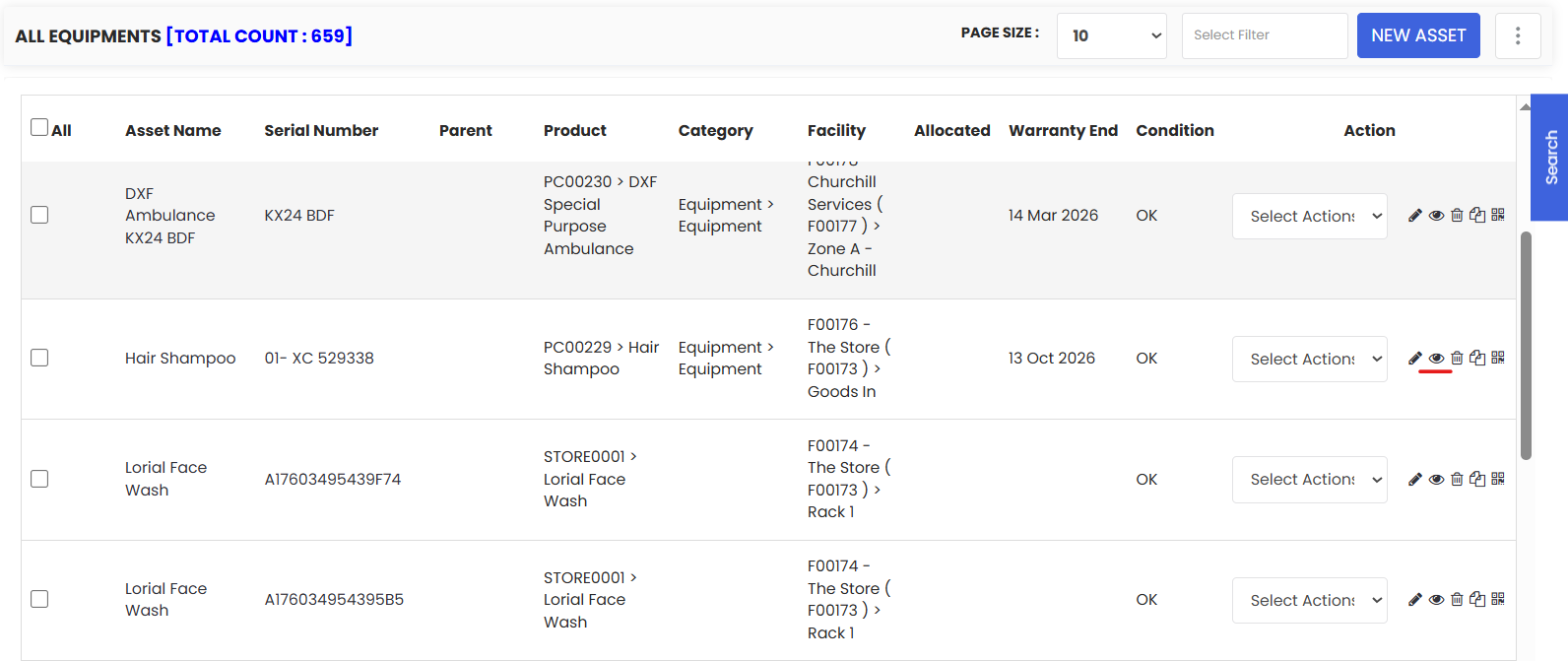
On the Equipment listing page, find the asset you want to dispose of. Click View to open its full detail page.
Step 3 – Go to the Financials Tab
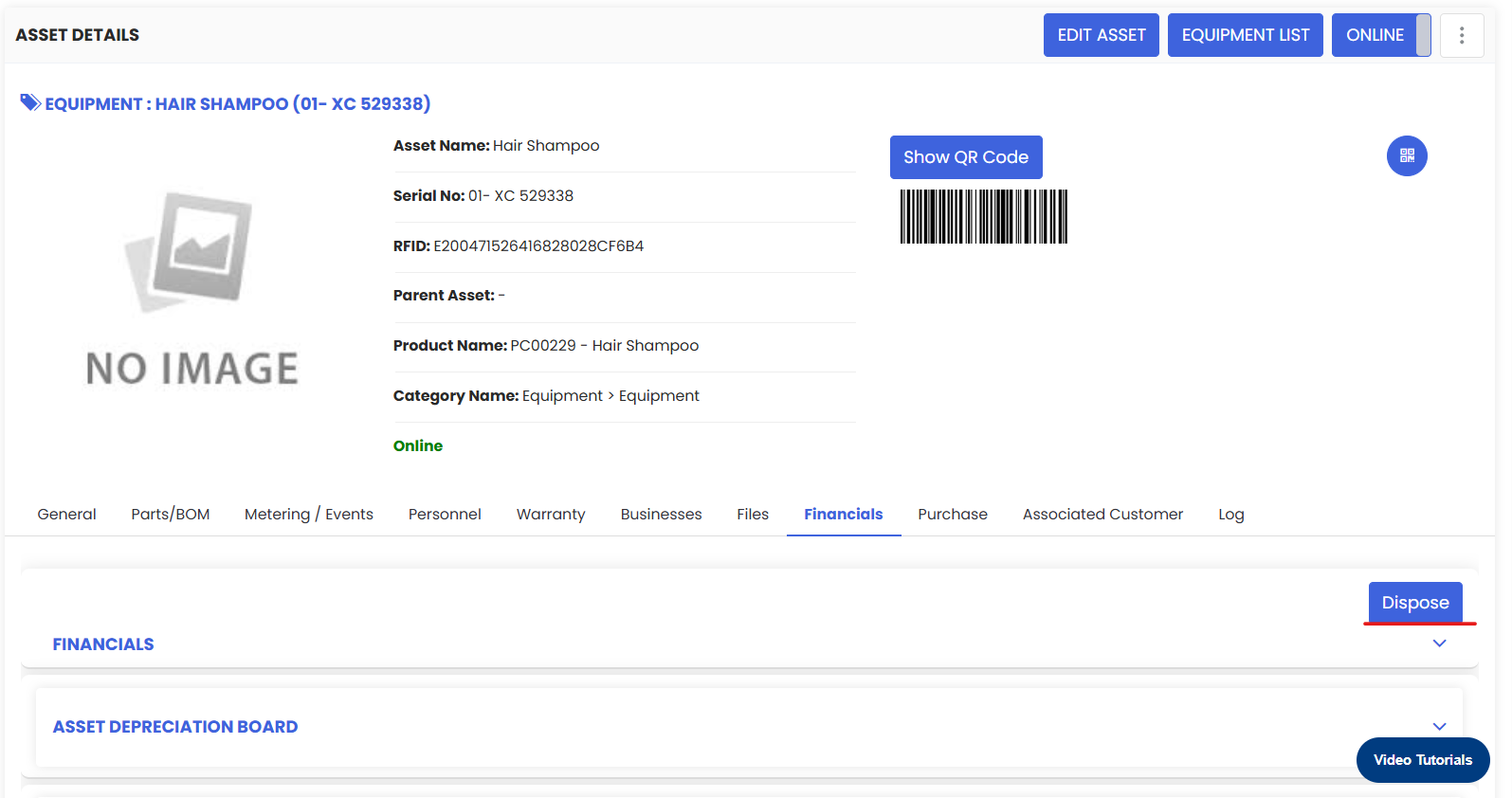
On the equipment detail page, click the Financials tab. This is where all financial actions for the asset are managed, including disposal.
Step 4 – Click the Dispose Button
Within the Financials tab, locate and click the Dispose button. A disposal pop-up will appear.
Step 5 – Fill in the Disposal Details
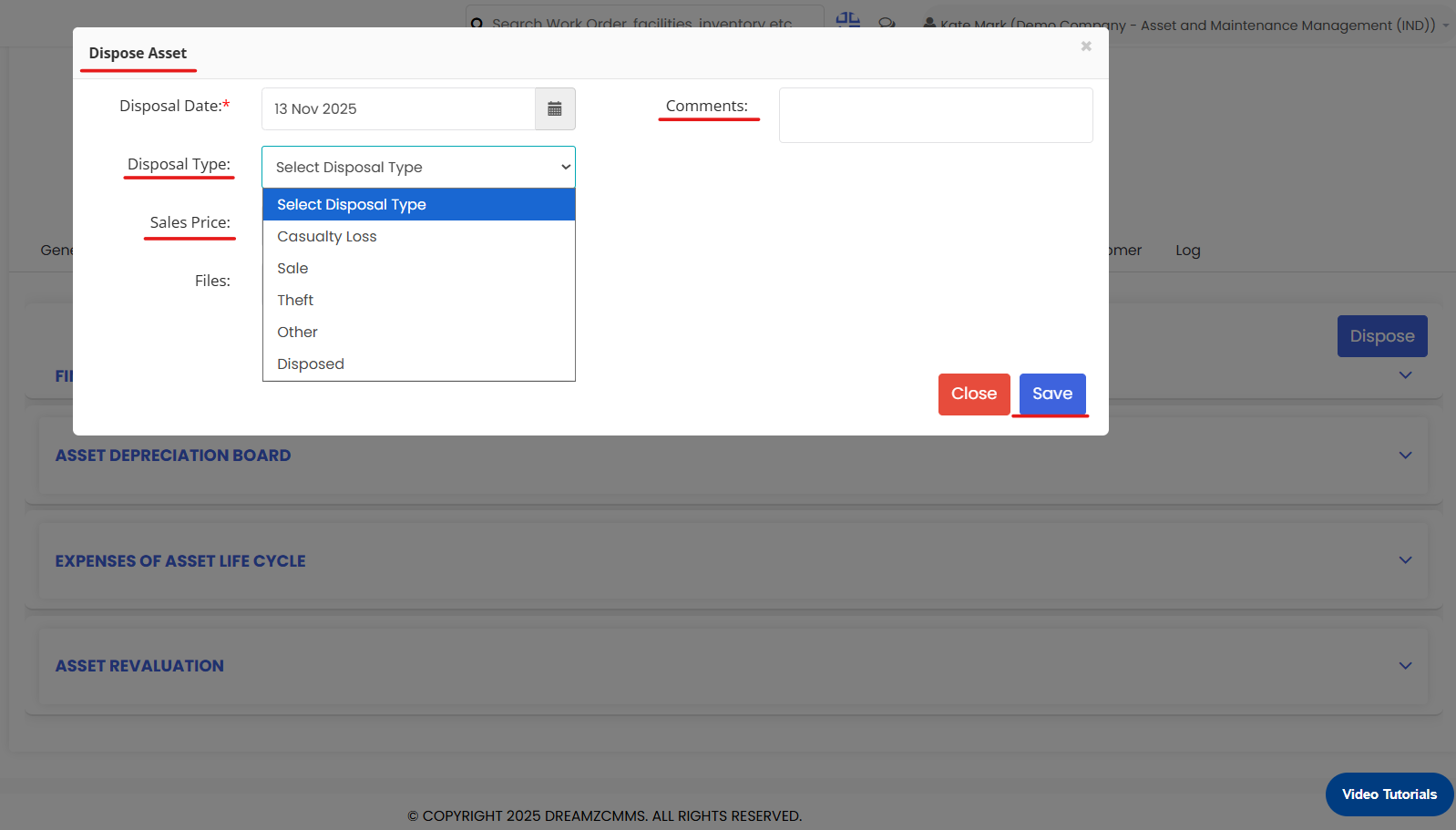
In the disposal pop-up, complete the following fields:
Disposal Type (required) — Select how the asset is being retired. Common options include:
- Sale — The asset has been sold to a third party.
- Transfer — The asset is being transferred to another department, site, or entity.
- Scrap — The asset is being scrapped or physically destroyed.
- Write-Off — The asset is being written off due to loss, damage, or obsolescence with no recoverable value.
- Disposal Price / Value (if applicable) — Enter the sale price or residual value received for the asset. For scraps or write-offs, this may be zero.
- Comments — Add notes providing context for the disposal decision (e.g., reason for retirement, who authorized it, where the asset was transferred to). These comments form part of the audit trail.
Step 6 – Click Save
Once all details are filled in, click Save to confirm the disposal. The asset will be removed from your active Equipment list, and its status will be updated accordingly.
After Disposal — What's Next?
Once an asset has been disposed of:
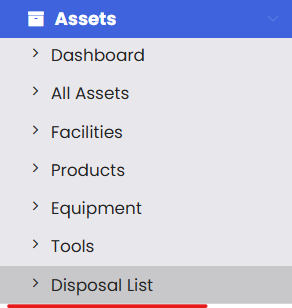
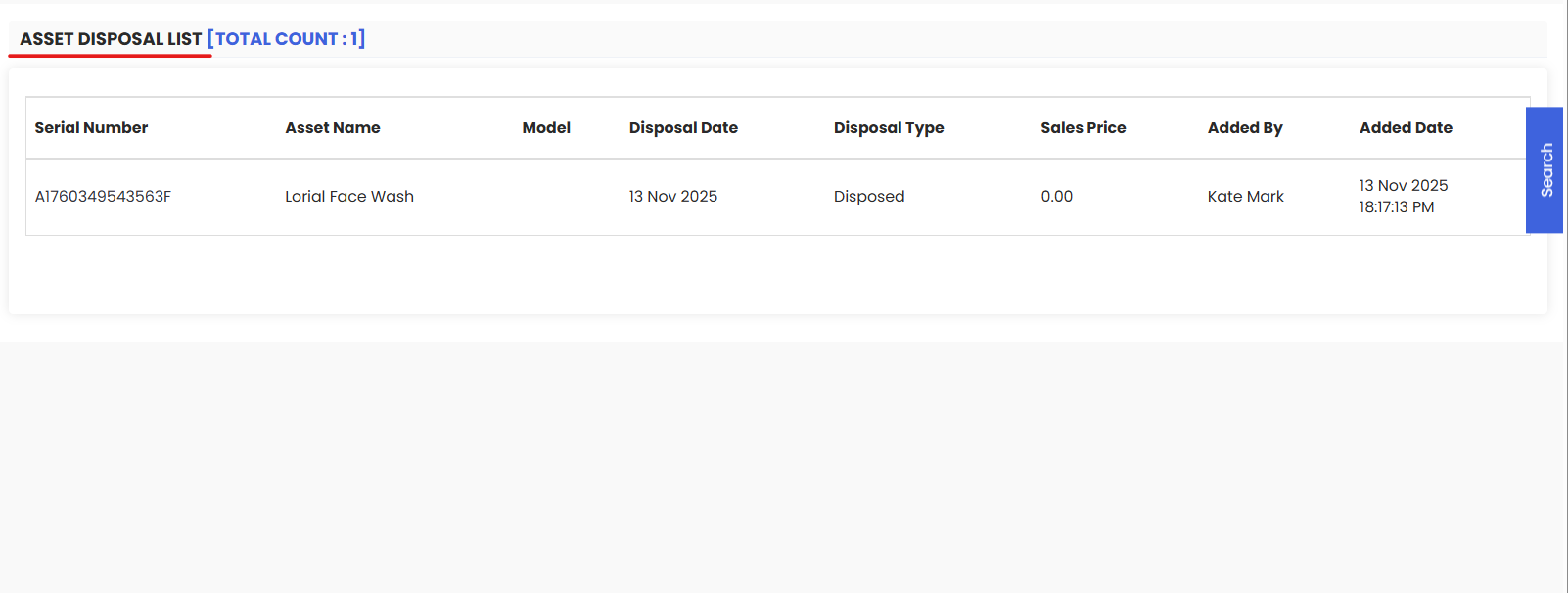
- Find it in the Disposal List — Navigate to Assets → Equipment and look for the Disposal List option in the menu. All disposed assets are stored here with their full disposal records intact.
- Review financial reports — The disposal will be reflected in your asset register and depreciation records. Check the Financial tab reports for an updated view of asset values.
- Close related records — Ensure any open purchase requests, vendor agreements, or BOM references linked to the disposed asset are updated or closed.
- Remove the physical asset tag — If the asset had a barcode or QR code label attached, remove and dispose of it to prevent confusion during future scans.
Tips for Managing Asset Disposals
- Always add detailed comments — The comments field is your opportunity to record who authorized the disposal, the reason for retirement, and any relevant reference numbers (e.g., sale invoice number, transfer order). This is critical for audits.
- Check open work orders first — Before disposing, review the asset's Log tab to confirm there are no outstanding work orders or PMs that need to be closed.
- Attach supporting documents — Upload sale receipts, scrapping certificates, or transfer records to the asset's Files tab before disposing, so the documentation is permanently linked to the record.
- Use the correct Disposal Type — Choosing the right type ensures your financial reports and asset register accurately reflect how and why the asset left service.
- Communicate with your finance team — Asset disposals affect depreciation calculations and book values. Ensure your finance team is informed when a high-value asset is disposed of.
Frequently Asked Questions
Can I undo or reverse a disposal?
Once an asset is disposed of and saved, the action creates a permanent record in the audit trail. Check with your system administrator for options to reinstate an asset if a disposal was made in error.
Where can I find disposed assets after they have been retired?
Disposed assets are moved to the Disposal List, accessible from the Equipment section of the Assets menu. All disposal details and history are preserved there.
Will open work orders be automatically closed when I dispose of an asset?
It is recommended to manually review and close any open work orders or PM schedules linked to the asset before initiating disposal. Check the Log tab of the equipment record for a full list of associated records.
What disposal types are available?
Common disposal types include Sale, Transfer, Scrap, and Write-Off. The available options may vary based on your system configuration. Contact your administrator if you need a disposal type added.
Does disposal affect the asset's depreciation records?
Yes. Disposing of an asset updates its financial status in DreamzCMMS, stopping any further depreciation calculations from the disposal date. The asset's full financial history — including depreciation up to the point of disposal — is preserved in the Financials tab.
Can I dispose of Tools using the same process?
Yes. The same disposal process applies to Tools. Navigate to Assets → Tools, find the relevant item, and follow the same steps outlined in this article.
Related Articles
How to Manage Various Asset Information
How to Add Meter Readings and Event Details for Equipment
Print QR Code or Barcode of Equipment