How to Delete an Asset
Deleting or archiving assets helps keep your asset database clean and relevant. When an asset is no longer in use, retired, disposed, or replaced, you can either delete it permanently or archive it for record-keeping and audit history.
Overview
Asset management includes tracking equipment from acquisition through retirement. Sometimes assets need to be removed from active lists — for example, after disposal or when no longer relevant. DreamzCMMS offers two options:
Delete Asset: Permanently remove the asset record (irreversible).
Archive Asset: Retire the asset from active use but retain it for historical and reporting purposes.
Choosing the right action ensures your system reflects current operations without losing important lifecycle information.
Here is a reference video:
Before You Begin
Ensure you have Admin or appropriate permissions to delete or archive assets.
Confirm the asset’s status — check its maintenance history, work orders, and financial records before removal.
Decide whether you require the asset for audit or historical reference (in which case archive is recommended over delete).
How to Delete an Asset
Step 1 — Open the Assets Section
From the main menu, click Assets to open your asset list or hierarchy view.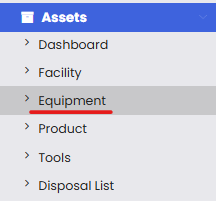
Step 2 — Locate the Asset
Find the asset you want to remove:
Use the search bar to type the asset name or code.
Apply filters to narrow results (e.g., facility, product type).
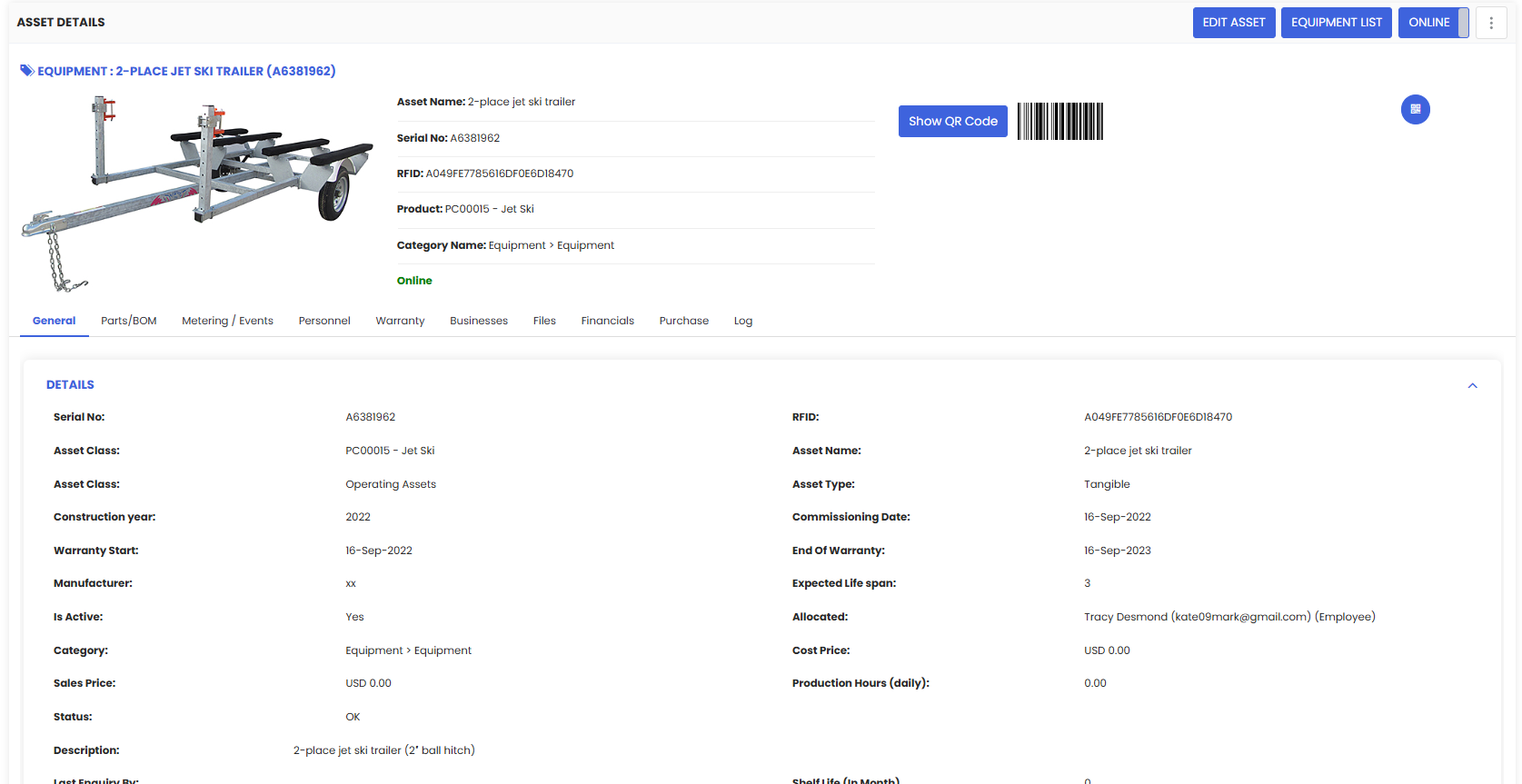
Step 3 — Open the Asset Detail View
Click on the asset name to open its detailed profile. This page shows:
Asset information
Maintenance history
Work orders
Parts and attachments
Financial and warranty data
Review this information to ensure you’re targeting the correct asset.
Step 4 — Select Delete
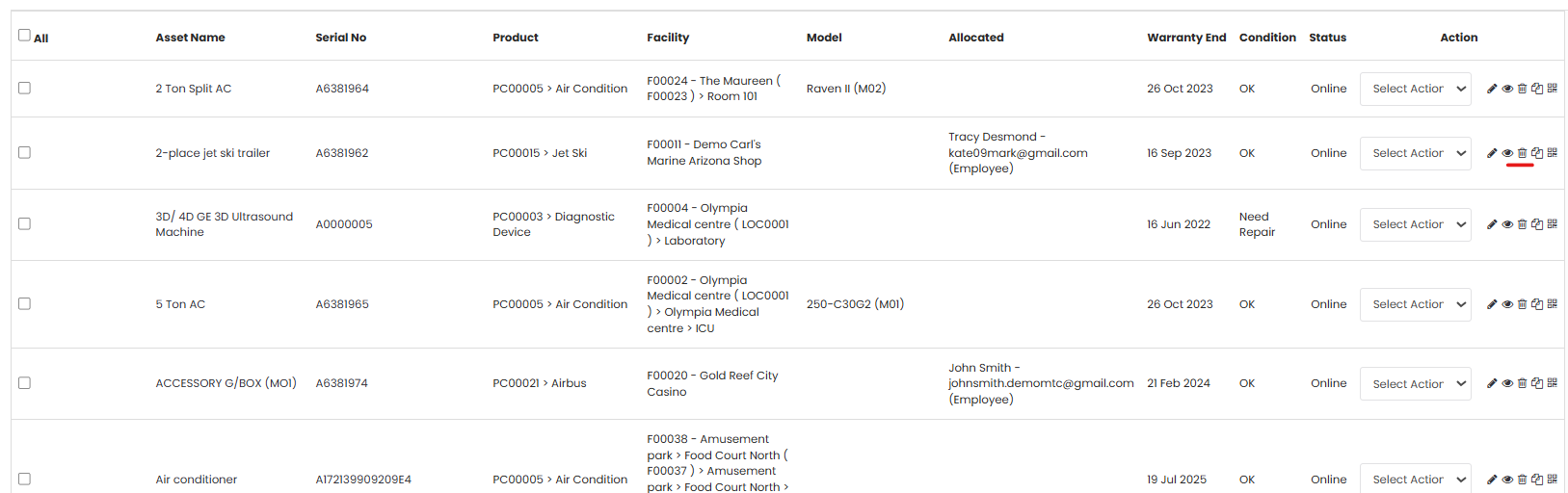
In the asset detail screen:
Click the Delete button (often found in the top menu or action menu).
Confirm the prompt to permanently remove the asset.
Warning: This action cannot be undone — the asset and its data will be permanently removed.
Step 5 — Confirm Your Action
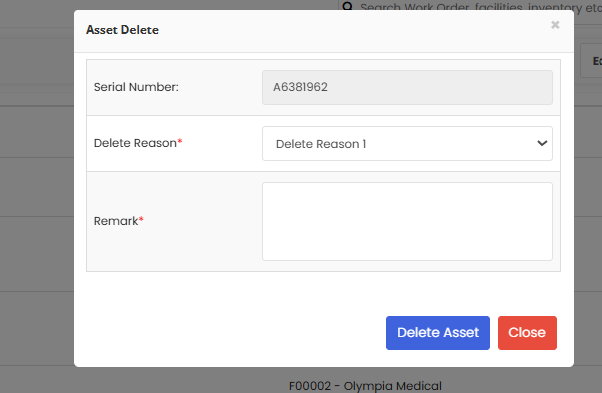
Confirm the prompt to delete or archive the asset. Once confirmed:
Deleted assets disappear permanently from the system.
After Deleting or Archiving
Deleted Assets — permanently removed with no recovery option. Best used when the asset was created in error or is truly irrelevant.
Tips for Effective Asset Removal
Archive instead of delete when in doubt — this preserves lifecycle history and prevents data loss.
Before deleting, check for related work orders or attachments to avoid orphaned entries.
Maintain naming conventions so archived assets are easily identifiable in reports.
Use filters to periodically review unused or inactive assets for cleanup or archiving.
Frequently Asked Questions (FAQs)
1. What’s the difference between deleting and archiving an asset?
Deleting removes the asset permanently (with no recovery possible), while archiving removes it from active use but retains its records for historical and reporting purposes.
2. Can an archived asset be restored to active status?
Yes — archived assets can typically be restored or reactivated if needed, preserving their historical data.
3. Will deleting an asset remove its maintenance history?
Yes — deleting an asset permanently removes it and associated records. If you need to retain history, choose archive instead.
4. Can I delete multiple assets at once?
Bulk deletion depends on system permissions and user interface support. If available, use checkboxes or bulk action tools in the asset list to delete multiple at once.
Related Articles
- Import Asset Locations
- How to Add BOM to a Facility/Location
- How to Assign Personnel to a Location/Facility
- Create and Manage Work Orders