Create Purchase Invoices
A Purchase Invoice in DreamzCMMS is raised from a Purchase Receipt to complete the 3-way match — linking the original Purchase Order, the Purchase Receipt, and the Invoice together. This ensures that you only pay for what was actually ordered and received, giving your finance team a fully verified, auditable payment record before any payment is processed.
Overview
The Purchase Invoice is the final step in the procurement cycle in DreamzCMMS. Once items have been received and a Purchase Receipt has been created, you raise an invoice directly from the receipt to confirm the billing details against what was ordered and received. The PO → Receipt → Invoice trail is maintained in full for auditing, reconciliation, and payment processing.
Here is a reference video:
Before You Begin
- A Purchase Receipt must already exist before a Purchase Invoice can be created. See Create Purchase Receipts from an Approved Purchase Order if you haven't done this yet.
- Ensure you have the appropriate permissions to create Purchase Invoices.
- Have the supplier's invoice document available to verify item details, pricing, and taxes before saving.
How to Create a Purchase Invoice
Step 1 – Navigate to Purchase Receipts
From the main menu, click Purchasing, then click Receipts. This opens the Purchase Receipts listing page showing all existing receipt records.
Step 2 – Click the + Button to Create an Invoice
Find the Purchase Receipt you want to invoice and click the + button in its action column. This opens the Purchase Invoice creation form, pre-populated with the item details from the receipt.

Step 3 – Review the Item Details
The invoice form will be pre-filled with the item details from the linked Purchase Receipt. Review and confirm the following for each line item:
- Item Name and Description — Verify the items match what was received.
- Quantity — Confirm the invoiced quantity matches the received quantity.
- Unit Price — Verify the price matches the agreed rate from the Purchase Order.
- Tax — Check that the applicable tax rates are correctly applied.
- Total Amount — Confirm the total value is correct before saving.
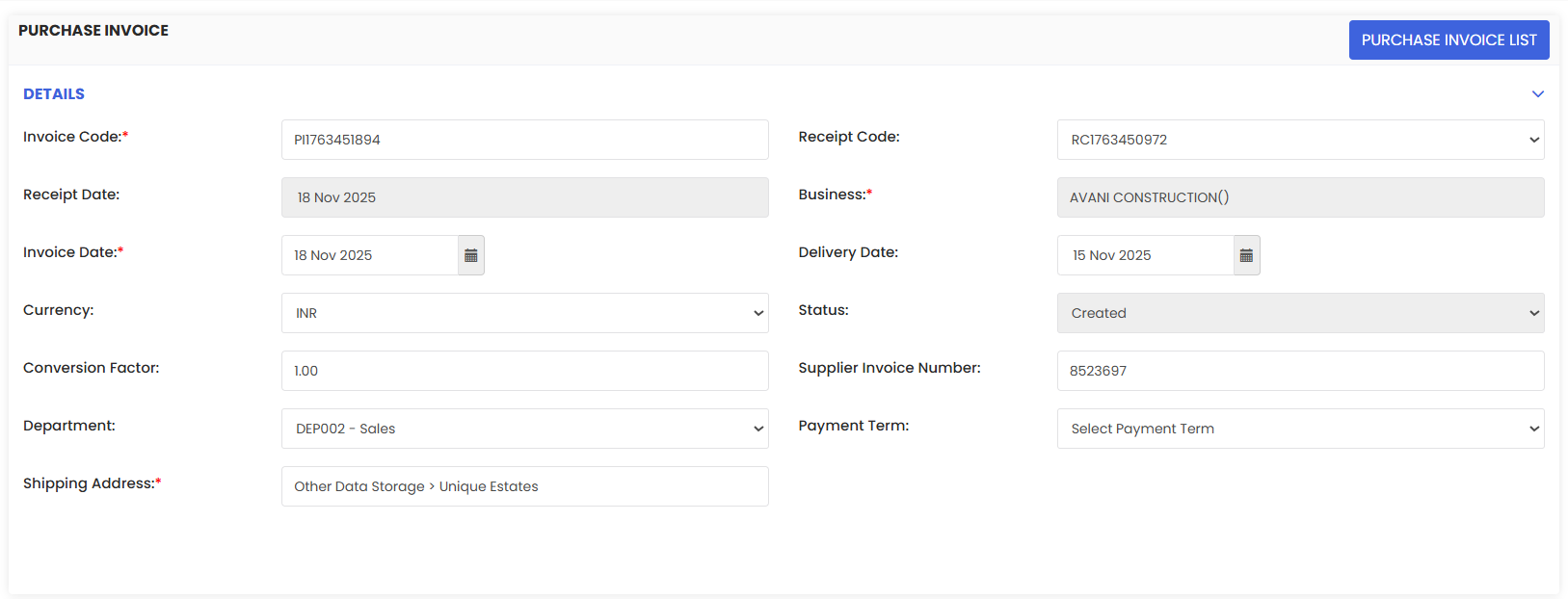
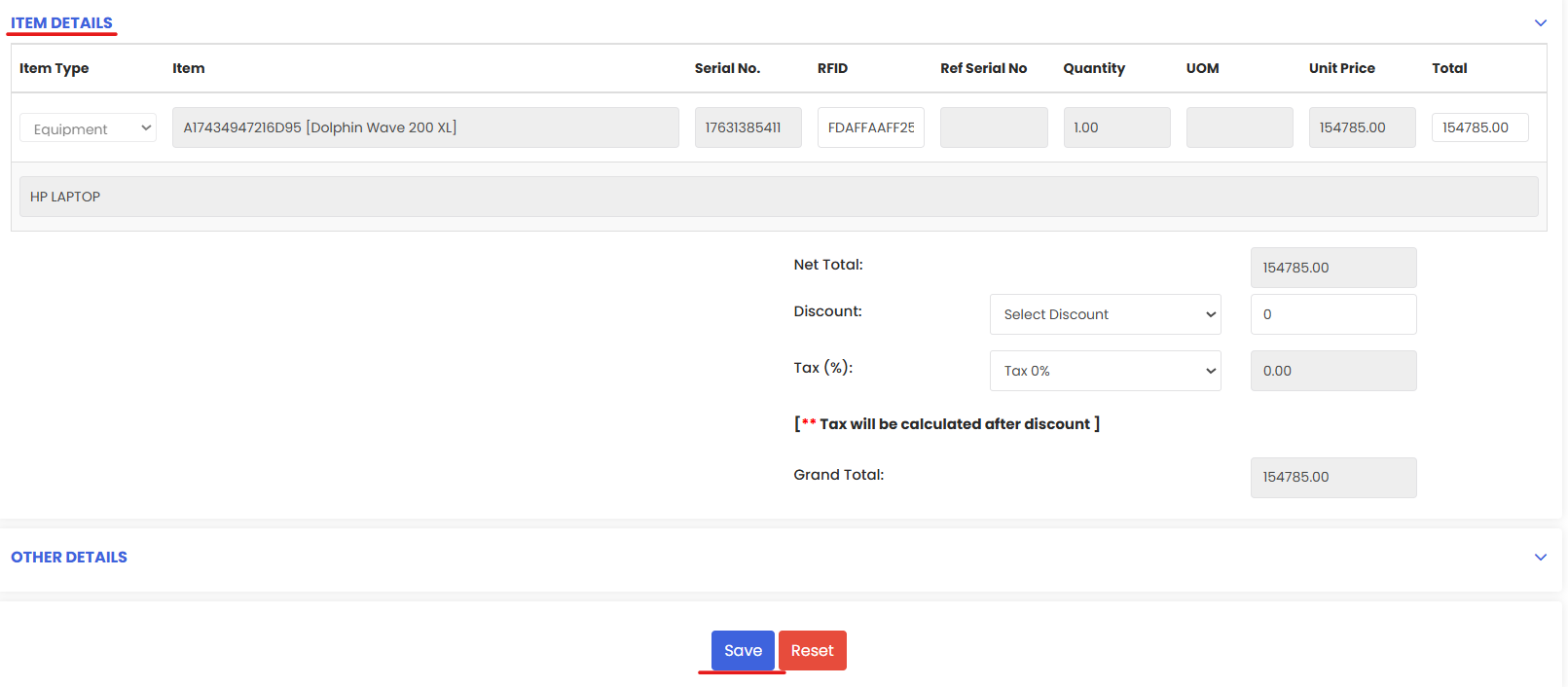
Note: Always cross-check the invoice details against the supplier's physical invoice document before saving. Discrepancies in quantity or price should be resolved with the supplier before the invoice is finalised.
Step 4 – Save the Invoice
Once all details have been reviewed and confirmed, click Save to create the Purchase Invoice. The invoice is now recorded in the system and linked to the original Purchase Receipt and Purchase Order.
Step 5 – View the Invoice
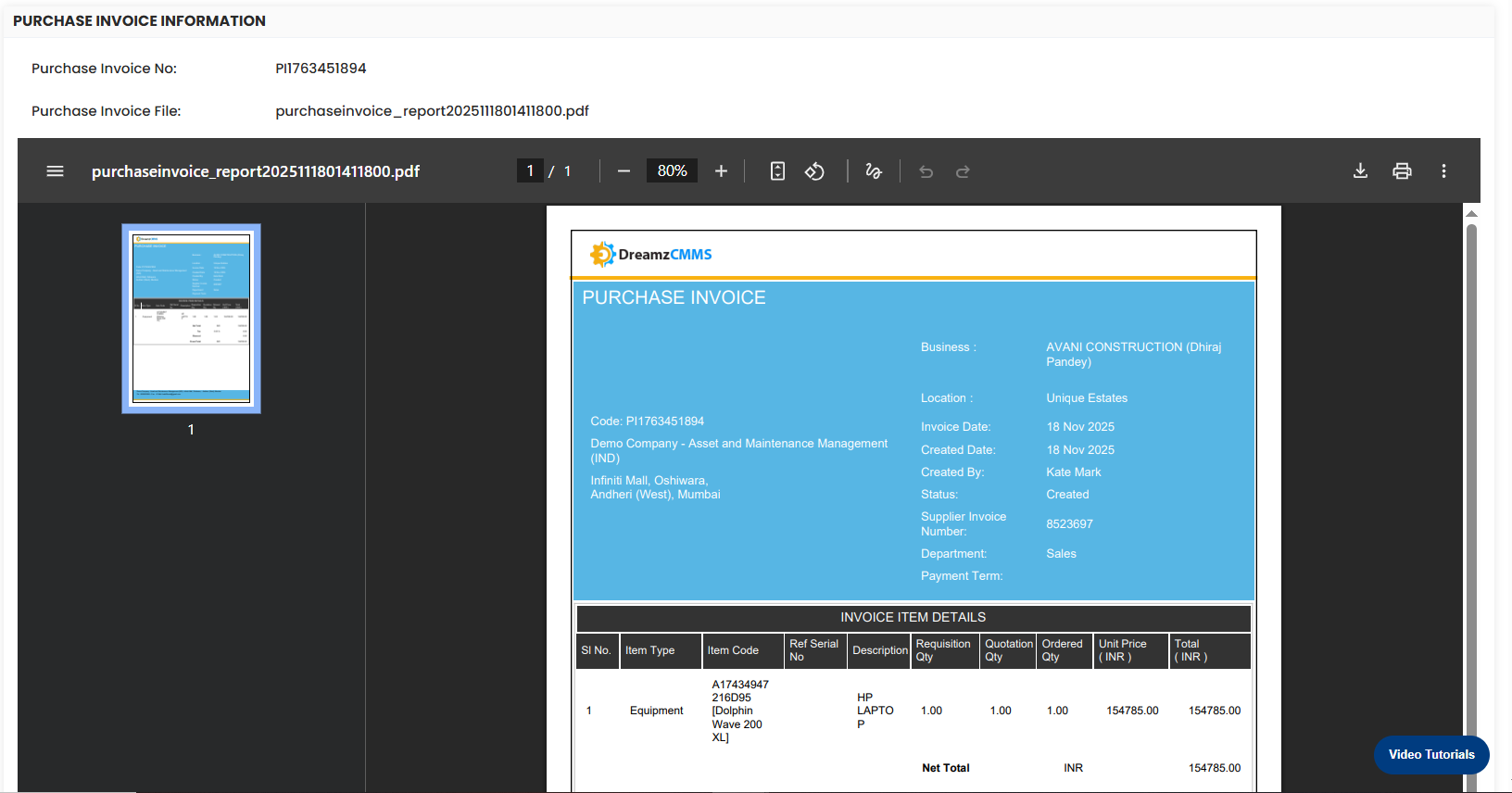
After saving, you can view the invoice at any time by clicking the eye icon under the Action column in the Receipts listing page.

After Creating the Invoice — What's Next?
- Reconcile the invoice against the payment once it has been processed to mark it as settled in the system.
- Review the full procurement trail — the PO, Receipt, and Invoice are all linked and can be accessed from the Purchase Orders listing for auditing purposes.
- Handle discrepancies — if the invoiced amount differs from the PO or receipt, raise a Purchase Return or contact the supplier to resolve before payment.
Tips for Managing Purchase Invoices
- Always verify item quantities and prices against the supplier's invoice before saving. Correcting an invoice after the fact requires additional steps and can delay payment processing.
- Raise invoices promptly after receipting goods. Delays in invoicing can cause mismatches between your inventory records and your accounts payable.
- Use the eye icon to review invoices before forwarding to your finance team, ensuring all details are accurate and complete.
- Keep the 3-way match intact — never skip the Purchase Receipt step before raising an invoice, as this is the key control that prevents overbilling.
Frequently Asked Questions
Can I create a Purchase Invoice without a Purchase Receipt?
No. In DreamzCMMS, Purchase Invoices are raised directly from Purchase Receipts to enforce the 3-way match (PO ↔ Receipt ↔ Invoice). You must create a receipt before an invoice can be generated.
What is the 3-way match and why does it matter?
The 3-way match is a financial control that verifies the Purchase Order, Purchase Receipt, and Invoice all align before payment is approved. It prevents overbilling and ensures you only pay for what was actually ordered and received.
Can I edit a Purchase Invoice after saving it?
This depends on the invoice status. Invoices that have not yet been reconciled or approved for payment can typically be edited. Once reconciled or closed, the invoice may be locked to protect the audit trail.
How do I handle a partial invoice where not all items have been received yet?
Create a Purchase Invoice for only the items covered by the existing Purchase Receipt. Once the remaining items are received and a new receipt is created, you can raise a second invoice for the outstanding items.
Related Articles
- Create Purchase Receipts from an Approved Purchase Order
- Creating Purchase Orders after Finalizing RFQ
- Create RFQ from an Approved Purchase Request
- Create and Approve a Purchase Request