Create a Spares Catalog
A Spares Catalog in DreamzCMMS helps you organize and manage all spare parts used in maintenance and operations. By capturing detailed part information — including descriptions, part numbers, categories, and stock settings — you make it easier for teams to identify, retrieve, and use spare parts when needed.
Overview
Managing a spares catalog ensures that critical spare parts data is stored and maintained in one place. This improves inventory accuracy, speeds up maintenance responses, minimizes downtime due to missing parts, and supports efficient procurement and stock control. Additionally, DreamzCMMS’s inventory and spare parts features help prevent stockouts and support real-time tracking of parts availability.
Here is a reference video:
Before You Begin
Ensure you have access to the Supplies / Parts module in DreamzCMMS.
Decide on the key information you want to capture for each spare part, such as part name, part number, group/category, and financial or inventory attributes.
Clarify whether each part should be treated as a stock inventory item or just a reference part (e.g., service item).
How to Create a Spares Catalog Entry
Step 1 — Open the Parts & Supplies Menu
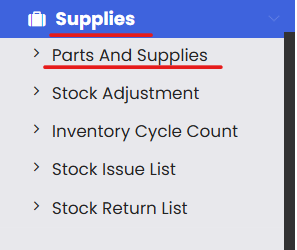
From the left navigation menu in DreamzCMMS, click Supplies, then select Parts and Supplies. This opens the spares catalog listing page.
Step 2 — Start a New Spare Part Entry
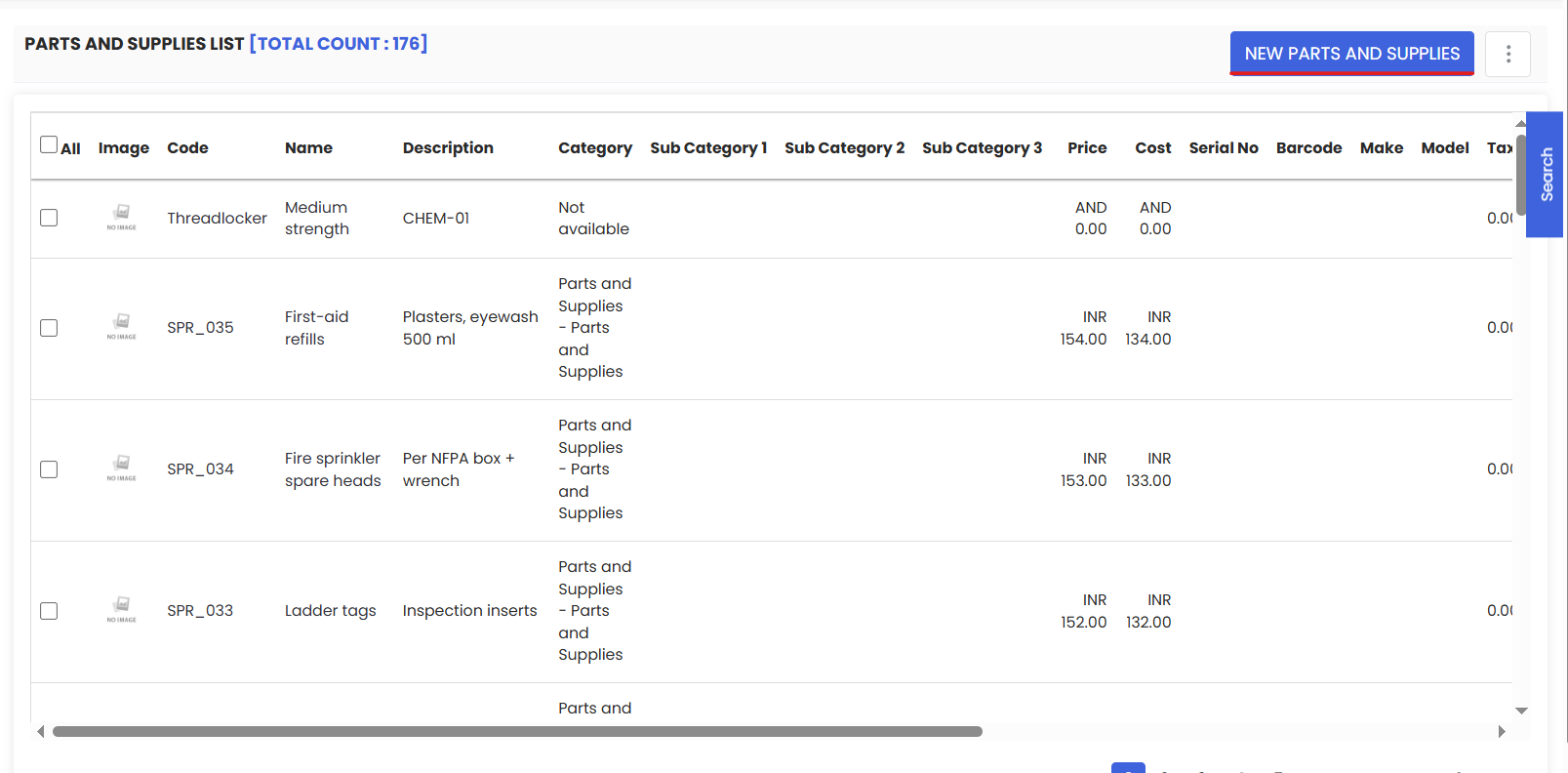
On the Parts and Supplies listing page, click the New Parts and Supplies button. This opens the form to create a new spare part catalog record.
Step 3 — Enter Part Information
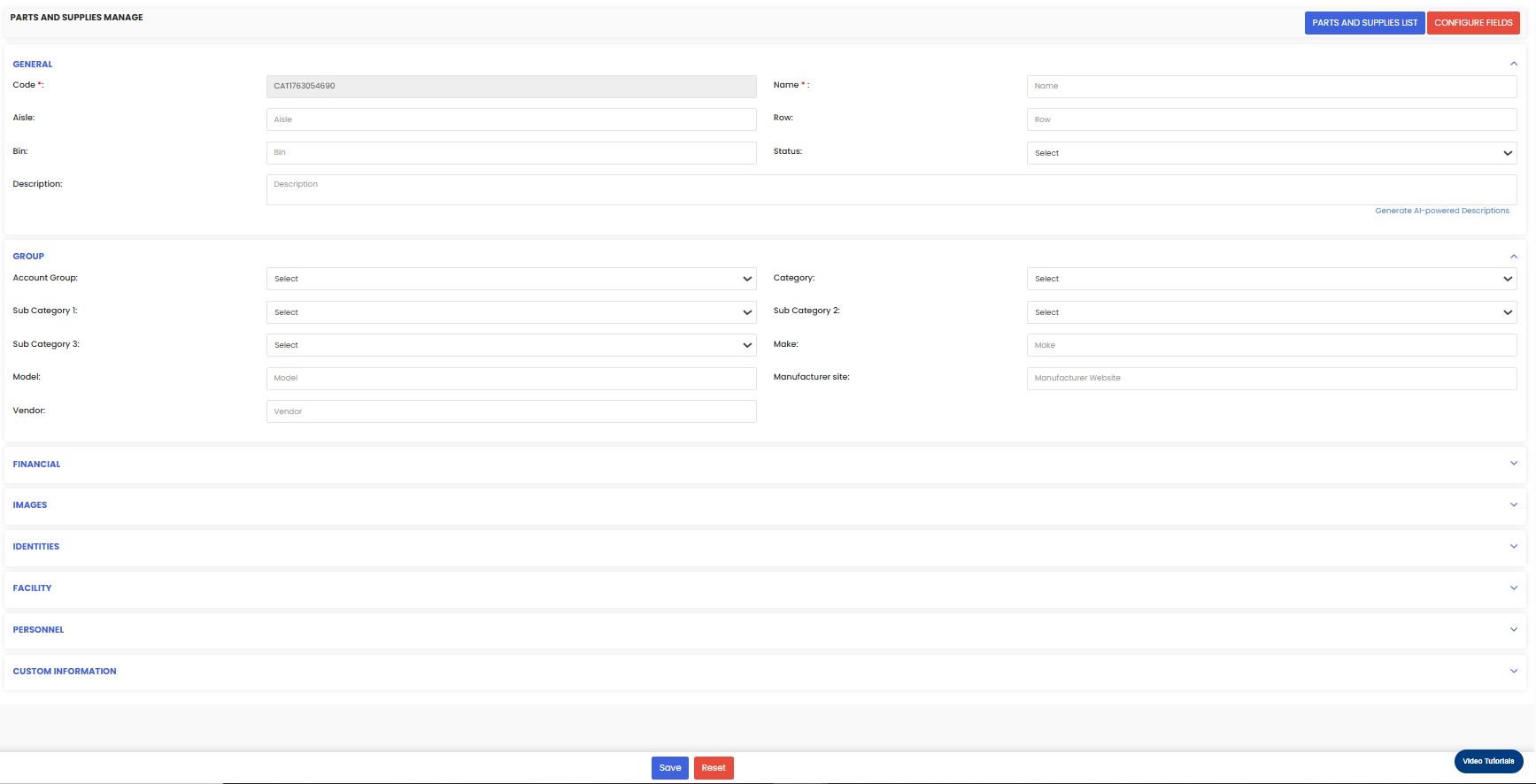
In the new part form, fill in the required fields:
Part Name — Enter a clear and descriptive name for the spare part.
Part Number — Add a unique identifier or code for the part.
Group / Category — Assign the spare to a logical category for easy filtering (e.g., electrical, mechanical).
Description — Provide additional details about the part to help users understand its purpose.
Financial or Inventory Details — If applicable, enter cost, pricing, supplier, and other accounting-related data.
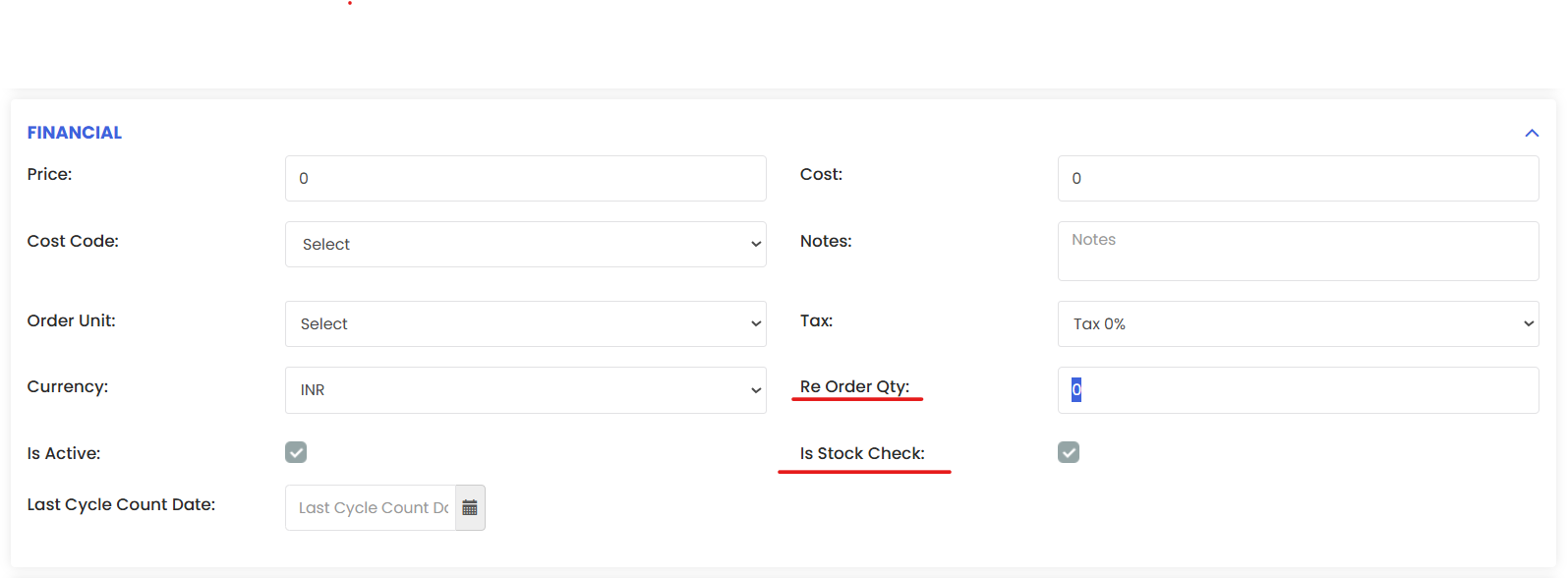
Stock Settings — If this part should be tracked in inventory, enable “Is stock check” to treat it as an inventory item. Otherwise, leave this unchecked for service-only or non-stock parts.
Step 4 — Save the Spare Part
When all fields are completed, click Save. This adds the part to your Spares Catalog, making it available for use in inventory tracking, work orders, and procurement processes.
After Creating a Spares Catalog Item
The part appears in the Parts and Supplies list and can be included in stock tracking, reorder alerts, and inventory reporting.
Technicians and planners can select parts from the catalog when planning maintenance tasks or creating work orders.
Inventory managers can monitor stock levels and move parts between locations as needed.
Tips for Effective Spares Catalog Management
Use consistent naming and numbering conventions so parts are easy to search and identify.
Assign appropriate categories or groups to make filtering and reporting more intuitive.
Enable stock tracking only for items you intend to monitor physically in inventory.
Link supplier and cost information to support purchasing and financial visibility.
Frequently Asked Questions (FAQs)
1. What’s the purpose of a spares catalog in DreamzCMMS?
A spares catalog centralizes all part information — including names, codes, categories, and stock settings — so maintenance teams can quickly find and use the correct parts during operations.
2. How do I decide whether to enable “Is stock check”?
Enable Is stock check only if the part will be monitored in inventory (tracked for stock levels and consumption). If the part is a service item or reference only, leave this unchecked.
3. Can spare parts from the catalog be used in work orders?
Yes — once saved in the spares catalog, parts can be selected in work orders or maintenance tasks to assign materials for those jobs.
4. Will the part show up in inventory reports after creation?
If Is stock check is enabled, the part will appear in inventory tracking and stock reports so you can monitor quantities and movements.