Use Generative AI for Creating Checklist
DreamzCMMS offers a Generative AI-powered checklist creation feature that helps you generate complete checklists in seconds. Instead of manually entering each task, you can use AI to automatically generate checklist items based on your inputs — saving time and ensuring consistent, structured outputs for inspections, maintenance procedures, and more.
Overview
With AI checklist generation, you can create a ready-to-use checklist by simply providing a title and description or selecting relevant criteria such as industry, type, frequency, and asset type. The AI engine then instantly produces a full checklist that you can edit or refine before saving.
Here is a reference video:
Before You Begin
Ensure you have access to the Checklists section in DreamzCMMS.
Decide on a title and general description for the checklist you want to generate.
Optionally prepare selection criteria like industry, type, frequency, and asset type for more tailored results.
How to Use Generative AI for Checklist Creation
Step 1 — Open the Checklist Module
From the DreamzCMMS main menu, click Checklists to open the checklist dashboard.
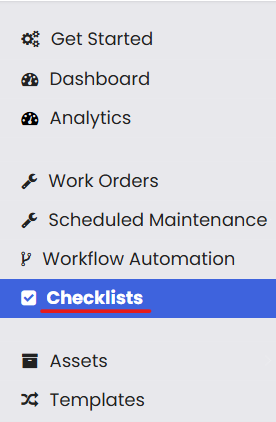 Step 2 — Select AI Checklist Generation
Click on the AI Powered Checklist Generation icon. This opens the AI checklist creation interface.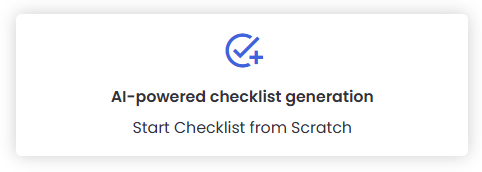
Step 3 — Provide Inputs for the AI
You have two ways to generate a checklist:
Option A — Title & Description
Enter a Checklist Title and Description of what the checklist should cover.
Option B — Detailed Criteria
Select Industry
Choose Checklist Type
Set Frequency
Choose Asset Type
Once your inputs are complete, click Generate Checklist.
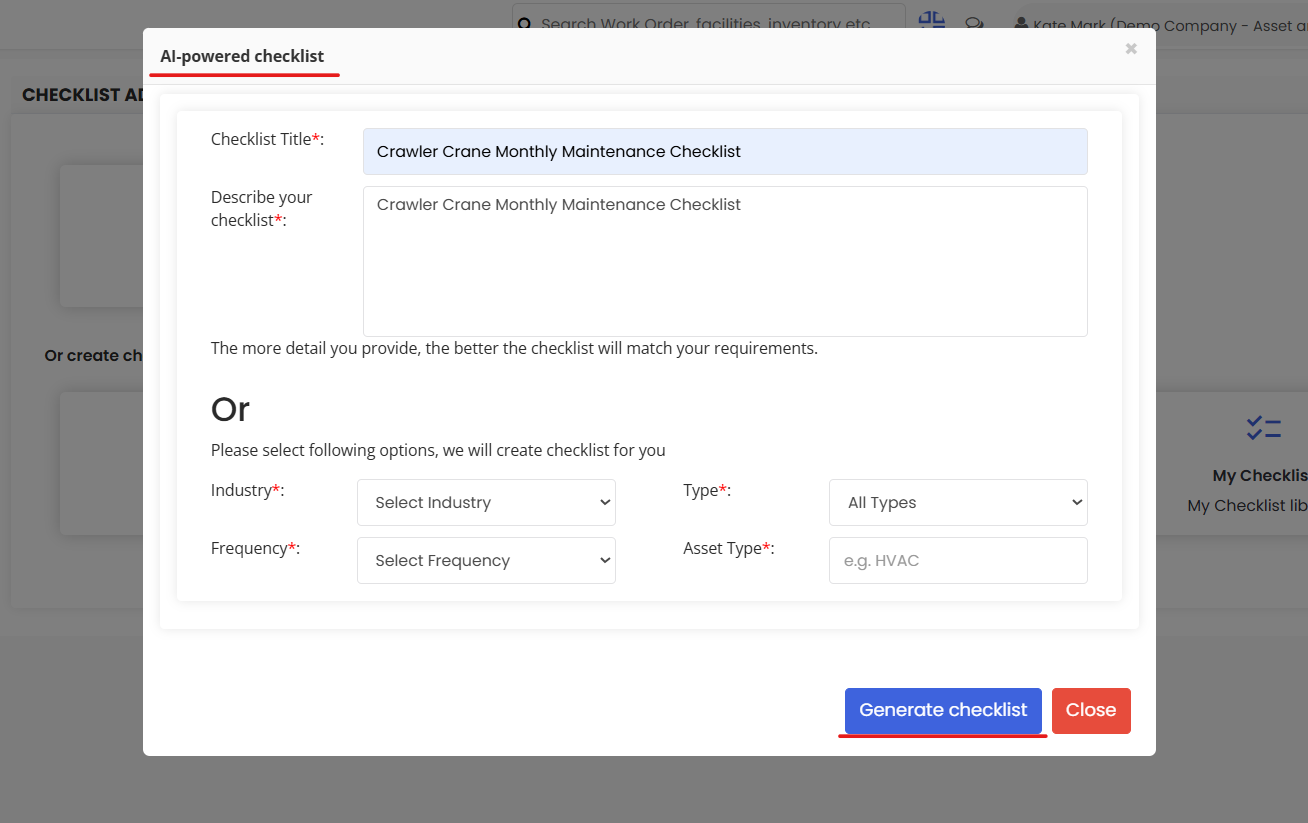
Step 4 — Review & Refine
The AI generates a checklist in seconds. You can:
Edit items — add, remove, or modify tasks
Re-generate — if you want a different version
Fine-tune descriptions — adjust wording or structure
When ready, click Save to store the checklist in your library.
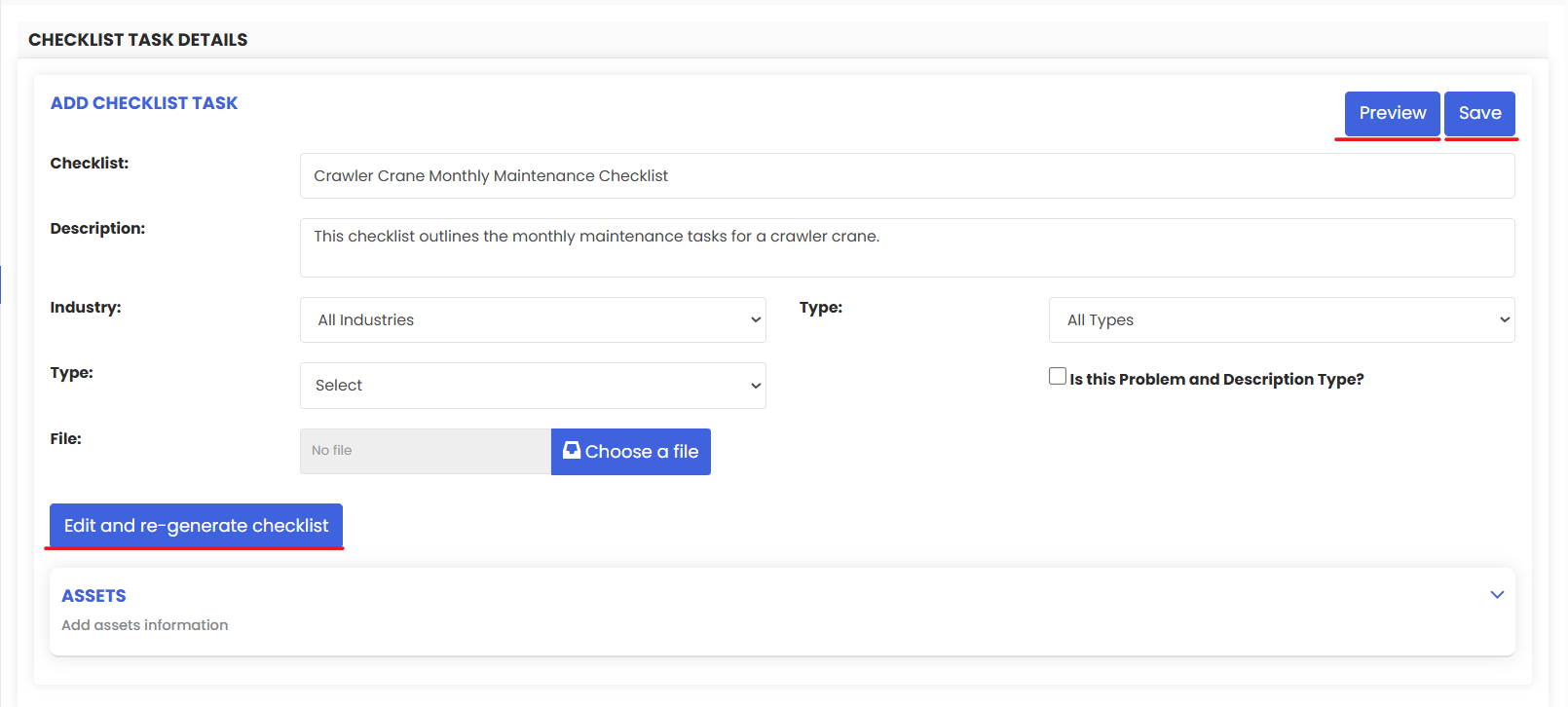
After Generation
The AI-created checklist is added to your Checklist Library.
You can attach it to work orders, preventive schedules, or use it in field operations.
Generated checklists help ensure consistency and reduce manual effort when creating maintenance or inspection procedures.
Tips for Effective Use
Use clear, descriptive titles and descriptions to help the AI understand what you need.
Select specific industry and asset types when possible for more relevant checklists.
Review and edit AI results to ensure accuracy and fit for your operational needs.
Frequently Asked Questions (FAQs)
1. What inputs are required to generate an AI checklist?
You can either enter a title and description or select detailed criteria like industry, type, frequency, and asset type before clicking Generate Checklist.
2. Can I edit the checklist after the AI generates it?
Yes — once the checklist is generated, you can edit, add, remove, or reorder tasks before saving it.
3. How long does it take for the AI to generate a checklist?
AI-generated checklists are typically ready within a couple of seconds after you provide your inputs.
4. Where can I use a checklist created with AI?
Once saved, the checklist appears in your Checklist Library and can be used in work orders, preventive maintenance schedules, inspections, and mobile field operations.