Use the Work Order Calendar & Map View
The Work Order Calendar and Map View in DreamzCMMS help you visualize and manage scheduled work orders more effectively. These views offer quick insights into assignment timelines, status colors, technician locations, and allow you to create or reassign work orders directly from a calendar or map interface.
Overview
DreamzCMMS provides two powerful views for work order management:
Calendar View — See work orders by day, month, or year, quickly spot status with color codes, and create or move work orders on the calendar.
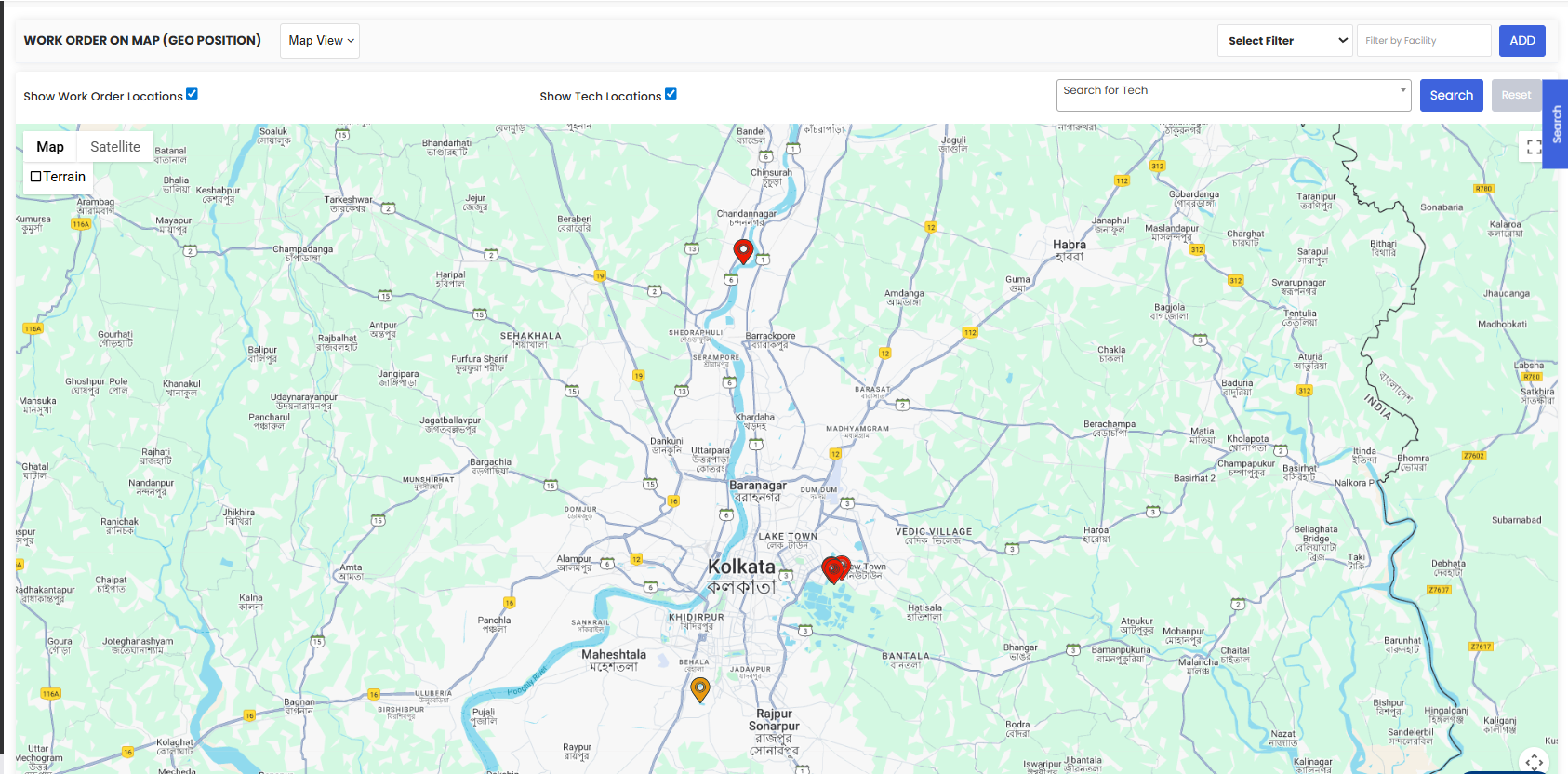
Map View — Visualize work order locations geographically and, if enabled, view technician geo-locations in real time.
These views streamline planning, scheduling, and workload balancing for maintenance teams.
Here is a reference video:
Before You Begin
Make sure you have access to the Work Orders module in DreamzCMMS.
Verify that work orders have assigned locations or assets to display properly in Map View.
How to Use the Work Order Calendar & Map View
Step 1 — Open the Work Orders Section
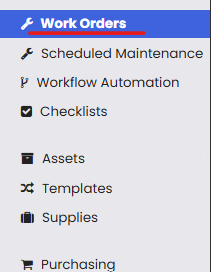
In the left navigation menu, click Work Orders to go to the work order dashboard.
Step 2 — Access the Calendar View
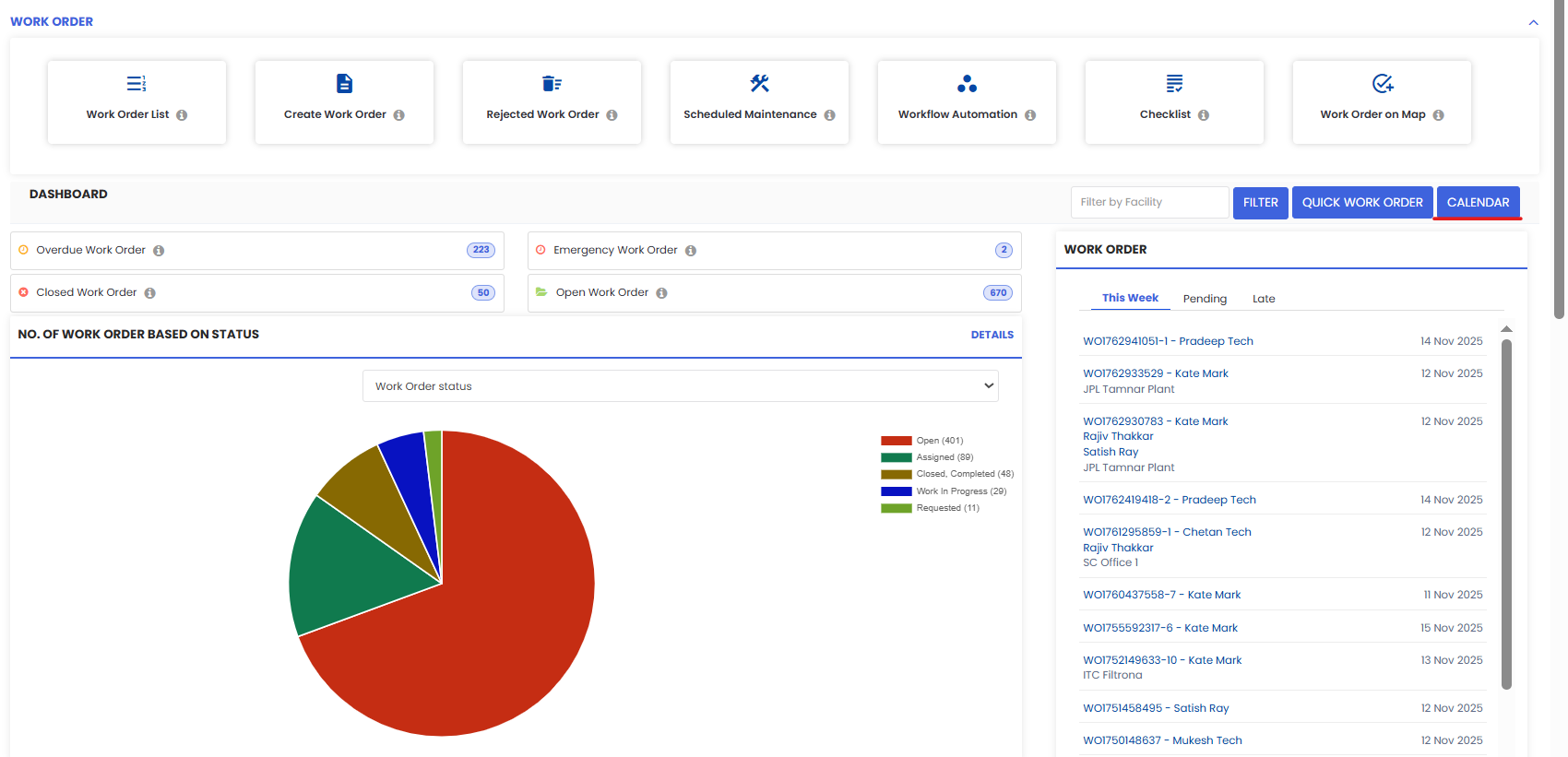
On the right side of the Work Orders page you’ll see a calendar button — click it to open the Calendar View.
Step 3 — Understand Calendar Elements
Once the calendar opens:
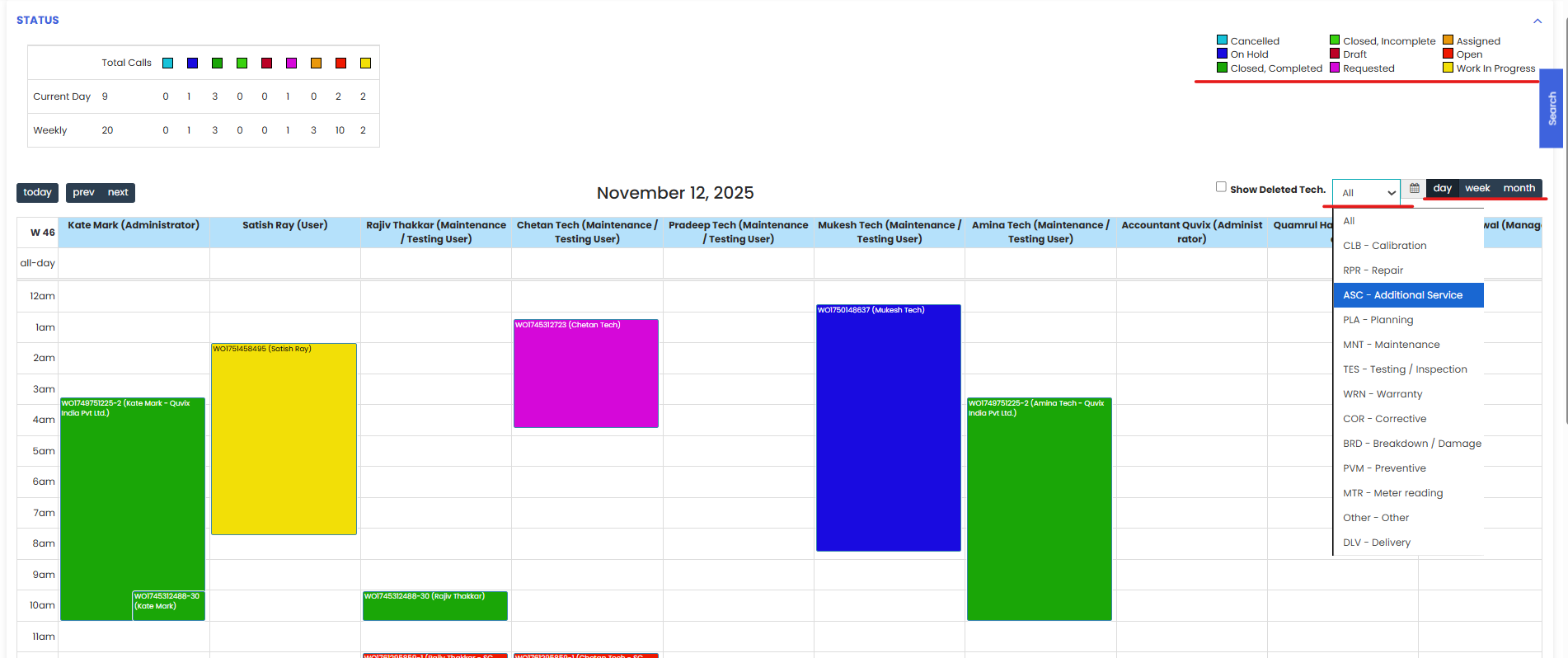
Status Color Legends — Quickly interpret work order statuses via color codes.
Filters — Use the Maintenance Type dropdown to view specific work order categories.
View Modes — Switch between Day, Month, or Year views based on your planning needs.
Step 4 — Switch to Map View
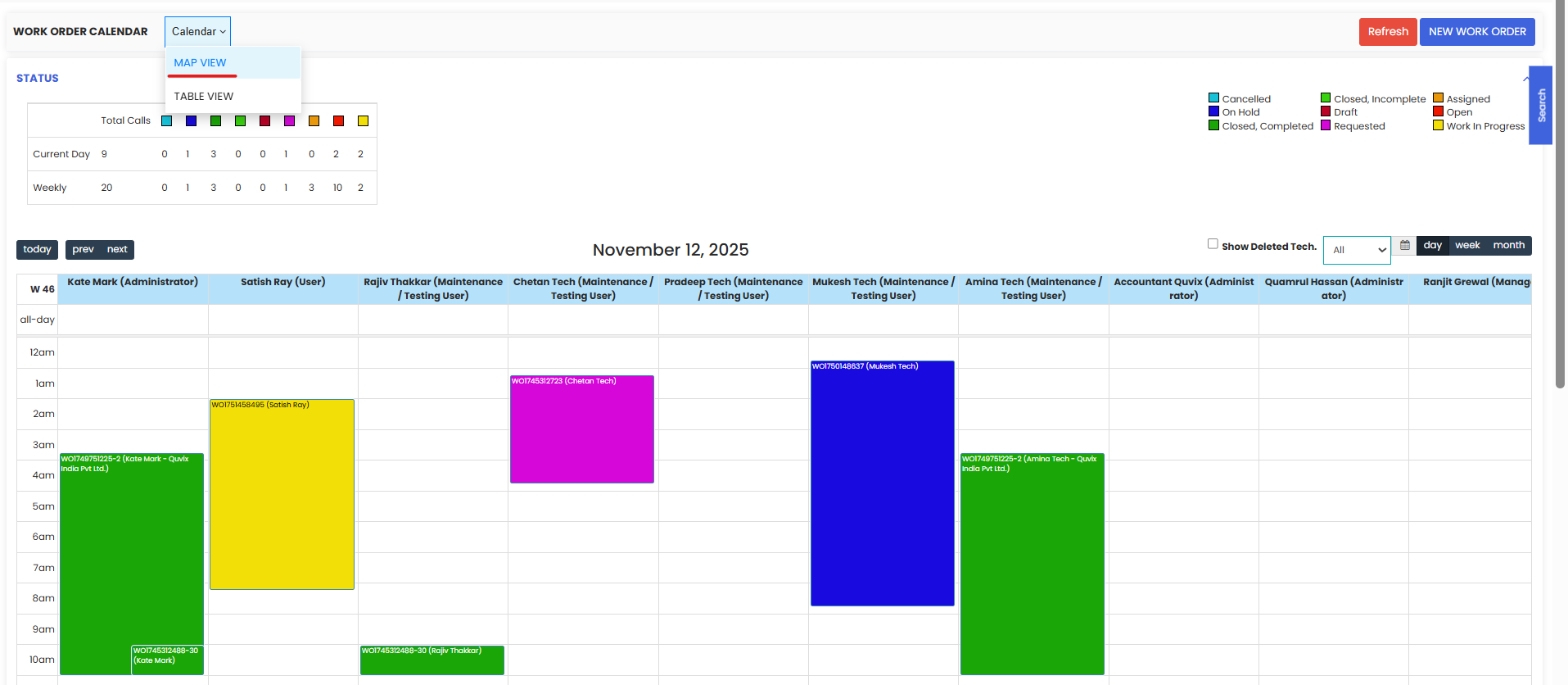
From the view selector (top left dropdown), choose Map View to see:
Work Order Locations — Displays the location of each work order on a map.
Technician Geo-Location — If technician location is enabled in the mobile app, you’ll see live technician positions.
Step 5 — Create & Modify Work Orders from the Calendar
You can:
Create a work order — Click any date on the calendar to start a quick work order directly from the calendar.
Drag & Drop — Move existing work orders from one assignee to another using drag-and-drop.
After Using Calendar & Map Views
Use Calendar View to balance technician workloads and schedule future tasks with precision.
Use Map View for better field coordination — especially when geography and travel time matter.
Combine these views to prioritize urgent tasks, plan preventive maintenance, and optimize team deployments.
Tips for Effective Use
Leverage color codes to instantly spot overdue or high-priority tasks.
Apply maintenance type filters when planning specialized maintenance campaigns (e.g., inspections vs repairs).
Use drag-and-drop in Calendar View to reassign tasks without opening individual work orders.
Frequently Asked Questions (FAQs)
1. Can I create a work order directly from the calendar?
Yes — in Calendar View, click on any date to add a new work order quickly without navigating to the standard work order form.
2. How do the color codes in the calendar help?
Status color legends represent work order states (e.g., open, in-progress, completed), making it easy to track task progress at a glance.
3. What’s the difference between Calendar View and Map View?
Calendar View focuses on time and scheduling, while Map View emphasizes geographic location and technician positions. Both work together to streamline planning and execution.
4. Do technicians’ locations show up automatically on the map?
Technician geo-locations appear in Map View only if location services are enabled in the technician mobile app.
Related Articles
- Import Asset Locations
- How to Add BOM to a Facility/Location
- How to Assign Personnel to a Location/Facility
- Create and Manage Work Orders