Manage Asset Depreciation
Accurate depreciation tracking is essential for keeping your asset register aligned with your financial accounts. Asset Depreciation in DreamzCMMS allows your finance and maintenance teams to define the depreciation method, useful life, start date, and salvage value for each asset — and the system automatically calculates monthly depreciation charges, updates the net book value, and maintains a full audit trail through revaluations, transfers, and disposals.
This eliminates the need for manual depreciation spreadsheets and ensures your accounting team always has journal-ready reports available for posting.
Overview
DreamzCMMS calculates and tracks depreciation at the individual asset level. Once depreciation is configured for an asset, the system:
- Automatically calculates the monthly depreciation charge based on the selected method.
- Updates the asset's net book value (NBV) over time.
- Maintains a full depreciation schedule with date-wise records.
- Adjusts depreciation calculations after revaluations or changes to useful life.
- Stops depreciation at the point of asset disposal.
- Produces exportable depreciation schedules and journal-ready reports for your accounting team.
Important: Depreciation settings directly affect your financial records. Always configure these in coordination with your finance team to ensure alignment with your accounting policies and GL structure.
Before You Begin
You must have Admin or Manager permissions to configure and view asset depreciation.
Confirm the following details with your finance team before setting up depreciation for an asset:
- Depreciation method (e.g., Straight-Line, Declining Balance)
- Useful life of the asset (in years or months)
- Depreciation start date
- Salvage value (the estimated residual value at the end of useful life)
The asset must already exist in DreamzCMMS.
Ensure the Depreciation Configuration fields are enabled in your Asset Fields Configuration.
Depreciation Methods Supported
DreamzCMMS supports standard accounting depreciation methods, which may include:
1. Straight-Line (SLM) — Depreciates the asset by an equal amount each period over its useful life. Best for assets that lose value evenly over time (e.g., office equipment, furniture).
Formula: (Cost – Salvage Value) ÷ Useful Life
2. Declining Balance / Reducing Balance (WDV) — Depreciates a fixed percentage of the remaining book value each period, resulting in higher charges early in the asset's life. Best for assets that lose value faster in early years (e.g., vehicles, technology equipment).
Formula: Net Book Value × Depreciation Rate
Tip: Confirm which method your organization uses for each asset class with your finance team before configuring. Using the wrong method can result in incorrect financial statements.
How to View and Manage Asset Depreciation
Step 1 – Navigate to Equipment
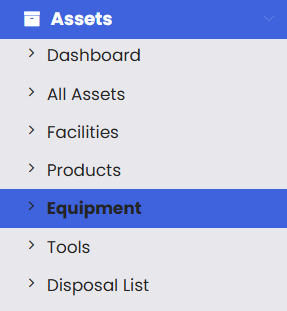
From the left-hand navigation menu, click on Assets to expand the menu, then select Equipment.
Step 2 – Open the Equipment Record
On the Equipment listing page, click on the asset for which you want to view or manage depreciation.
Step 3 – Go to the Finance Tab
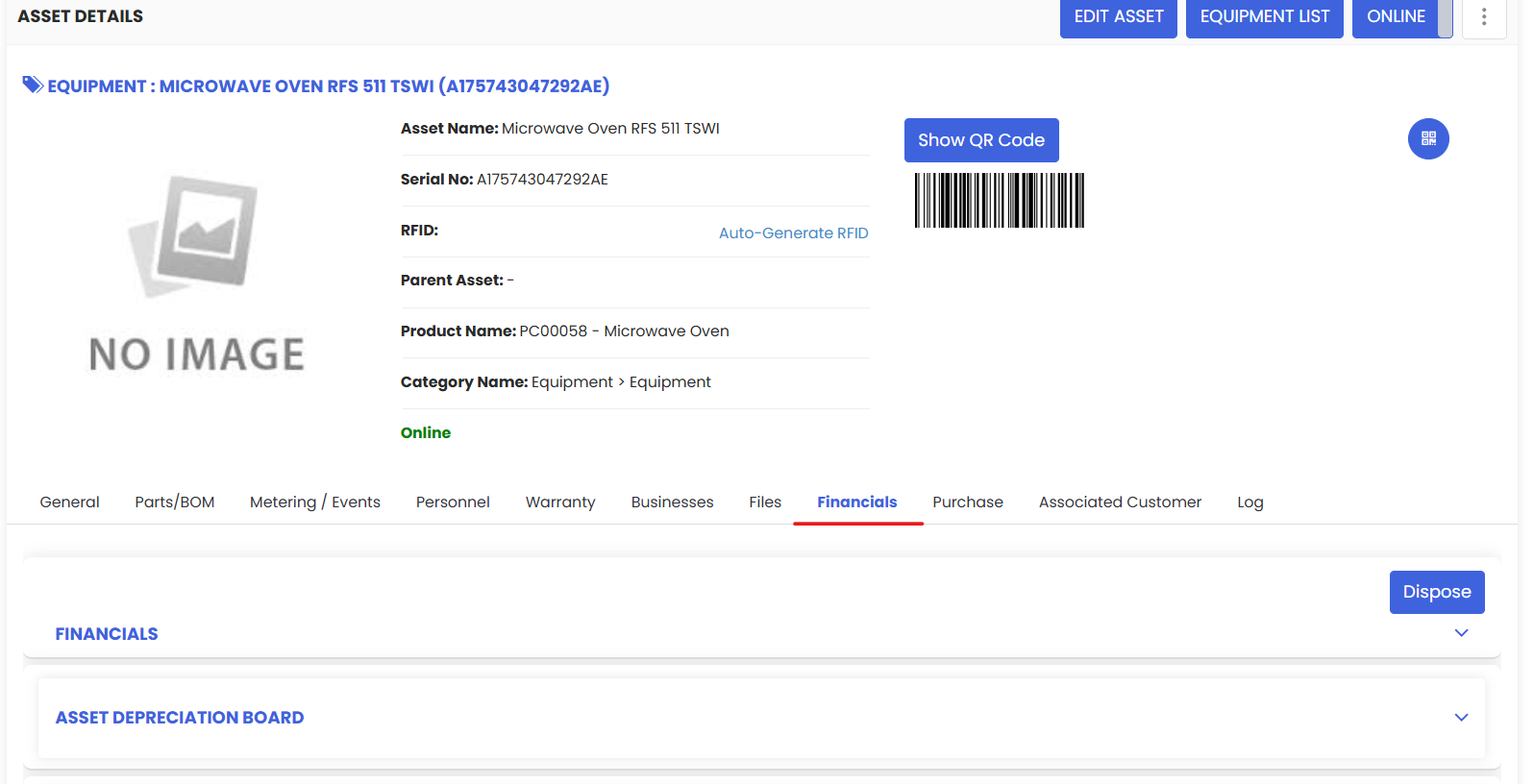
On the asset's detail page, click the Finance tab. This is where all financial information for the asset is managed, including depreciation, expenses, and revaluation.
Step 4 – View the Asset Depreciation Board
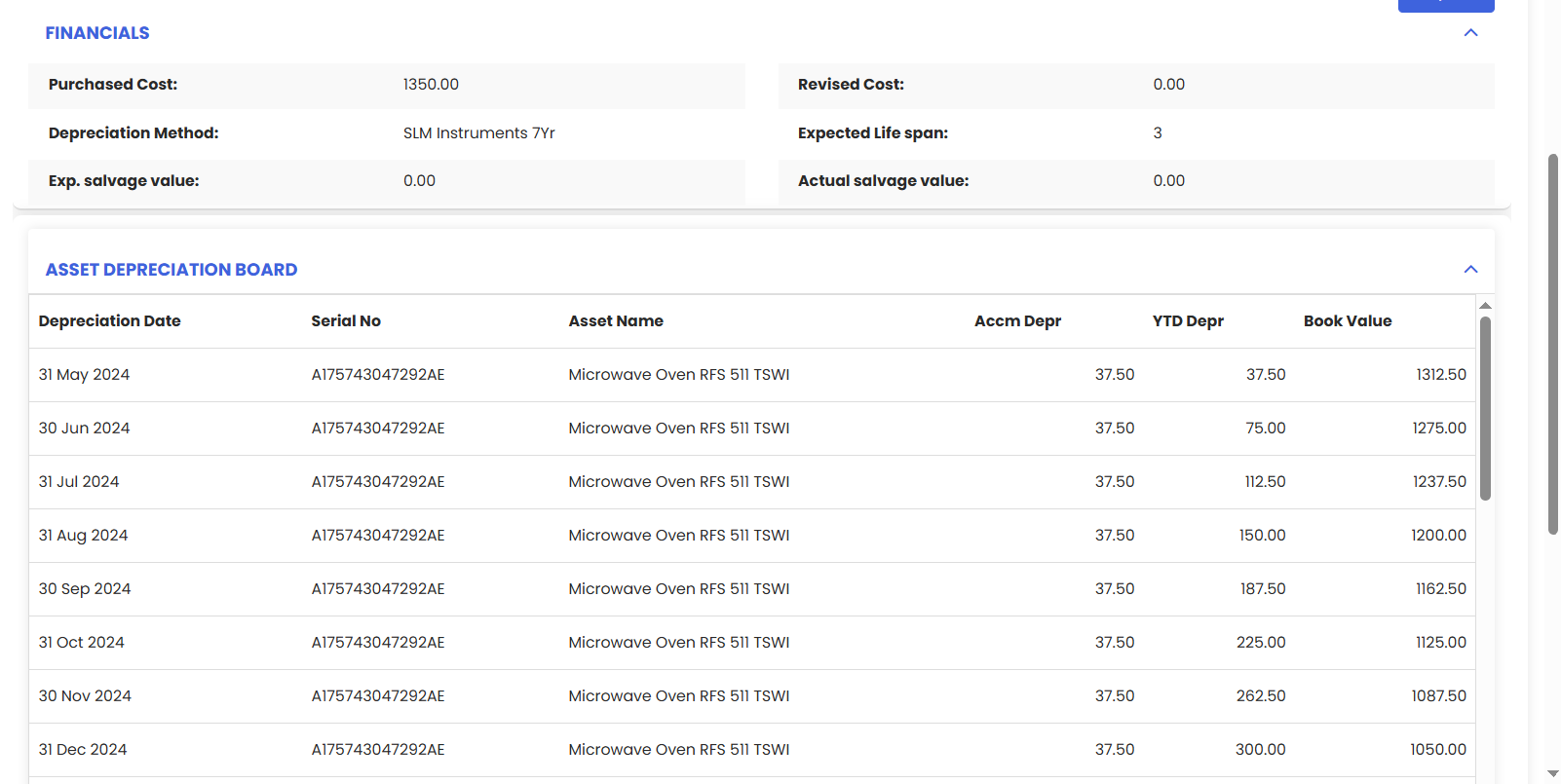
Within the Finance tab, click on the Asset Depreciation Board. This displays the complete date-wise depreciation record for the asset, showing:
- Depreciation Date — The period each charge applies to.
- Depreciation Amount — The charge calculated for that period.
- Accumulated Depreciation — The total depreciation recorded to date.
- Net Book Value (NBV) — The current book value of the asset after depreciation.
Use this board to verify that depreciation is calculated correctly and to review the full depreciation history of the asset.
Setting Up Depreciation for an Asset
To configure depreciation settings for an asset, navigate to the Finance tab of the asset record and enter the following details:
- Depreciation Method — Select the accounting method (e.g., Straight-Line or Declining Balance). See Depreciation Methods Supported above.
- Asset Cost / Purchase Value — The original cost of the asset used as the depreciation base.
- Salvage Value — The estimated residual value of the asset at the end of its useful life (can be zero).
- Useful Life — The expected operational lifespan of the asset (e.g., 5 years, 10 years).
- Depreciation Start Date — The date from which depreciation begins to be calculated (typically the purchase date, installation date, or commissioning date).
Once saved, DreamzCMMS will automatically calculate and apply depreciation charges from the start date going forward.
Exporting Depreciation Reports
From the Asset Depreciation Board, you can export the depreciation schedule for use in financial reporting and accounting. The exported report provides journal-ready data so your accounting team can post depreciation entries without manually recreating the calculations.
Tips for Managing Asset Depreciation
- Set up depreciation at the time of asset creation — The earlier depreciation is configured, the more complete and accurate your financial records will be. Retroactive setup requires careful date management.
- Align useful life with your accounting policy — Different asset classes (vehicles, machinery, IT equipment, buildings) typically have different useful lives defined by your organization's accounting policies. Use the correct figure for each asset class.
- Use salvage value accurately — Even if an asset is expected to have zero residual value, entering 0 is better than leaving the field blank, as this ensures the full cost is depreciated over the asset's life.
- Coordinate with finance on revaluations — Any revaluation that changes the depreciation base should be reviewed by your finance team before being entered to ensure GL alignment.
- Export schedules at period end — Make it a standard process to export depreciation reports at the end of each financial period for your accounting team, reducing the risk of missed postings.
Frequently Asked Questions
What is Net Book Value (NBV)?
Net Book Value is the current value of an asset after accumulated depreciation has been deducted from its original cost (or revalued value). It represents what the asset is worth on your books at any given point in time.
NBV = Asset Cost – Accumulated Depreciation
What is the difference between Straight-Line and Declining Balance depreciation?
Straight-Line depreciates the asset by the same amount each period — predictable and simple. Declining Balance depreciates a fixed percentage of the remaining book value each period — resulting in higher charges early and lower charges later. The right choice depends on the asset type and your organization's accounting policy.
Does depreciation stop automatically when an asset is fully depreciated?
Yes. Once the asset's net book value reaches the defined salvage value (or zero if no salvage value is set), depreciation charges cease automatically.
What happens to depreciation when an asset is revalued?
After a revaluation, DreamzCMMS recalculates depreciation from the revaluation date using the new book value. Historical depreciation records remain unchanged. See How to Revaluate an Asset
Can I configure depreciation for Tools as well as Equipment?
Yes. The same depreciation management process applies to Tools. Navigate to Assets → Tools, open the relevant asset record, and follow the same steps via the Finance tab.
Can I export depreciation data for multiple assets at once?
Individual asset depreciation schedules can be exported from the Asset Depreciation Board. For bulk reporting across multiple assets, check the Reports section of DreamzCMMS for depreciation summary reports.
Related Articles
How to Manage Various Asset Information
Print QR Code or Barcode of Equipment