Job Dashboard on Mobile
Technicians can view their assigned jobs directly from the DreamzFSM mobile app using two types of calendar views. Each view presents job information in a different format, giving technicians a clear and organised picture of their daily schedule.
Overview
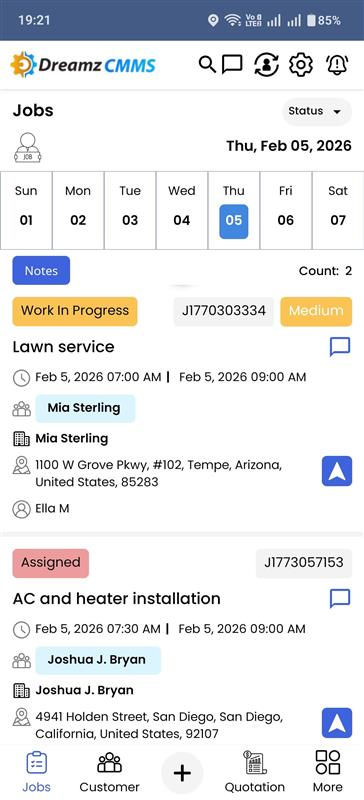
The Job Calendar View on the DreamzFSM mobile app allows technicians to see all their assigned jobs at a glance. The List View provides job details such as the day, work duration, customer name, address, and navigation information. The Time View displays the exact time duration of each job, along with the customer name and job ID, including any pre-scheduled work, to provide a clear overview of the entire schedule.
Here are some reference videos:
Job Dashboard
The dashboard displays a list of jobs with details such as the day, work duration, customer name, customer address, and navigation information. This view is ideal for quickly scanning all assigned jobs for the day along with key location and timing details.
Tips for Using the Job Calendar View on Mobile
- Use the List View at the start of your day to quickly review all assigned jobs, check customer addresses, and plan your travel route before heading out.
- Switch to the Time View when you need a precise overview of how your jobs are scheduled throughout the day, including any pre-scheduled work blocks.
- Use the navigation information available in the List View to get directions to the customer’s address directly from the mobile app without switching between apps.
- Check the Time View regularly throughout the day to stay on track and be aware of upcoming jobs and their expected durations.
- If you notice overlapping jobs in the Time View, contact your dispatcher promptly so the schedule can be adjusted before it impacts service delivery.
Frequently Asked Questions
How do I access the Job Calendar View on the mobile app?
The Job Calendar View is accessible directly from the DreamzFSM mobile app. Technicians can navigate to their Jobs / WO section and switch between the List View and Time View using the view toggle options available on the screen.
What information is shown in the List View?
The List View displays each assigned job with details including the day, work duration, customer name, customer address, and navigation information to help technicians plan and travel to their job locations.
What information is shown in the Time View?
The Time View displays the exact time duration of each job as a visual block, along with the customer name and job ID. It also shows any pre-scheduled work, giving technicians a clear picture of their full day schedule.
Can I switch between the List View and Time View at any time?
Yes. Technicians can switch between the two calendar views at any time from within the mobile app without losing any job information or schedule data.
Does the calendar view update automatically when new jobs are assigned?
Yes. The Job Calendar View reflects the latest job assignments in real time. When a dispatcher assigns a new job, it will appear in both the List View and Time View on the technician’s mobile app.
Related Articles
- Schedule Jobs and Kanban View
- Quickly Assign Technicians to Jobs
- Plan Routes & Assign Jobs
- How to use the Timesheet Option?
- How to Create Jobs