Block a Slot on the Calendar / Add a Calendar Note / Add Calendar Event
Calendar features in DreamzCMMS help you plan and communicate maintenance activities beyond standard work orders. You can block time slots, add notes, or schedule events to manage team availability, mark important dates, and track non-work order activities — keeping your maintenance calendar organized and up to date.
Overview
The calendar in DreamzCMMS serves as more than a schedule viewer. In addition to hiring and planning work orders, you can use it to:
Block time periods when resources are unavailable
Add calendar notes for reminders or broadcasts
Create calendar events such as meetings, shutdowns, or inspections
This gives supervisors and planners a complete maintenance timeline view, blending scheduled jobs with important operations milestones.
Here is a reference video:
Before You Begin
Ensure you have access to the Calendar or Work Orders module.
Know the date(s) and time period you want to block or schedule.
Be ready with key information such as title, description, and any related location or resource details.
Decide whether the calendar item is a block, note, or event before you begin.
How to Block a Slot or Add a Calendar Note / Event
Step 1 — Navigate to the Calendar View
Go to the Calendar section from the main navigation or dashboard. This screen shows your scheduled work orders and calendar items by day, week, or month.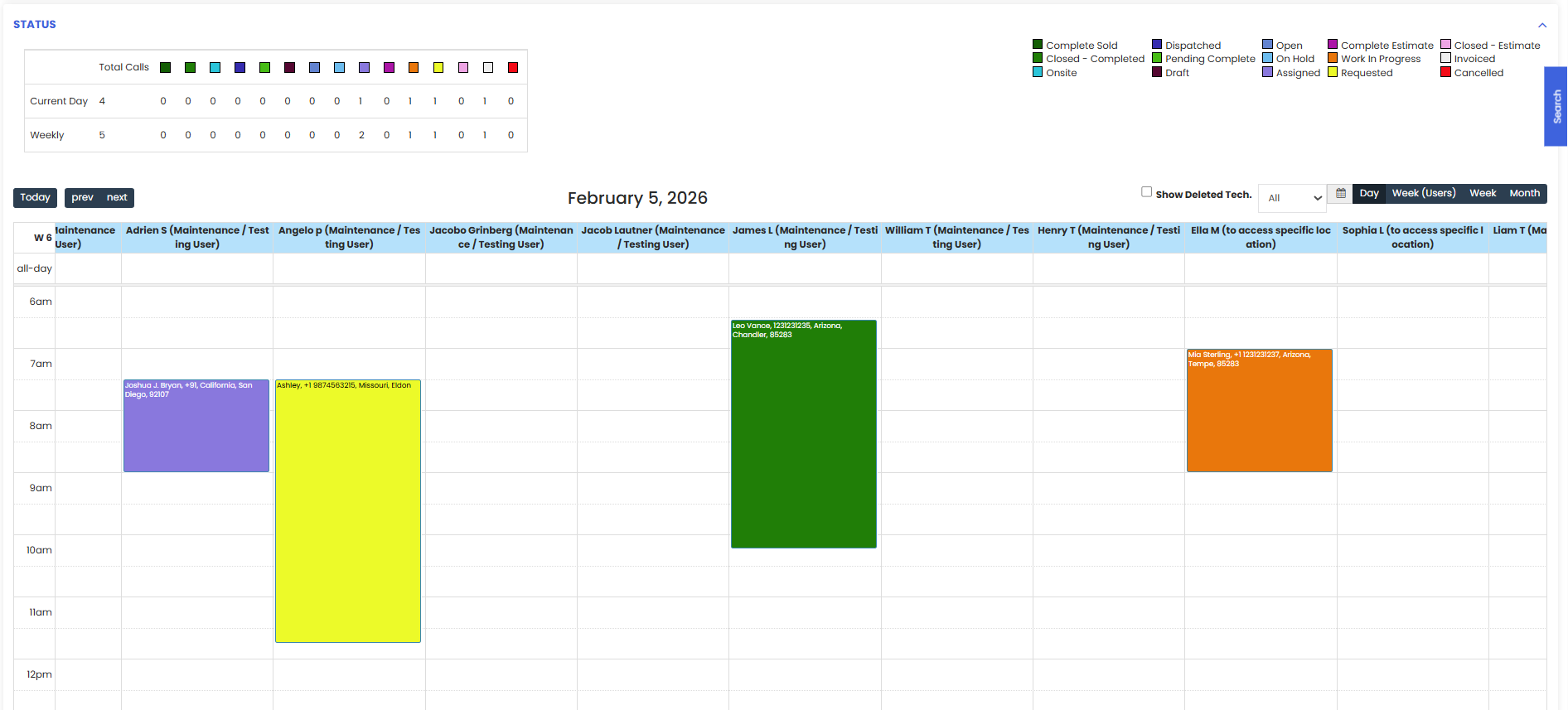
Step 2 — Add a Calendar Entry
Click on the technician/time slot where you want to block time or add a calendar event.
Step 3 — Block a Time Slot
When blocking a slot:
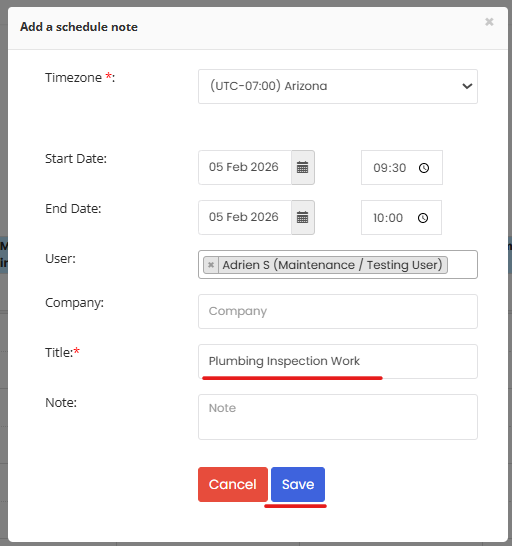
Enter a Title.
Select Start Date and Time.
Select End Date and Time.
Optionally add a Note to clarify the block reason.
Click Save.
The time slot will now appear as blocked on the calendar, preventing resource scheduling conflicts.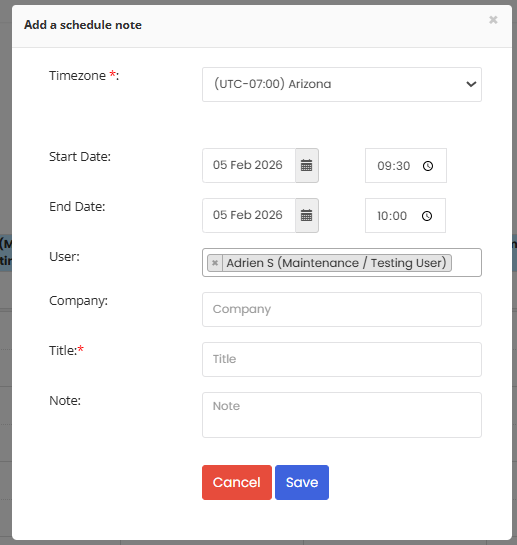
After Adding Calendar Entries
Blocked slots prevent new work orders or events from overlapping that time window.
Notes serve as visible reminders for important dates or communications.
Events provide clarity on planned activities like meetings, inspections, or shutdowns.
Calendar filters can help you view specific types of entries or time frames.
Tips for Effective Calendar Use
Use blocked slots to mark vacations, planned shutdowns, or resource unavailability.
Keep descriptions clear and concise so others understand the purpose of an entry.
Combine events with notifications (if supported) to alert team members ahead of time.
Regularly review the calendar view (week/month) to stay ahead of conflicts and overlaps.
Frequently Asked Questions (FAQs)
1. What is the difference between blocking a slot and adding an event?
Blocking a slot reserves time and prevents new work from being scheduled in that period, while adding an event schedules a specific activity with details but doesn’t necessarily block scheduling unless set to do so.
2. Can calendar notes be used for team reminders?
Yes — calendar notes are ideal for reminders or informational messages that don’t require scheduling a full event.
3. Will blocked slots prevent technicians from being assigned to work orders?
Blocked slots indicate periods of unavailability, helping planners avoid assigning tasks during those times, though this depends on how scheduling rules are configured.
4. How do I edit or delete a calendar entry?
Open the existing calendar item, make your changes, and click Save to update. To remove it, select Delete from the action menu for that entry.
Related Articles
- How to Create Jobs
- Job Views in DreamzFSM
- Job List
- Quickly Assign Technicians to Jobs
- Create User/Employee