How to Add BOM to a Facility/Location
A Bill of Materials (BOM) at the facility level defines the standard parts, consumables, and kits that belong to a specific location. Building a location-level BOM ensures that planners and technicians always see the right materials on every work order, speeds up parts picking and reservations, and streamlines reordering. Build it once and reuse it across all maintenance tasks for that site.
Overview
In DreamzCMMS, the Parts/BOM tab on a Facility Details page allows you to attach a list of required materials directly to a location. You can add items individually or pull from a predefined BOM Group. Once set up, the location BOM is automatically surfaced on related work orders for that facility.
If you haven't created your facility yet, see Create Asset Locations
Before You Begin
- You must have Admin or Manager permissions to add or edit a BOM on a facility.
- The parts, consumables, or kits you want to add must already exist in your inventory. Set those up before building your BOM.
- If you have a predefined group of items you regularly use together, consider setting up a BOM Group first — it will make this process much faster. See How to Add BOM Group
How to Add BOM to a Facility
Step 1 – Open the Facility Details Page
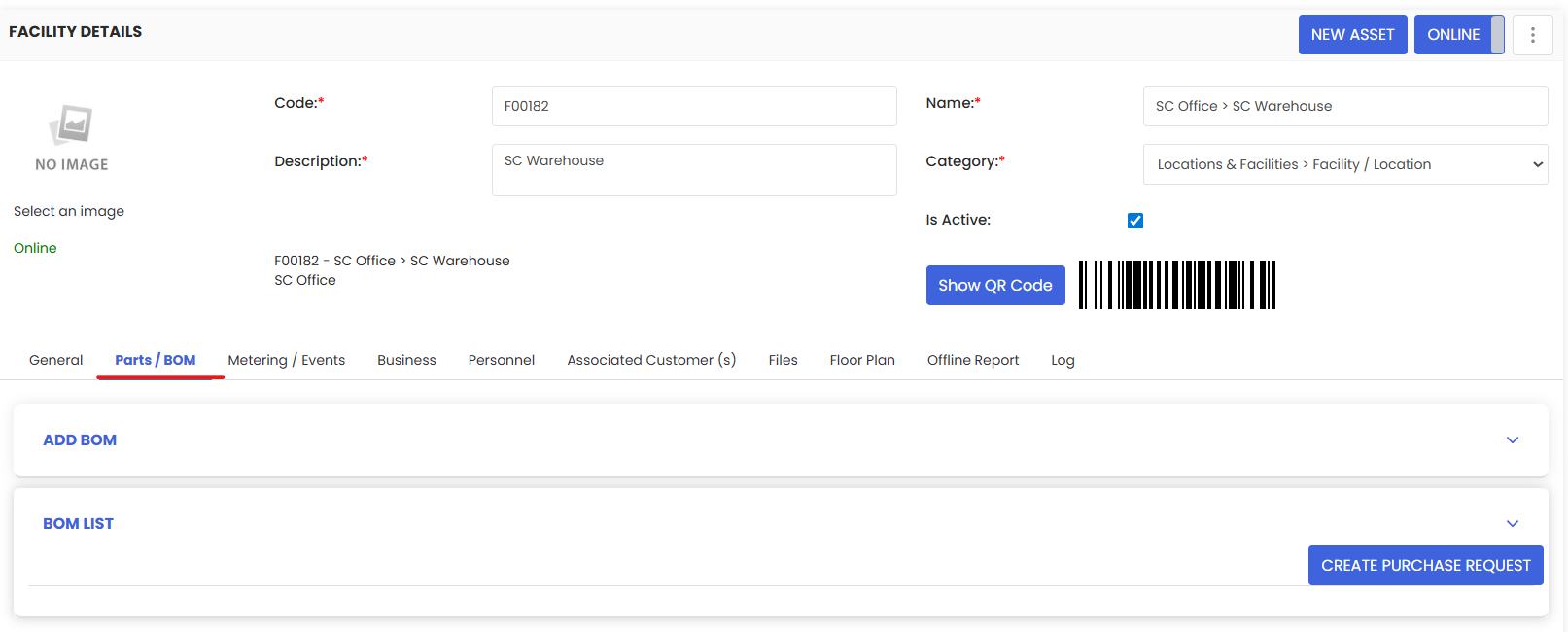
Navigate to Assets → Facilities and click on the facility you want to add a BOM to. This will open the Facility Details page.
Step 2 – Click on the Parts/BOM Tab
On the Facility Details page, click the Parts/BOM tab. This is where all BOM items for this location are managed.


Step 3 – Expand "Add BOM" and Choose a Mode
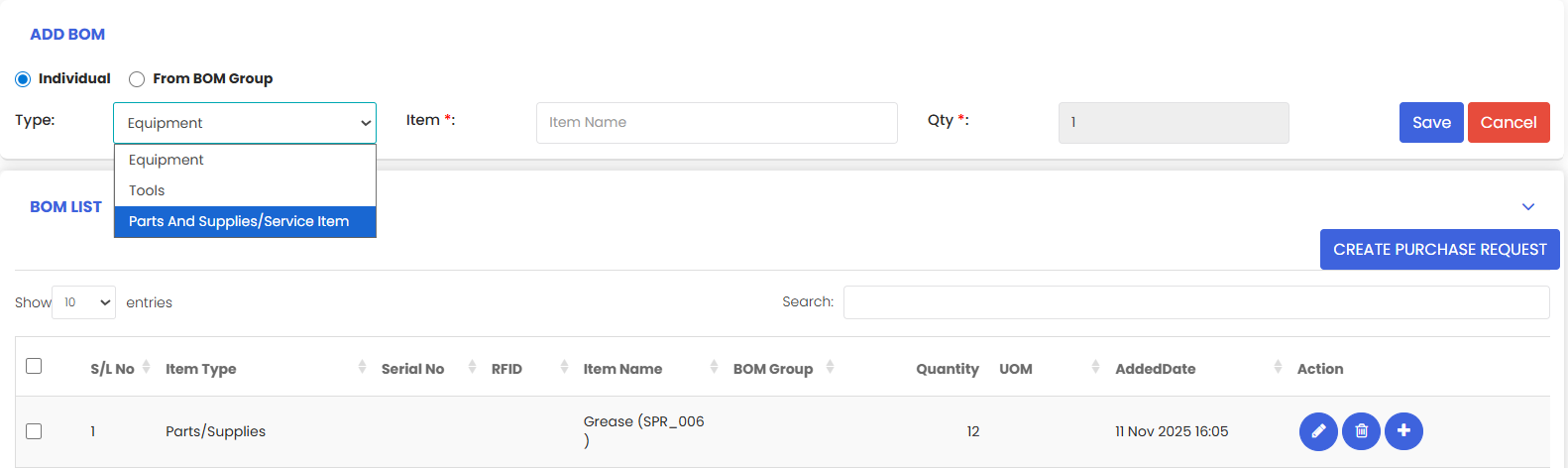
Click Add BOM to expand the options. You will be prompted to choose how you want to add items:
- Individual — Add items one by one. Best for small or custom lists.
- From BOM Group — Pull a predefined group of items in one step. Best for standard kits or recurring material sets.
Option A — Adding Items Individually
If you selected Individual, follow these steps:
- Select the Type — Choose the item type from the dropdown (e.g., Equipment, Part, or Consumable).
- Search and Select the Item — Use the search field to find and select the item from your inventory.
- Enter the Quantity (Qty) — Enter the typical quantity to keep or use for this location.
- Click Save — The item will be added to the BOM list.
- Repeat for any additional items you need to add.
Option B — Adding Items from a BOM Group
If you selected From BOM Group, follow these steps:
- Select the BOM Group from the dropdown list.
- Confirm to add all items in the group to the facility BOM in one step.
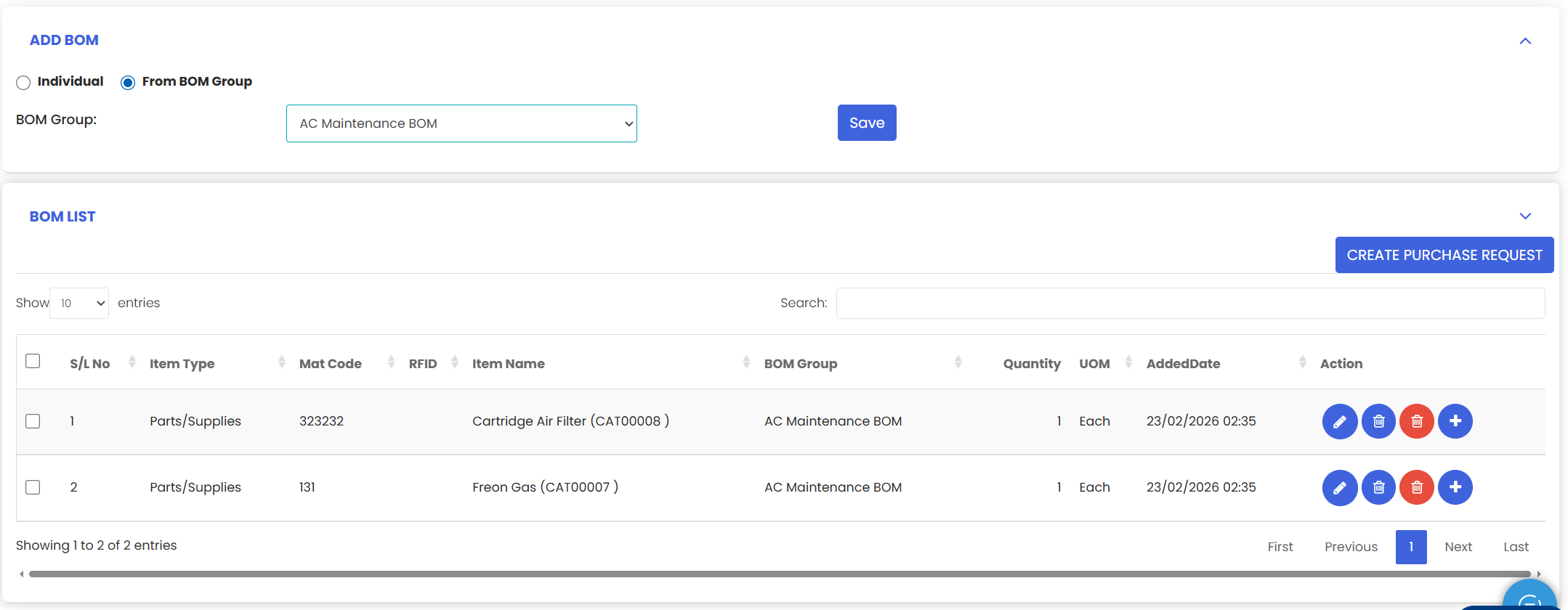
Tip: Using BOM Groups is the fastest way to populate a facility BOM, especially if multiple locations share the same standard set of materials.
Step 4 – Review the BOM List
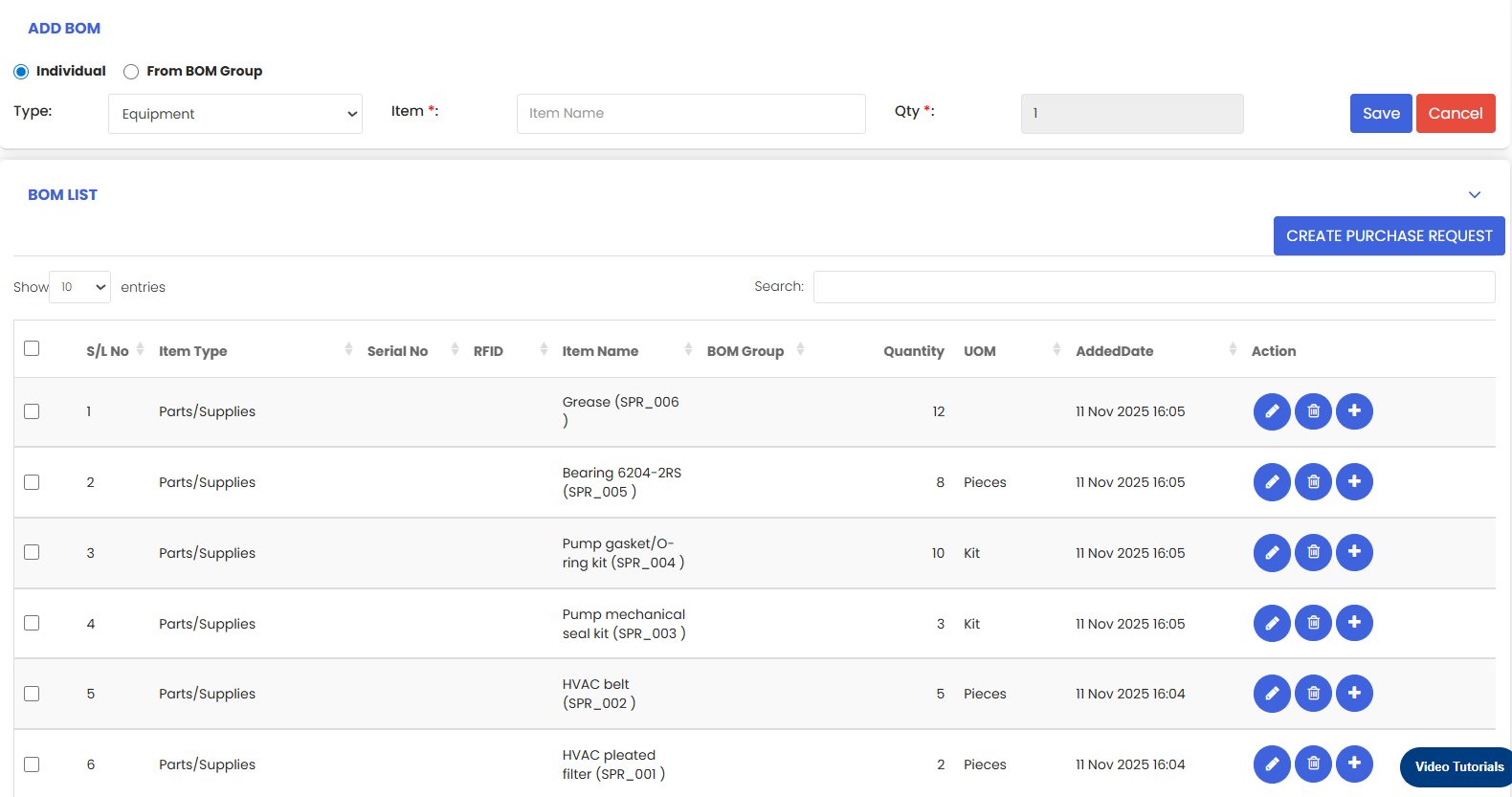
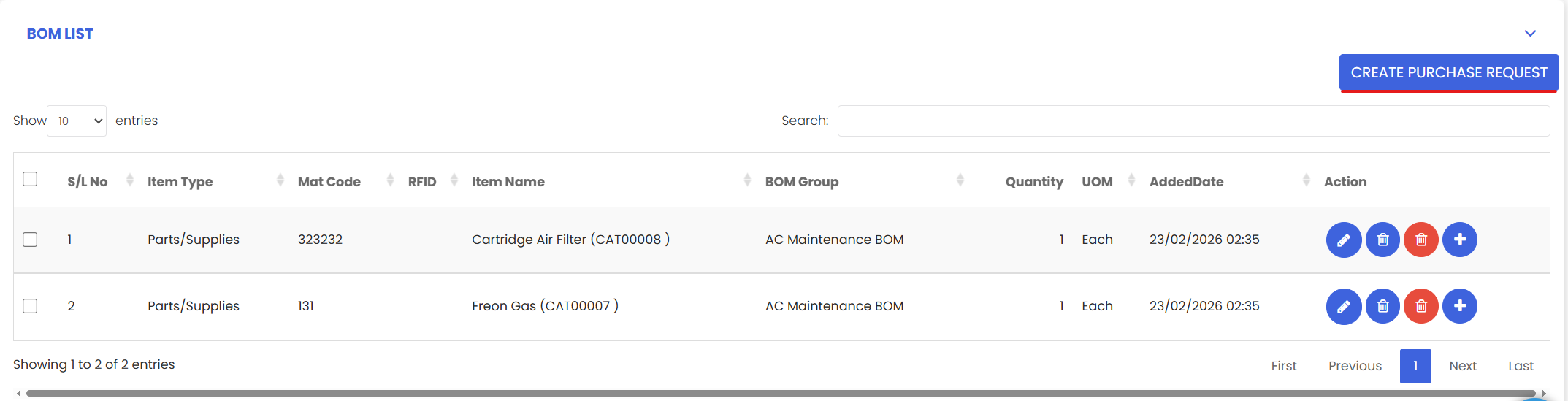
Once items are added, review the BOM List displayed below the Add BOM section. Verify the following for each item:
- Item Name — Correct part or consumable
- Quantity — Expected amount
- UOM (Unit of Measure) — Correct unit (e.g., each, litre, kg)
Use the Action column to edit or remove any item as needed.
Step 5 – (Optional) Create a Purchase Request
If any items need to be restocked, you can create a Purchase Request directly from this page:
- Option 1: Check the items you want to reorder and click Create Purchase Request.
- Option 2: Click the + icon in the Action column next to an individual item to create a purchase request for that specific item.
The location BOM is now tied to this facility and will automatically surface on related work orders for this site.
After Adding BOM — What's Next?
Now that your facility BOM is set up, you can:
- Assign Personnel to the facility so your team knows who is responsible — see How to Assign Personnel to a Location/Facility
- Create Work Orders for this facility — the BOM items will automatically appear — see Create and Manage Work Orders
- Monitor stock levels and create purchase requests as needed
Tips for Managing Facility BOMs
- Keep your BOM up to date. Review it periodically as equipment changes or maintenance procedures evolve.
- Use BOM Groups for locations that share the same standard materials — it saves time and ensures consistency.
- Set realistic quantities. Enter quantities that reflect actual usage or safety stock levels to avoid unnecessary purchase requests.
- Use the Purchase Request feature directly from the BOM tab to keep your procurement process streamlined.
Frequently Asked Questions
Can I add the same item to multiple facility BOMs?
Yes. An item from your inventory can be added to as many facility BOMs as needed.
Can I edit an item's quantity after it has been added?
Yes. Use the Action column in the BOM list to edit any item's details including quantity and UOM.
What is a BOM Group?
A BOM Group is a predefined collection of items that can be added to a facility BOM in one step.
Will the BOM items automatically appear on work orders?
Yes. Once a BOM is set up for a facility, the listed items will surface on related work orders for that location, making it easier for technicians to know what materials are needed.
Can I create a Purchase Request from the BOM tab?
Yes. Select the items you need to reorder and click Create Purchase Request, or use the + icon in the Action column for individual items.
Related Articles
- Create Asset Locations
- Import Asset Locations
- How to Assign Personnel to a Location/Facility
- Create and Manage Work Orders